Connect a Facebook page or Instagram account and import your posts
Paste your page link, confirm you own it with one Facebook login, then bring your photo posts into one library in your dashboard.
- Facebook: you must be an admin of the Page; personal profiles cannot be read.
- Instagram: the account must be a Professional (Business or Creator) account.
- We only read your public posts and photos. We never post, message or see your password.
You are reading the web way: your store dashboard in a computer browser.
1. Connect the page
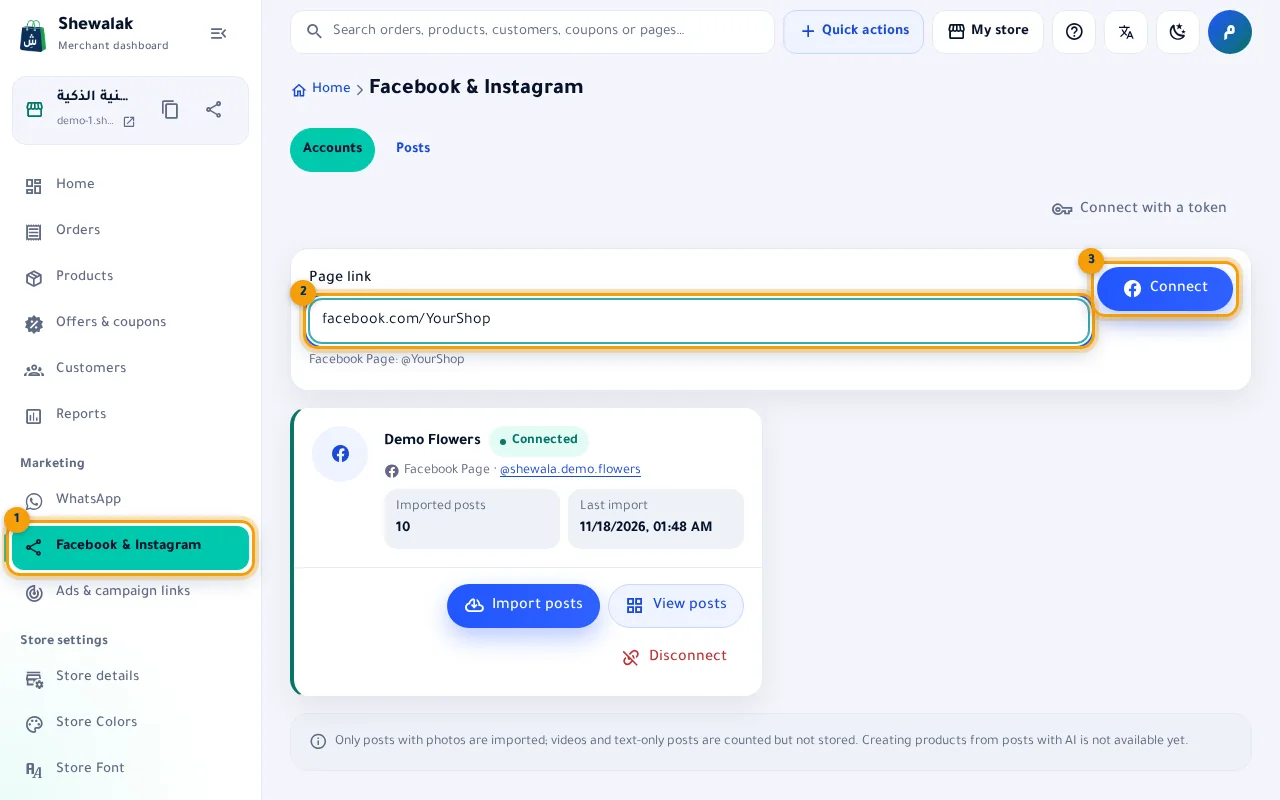
- In the dashboard sidebar, under Marketing, choose Facebook & Instagram; it opens on the Accounts tab.
- In Page link paste your page address, such as
facebook.com/YourShoporinstagram.com/yourshop. The field recognises the link and shows the account type and name under it. - Select Connect, then sign in to Facebook in the window that opens and allow reading posts. If your account manages several Pages, it asks Which Page is this store?: pick the Page and select Connect this Page.
The first time you also see No account connected yet with the Connect Facebook Page and Connect Instagram buttons; they open the same login without a link to paste.
2. Import the posts
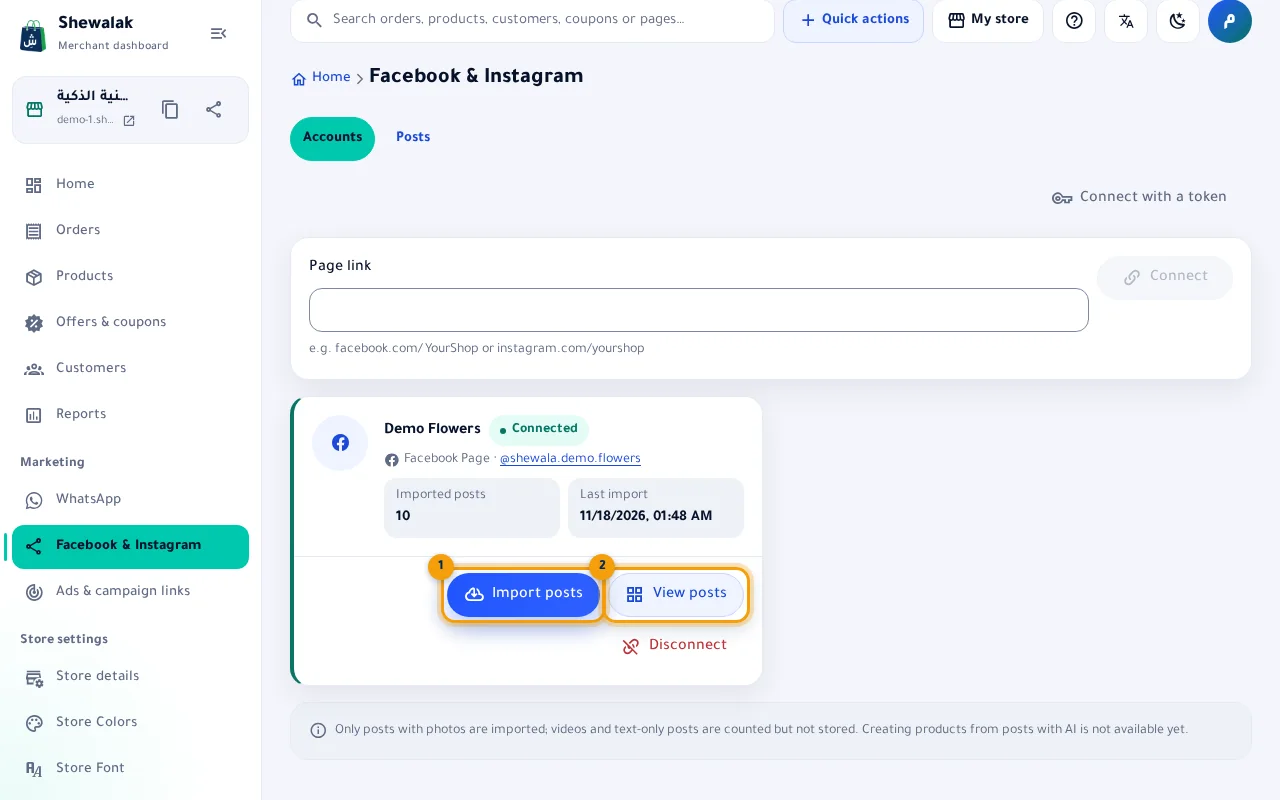
The account appears in a card marked Connected, showing Imported posts and Last import.
- Select Import posts.
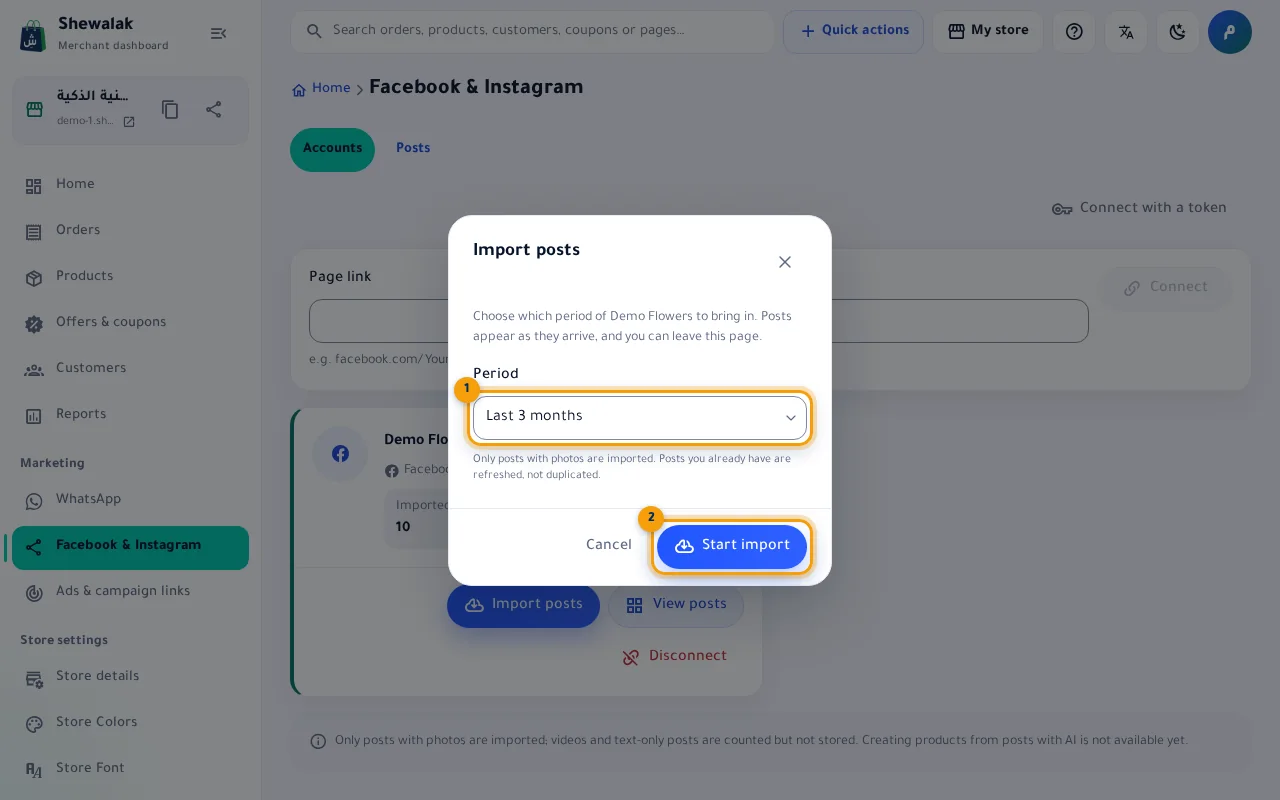
- Under Period choose Last 3 months, Last 6 months, Last 12 months or Custom period.
- Select Start import. Posts appear as they arrive, and you can leave the page meanwhile.
Only posts with photos are imported; videos and text-only posts are counted but not stored.
3. Browse your posts
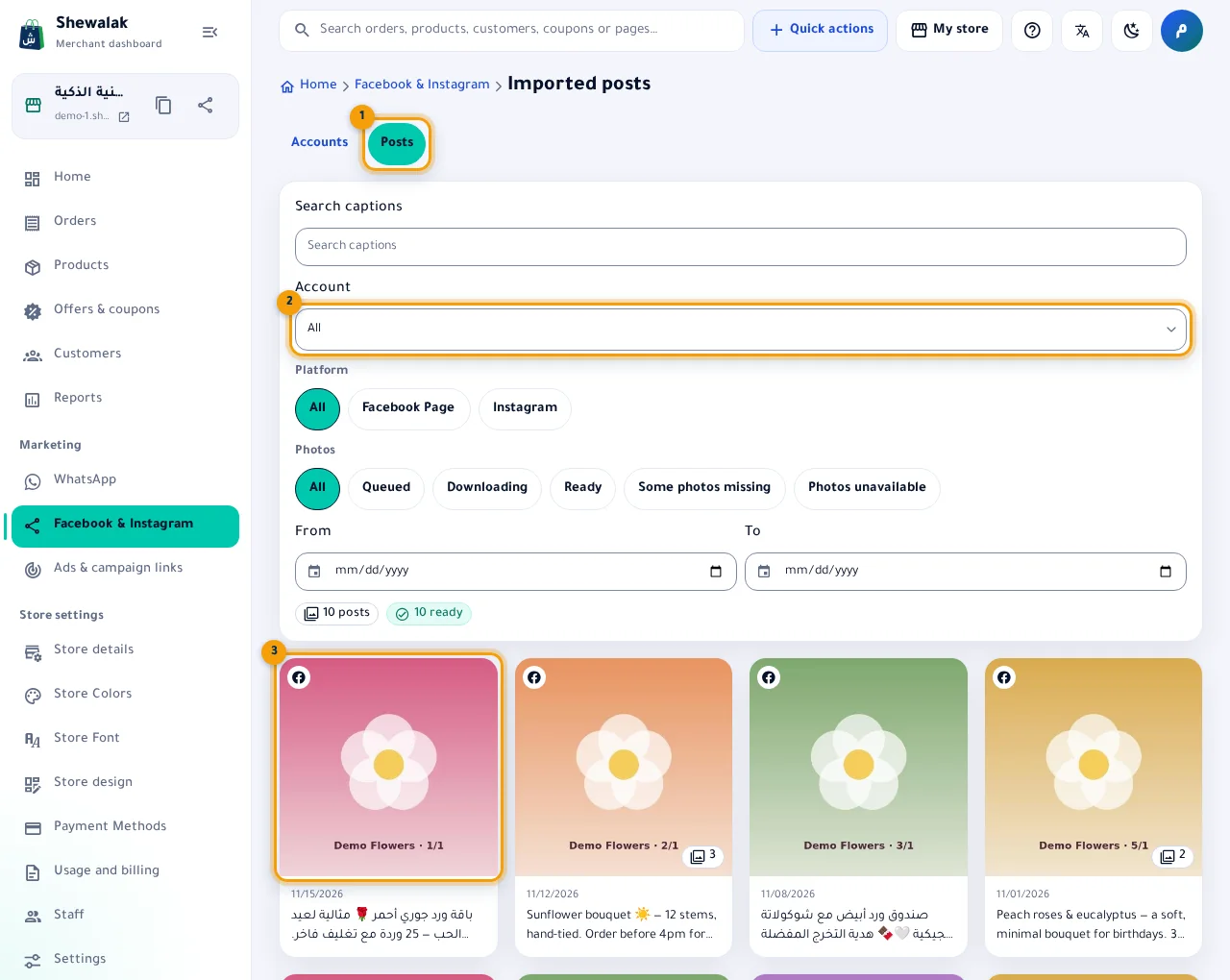
Select View posts on the account card, or open the Posts tab. Filter by Search captions, Account, Platform, Photos and date, then select any post to see its photos, caption, likes and comments, with Open the original post and Hide post.
Creating a product from a post with AI is not available yet; the post window shows it as a disabled Create product with AI (soon) button. Until then, add the product from Add a product using the post's photos and caption.
You are reading the app way: the Shewalak merchant app on your phone.
1. Connect the page
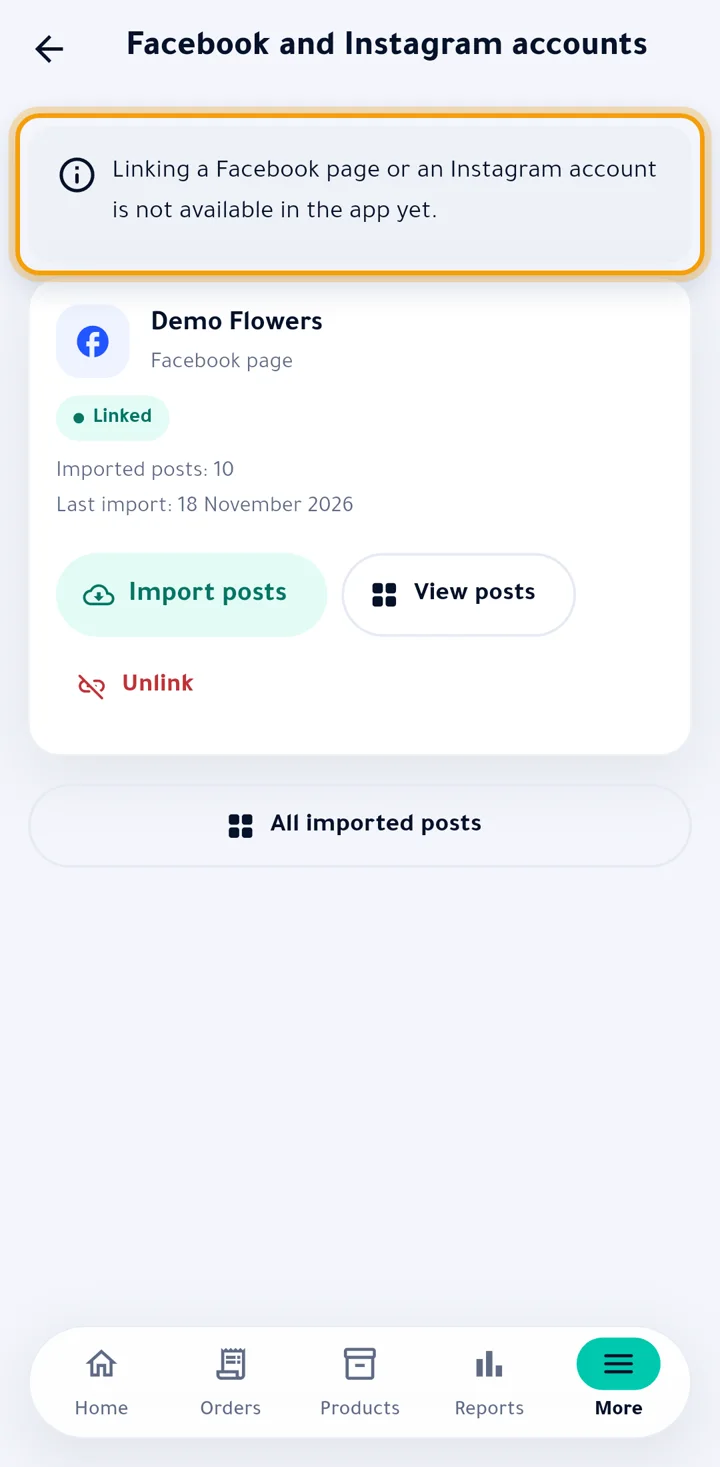
Linking a Facebook page or an Instagram account is not available in the app yet. Link it from the web tab first; the linked account then shows up in the app.
2. Import the posts
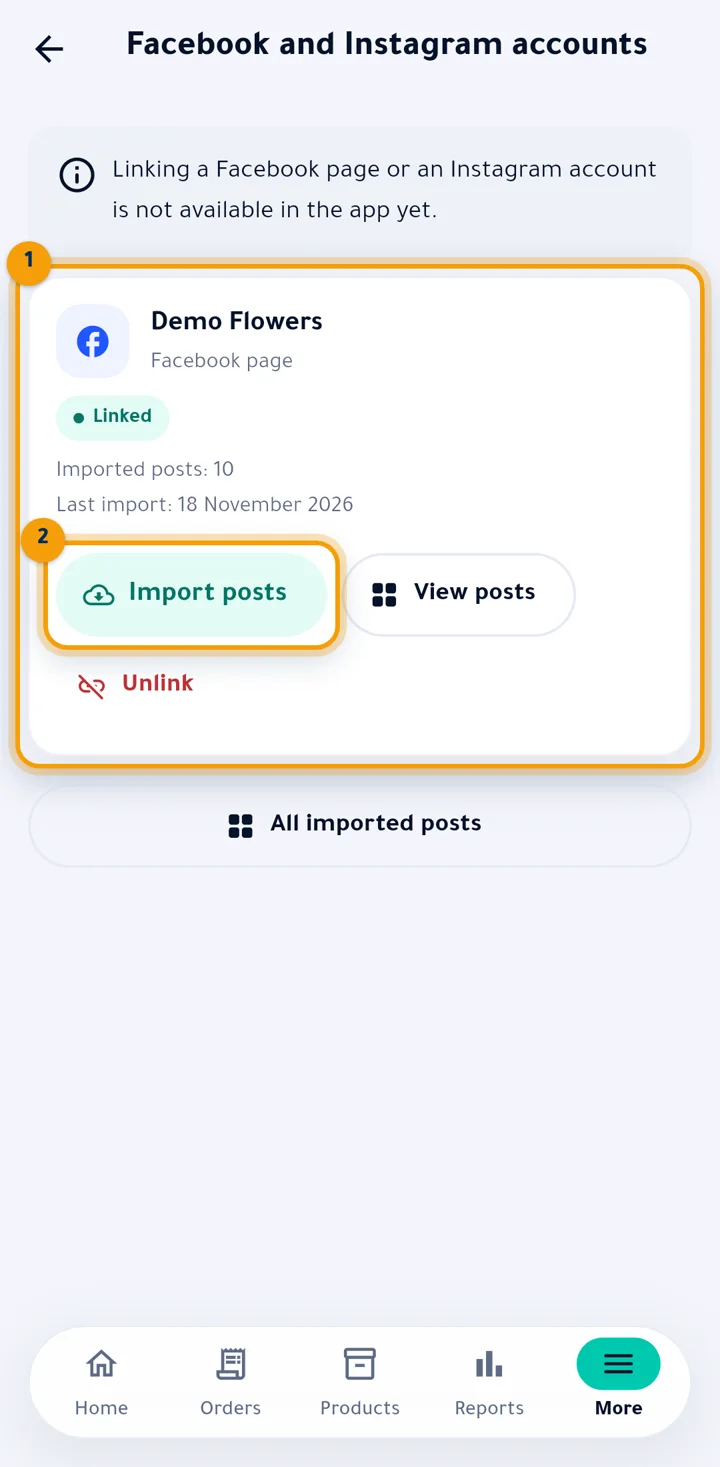
In the app, tap the More tab in the bottom bar, then Facebook and Instagram. Each account is a card marked Linked, showing Imported posts and Last import.
- Tap Import posts.
- Choose the period: Last 3 months, Last 6 months, Last year or A period I choose (then pick From and To).
- Tap Start import. Posts appear as they arrive, and the import finishes even if you close the app. To stop it, tap Stop the import.
Only posts with pictures are imported.
3. Browse your posts
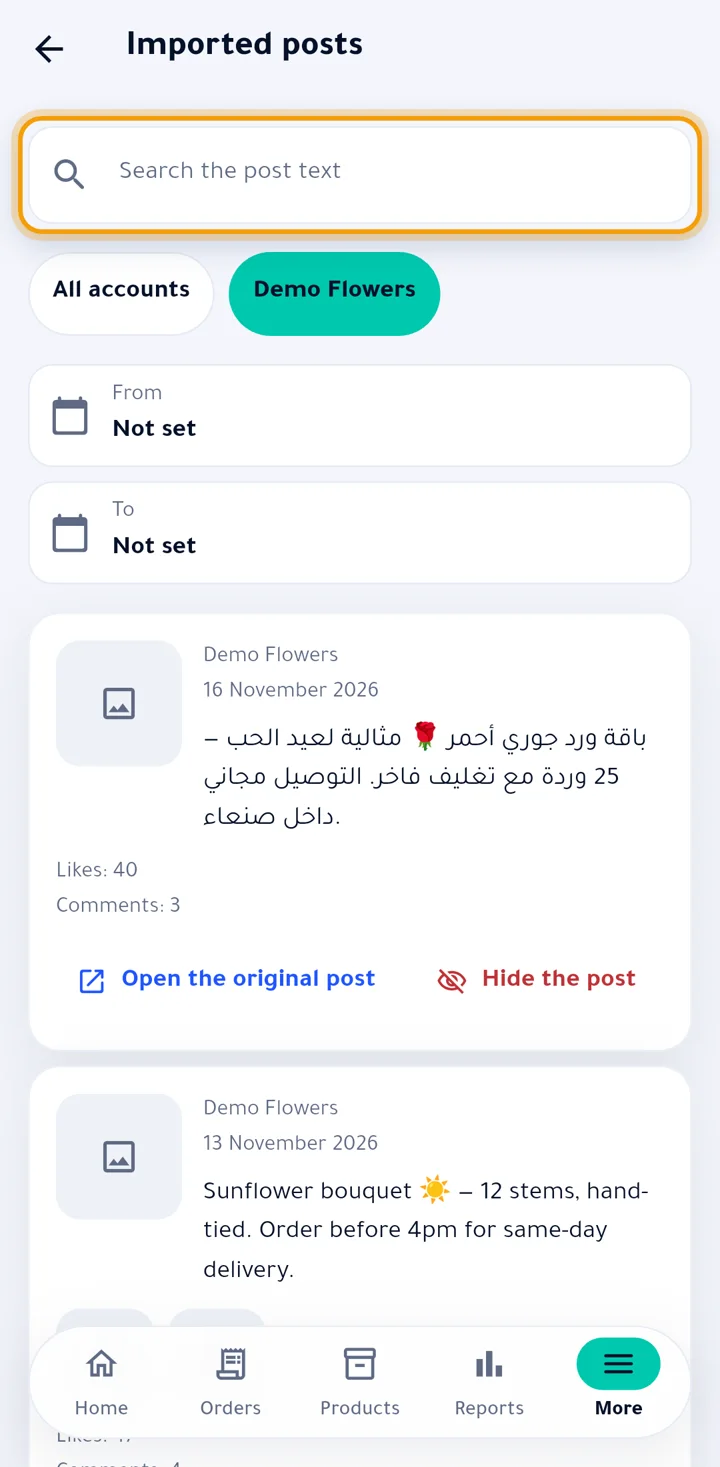
Tap View posts on the account card, or All imported posts. Use Search the post text and the Accounts filter, then tap a post to see its pictures, text, Likes and Comments, with Open the original post and Hide the post.
A hidden post leaves the list and cannot be shown again from the app. The original on Facebook or Instagram is not touched.
What happens next
Every new import refreshes Imported posts without duplicates, so your page's archive stays at hand. Next step: campaign links and ad measurement to see what each platform brings in.
Last updated: 2026-11-19
All Marketing articles