Enter a phone order and send its confirmation
Record the customer, choose products and their options, review the price, then save the order and send its WhatsApp confirmation.
Use this path when a customer orders by call or message and you want the sale to appear in your dashboard like every other order.
You are reading the web way: your store dashboard in a computer browser.
Open the Orders page of your dashboard in a computer browser.
Open the order form
In the dashboard, from Orders select Create phone order, or pick it from Quick actions at the top of the dashboard. On any customer's page, New phone order opens the form with their details filled in.
The form has three stages shown at its top: Customer, Products and Review.
1. Enter the customer
- Type the Mobile number first. If the customer has ordered before, a Returning customer badge shows their order count and the Customer name and Delivery address are filled in for you; otherwise enter them.
- Optionally add an Order note (optional), such as a delivery time or a landmark for the driver.
- Select Next: products.
Check the number before continuing: it is the one that receives the WhatsApp confirmation.
2. Choose products
- In Product, type part of its name and pick it from the list. Only active products appear here.
- If the product has options such as colour or size, an Option field appears; choose what the customer asked for.
- Set the Quantity. The stock Available shows under it, and the form will not accept more.
- Select Add another product to complete the basket, or Remove to drop a line.
- Select Review order.
3. Review the price and save
The review shows Order products and a Customer and total card with the customer's details, Subtotal, any Discount, the Total and the Payment method. Prices, discounts and the payment method are calculated automatically from your store and cannot be edited here. Match them with what you agreed with the customer, then select Save order.
If a price or stock level changes before saving, the button becomes Refresh price; select it and review the new total. Your entries stay in the form if pricing or saving fails, so you can retry without creating a duplicate order.
Result and next action
The Order created screen shows the order number and, under it, the WhatsApp confirmation status. Then choose:
- View created order to follow it from its page like any other order.
- Send confirmation on WhatsApp to open the chat with the customer and the message ready.
- New phone order to record another one, or Back to orders.
If the confirmation message could not be prepared, the order is still saved; open it and contact the customer yourself.
You are reading the app way: the Shewalak merchant app on your phone.
Open the order form
In the app, tap Home and, under Shortcuts, tap Take a phone order; or tap Orders, then Phone order. On a customer's page, New phone order opens the form with their details filled in. The screen is titled Phone order.
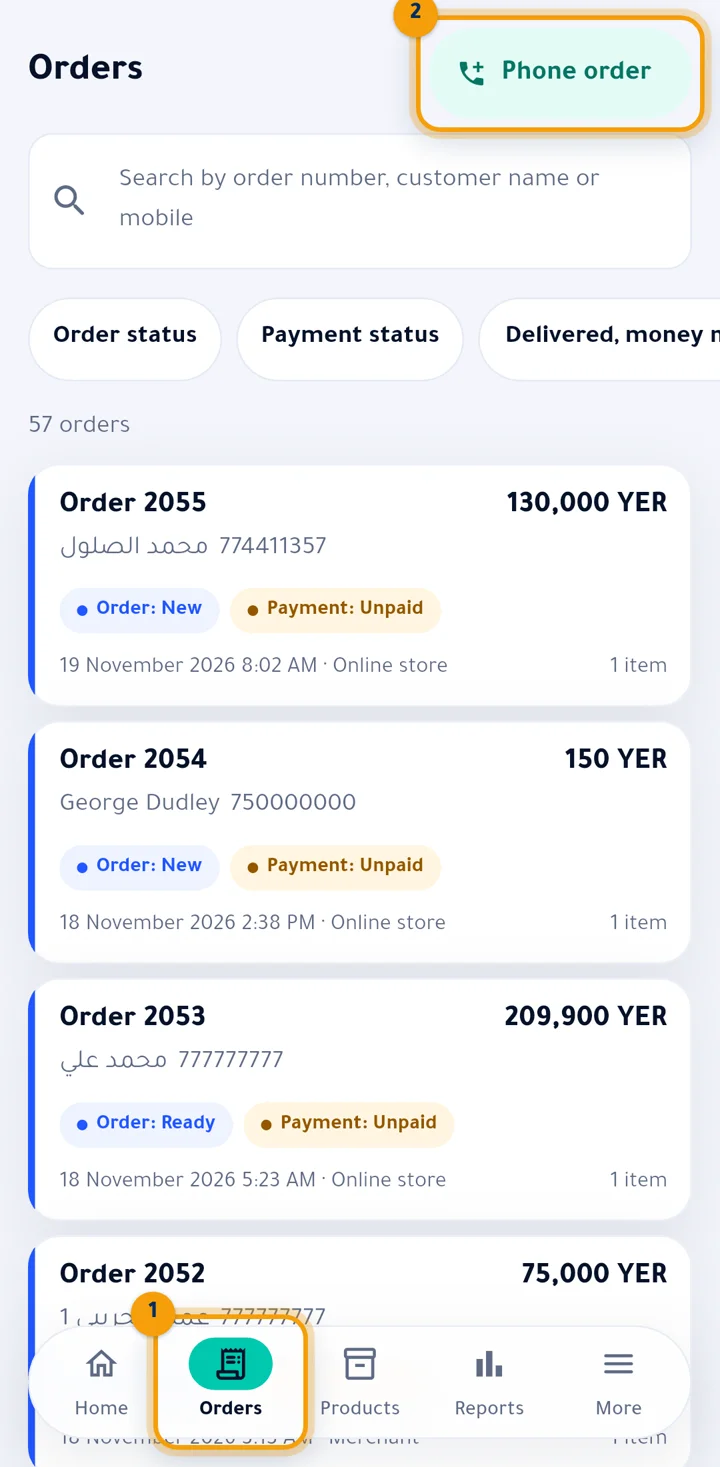
1. Enter the customer
- Type Customer's mobile. If the customer has ordered before, you see Returning customer · name · orders: … and Customer's name and Delivery address are filled in from their last order; otherwise enter them.
- Optionally add Note (optional), such as a delivery time.
Check the number first: it is the one that receives the WhatsApp confirmation.
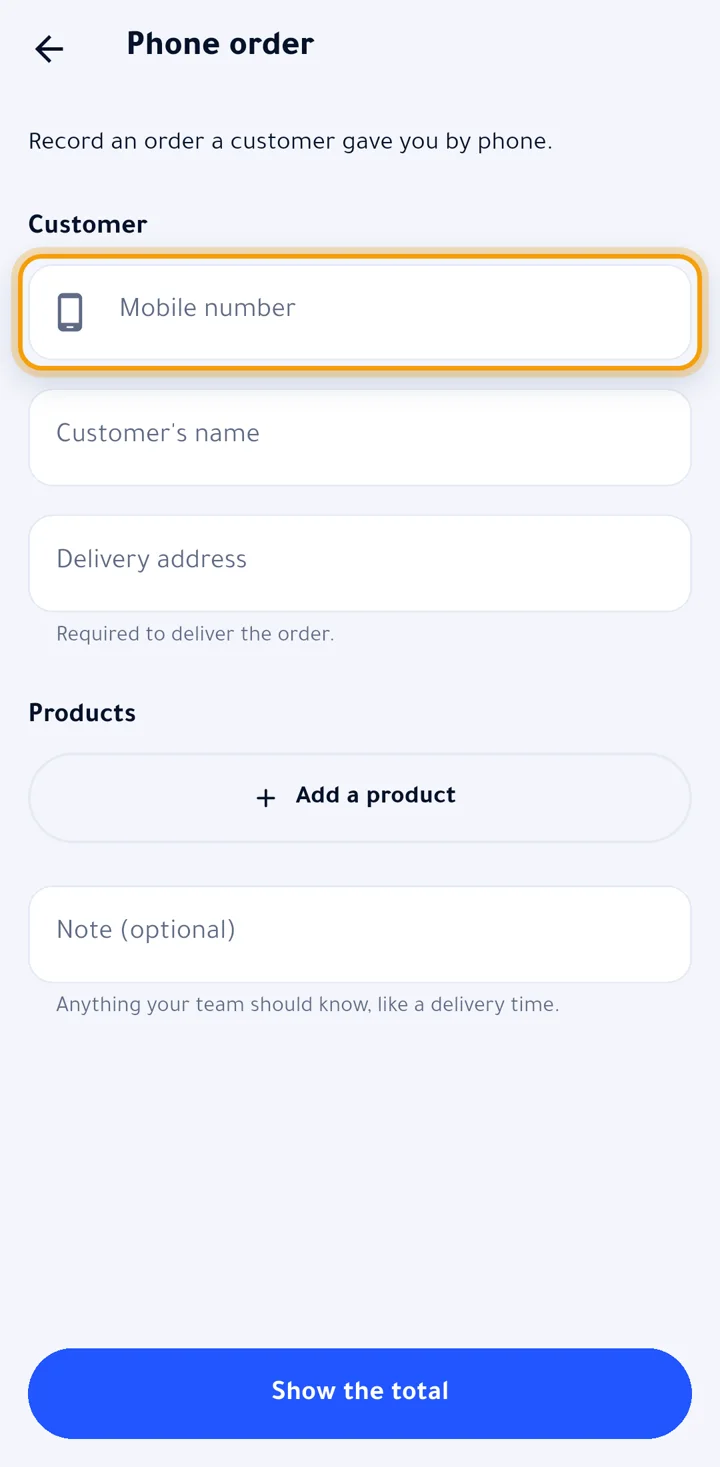
2. Choose products
- Tap Add a product, search with Search your products and tap the product in Choose a product.
- If the product has options such as colour or size, Choose one appears; pick what the customer asked for.
- Set the quantity with Add one and Remove one. The app tells you if only a few are left.
- Tap Add a product again to complete the basket, or tap the remove button of a product line (Remove …) to drop it.
- Tap Show the total.
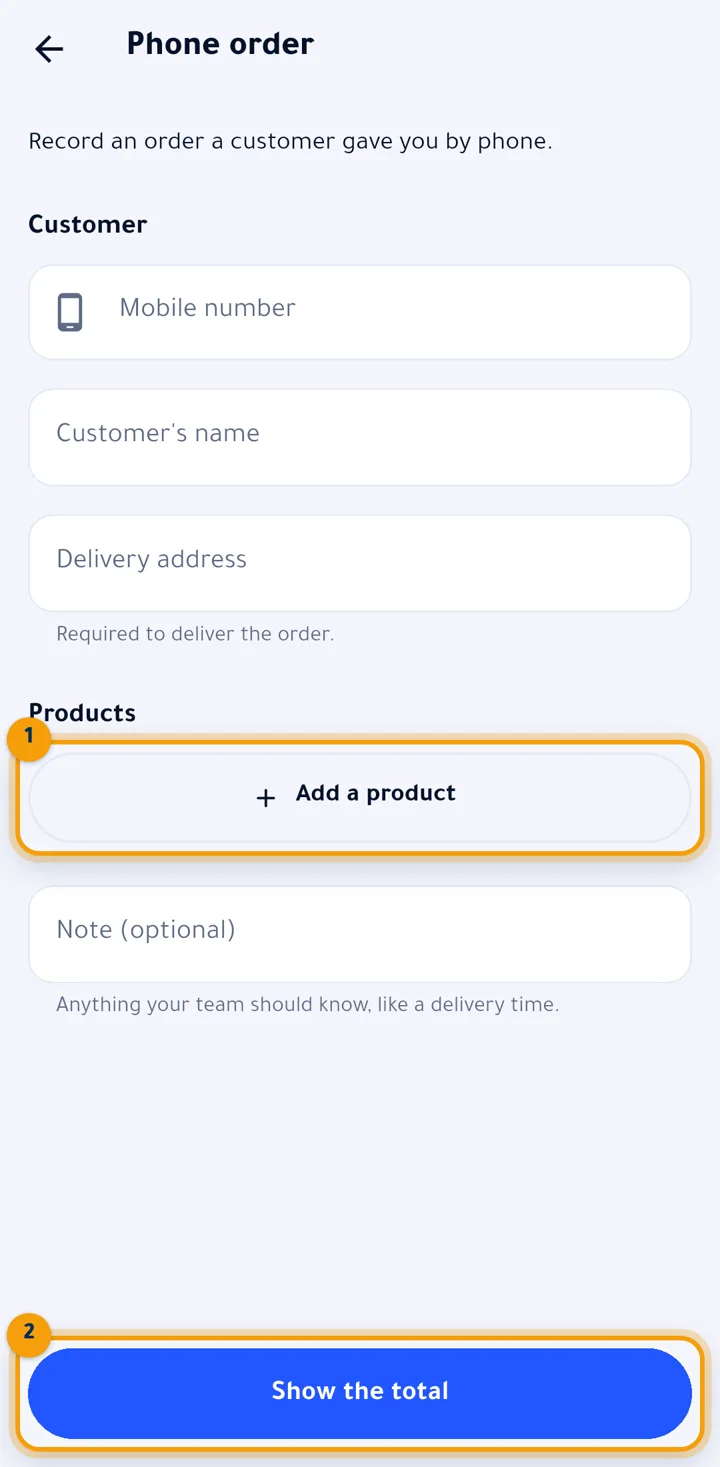
3. Review the price and save
Order total shows the Subtotal, any Discount, the Total and Payment. Prices, discounts and the payment method are calculated automatically from your store and cannot be edited here. Match them with what you agreed with the customer, then tap Record the order with the total beside it. Tap Change the order to go back.
If a price or stock level changes before saving, the app says so; check the order and tap Show the total again. What you entered stays in the form if saving fails.
Result and next action
The screen Order … recorded appears. Then choose:
- Open the order to follow it from its page like any other order.
- Send confirmation on WhatsApp to open the chat with the customer and the message ready.
- New phone order to record another one, or Open orders.
If the confirmation message could not be prepared, the order is still saved; open it and contact the customer yourself.
What happens next
Learn how to add product options so customers can order the colour or size they want.
Last updated: 2026-11-19
All Orders and customers articles