Share your store link with your first customer
Copy your store link from Home and send it on WhatsApp or put it in your Instagram bio; the customer opens it and orders without signing up.
Your store link has been ready since you registered, in the form https://your-store.shewalak.com, and you find it under your store name at the top of the side menu and at the top of Home. Before sharing, make sure at least one product shows in your store (Add your first product) and that you have set up delivery, so every customer does not ask you the same question.
You are reading the web way: your store dashboard in a computer browser.
1. Copy the link
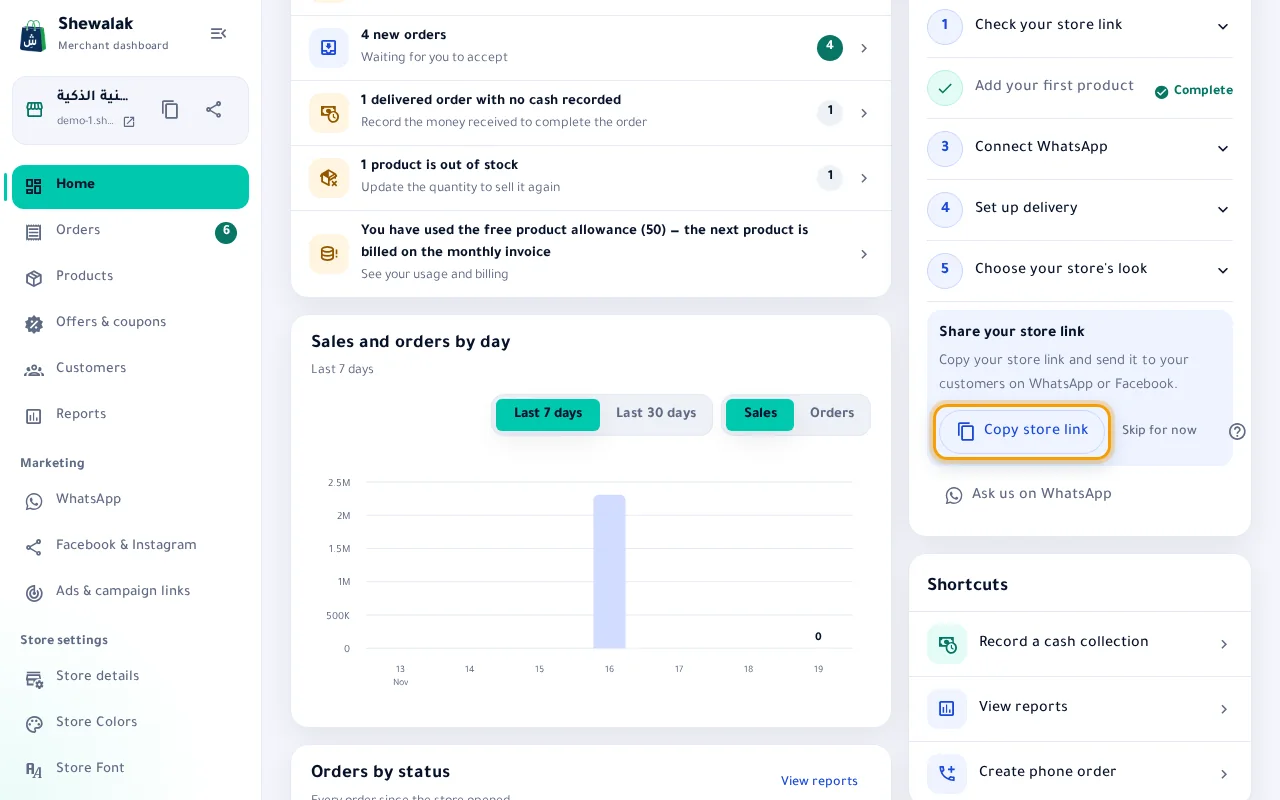
In the Get your store ready to sell card on Home, select the Share your store link step to open it, then select Copy store link. You see Your store link was copied and progress saved and the step is marked Complete.
Other ways to copy and share
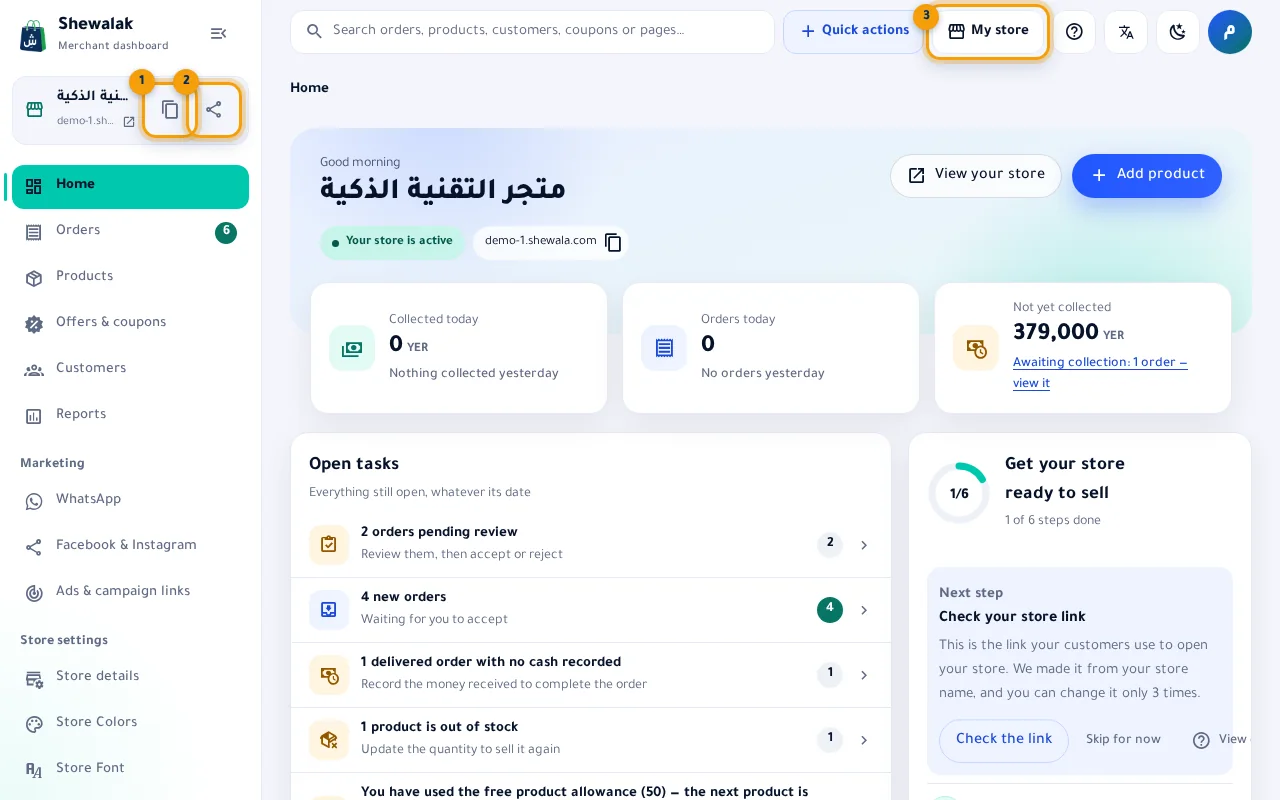
- At the top of the side menu, next to your store name, are Copy link and Share link. Share opens your device's sharing apps with a ready-made message inviting the customer to visit your store; if your device cannot share, it copies the message with the link instead.
- My store in the top bar opens a menu with Open store, Copy link and Share link.
2. Share it where your customers are
- WhatsApp: paste the link into a message or a status with a product photo and its price.
- Instagram and Facebook: put it in the bio and in the first comment of every post.
- TikTok and Snapchat: in the profile description or as a swipe-up link.
If you want to know which platform brings the orders, create a campaign link for each place instead of the plain link.
You are reading the app way: the Shewalak merchant app on your phone.
1. Copy the link in the app
- In the bottom bar tap Home.
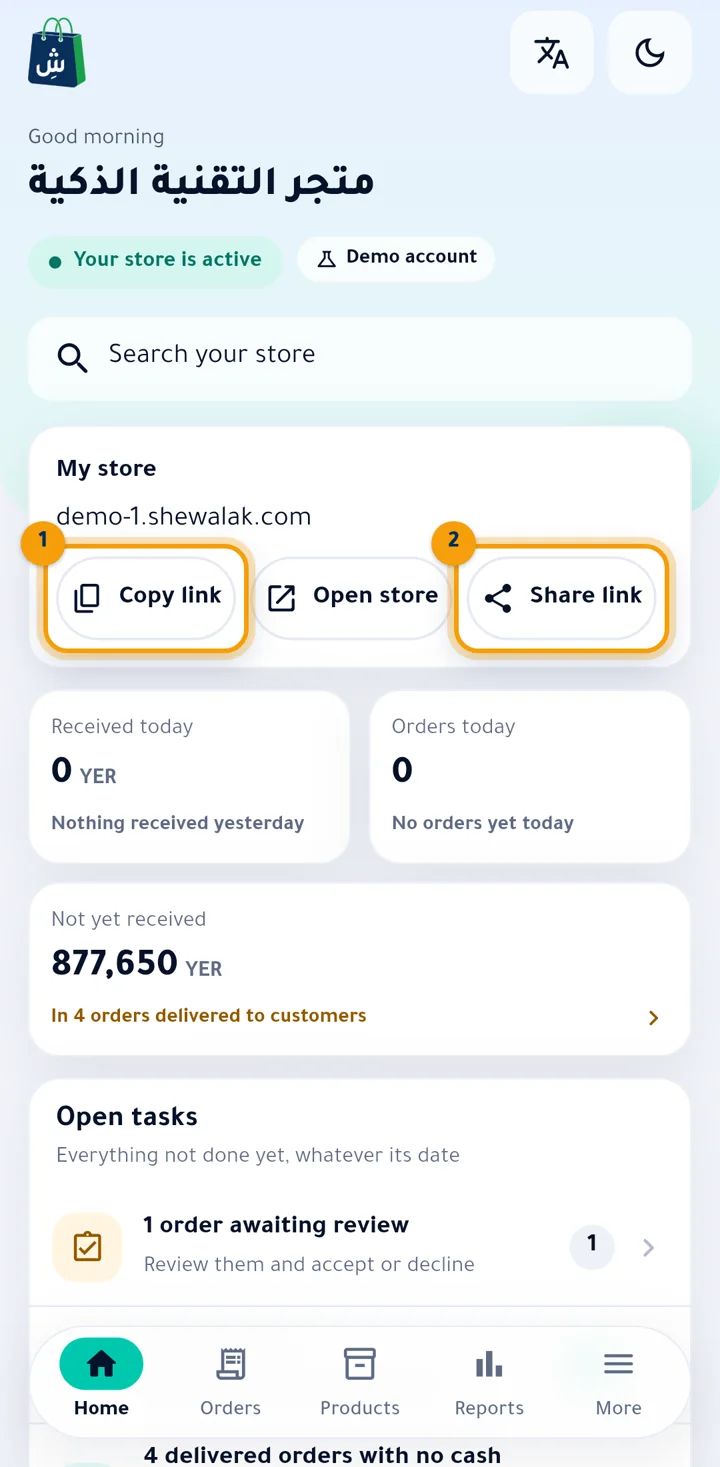
- In the Get your store ready to sell card, when Share your store link is the next step, tap Copy link. You see Link copied and progress saved and the step is marked Complete.
- To send it straight away, tap Share link instead. Your phone opens its sharing apps with a ready message inviting the customer to visit your store.
Other ways to copy and share in the app
- On Home, the My store card has Copy link, Open store and Share link.
- Under More, the same buttons sit under your store name.
2. Share it where your customers are in the app
- WhatsApp: paste the link into a message or a status with a product photo and its price.
- Instagram and Facebook: put it in the bio and in the first comment of every post.
- TikTok and Snapchat: in the profile description or as a swipe-up link.
If you want to know which platform brings the orders, create a campaign link for each place instead of the plain link.
What the customer sees
The link opens your store page with your colours and logo; the customer browses categories, adds to the basket and completes the order with their name, mobile and address, with no account to create. The order reaches you at once, and the customer receives a WhatsApp confirmation if WhatsApp is connected.
What happens next
When the first order arrives, follow it in Manage your first order. To improve how the link looks when shared (the title and image shown in WhatsApp), fill in Showing up on Google (optional) in Store details.
Last updated: 2026-11-19
All Store settings articles