Campaign links and advertising pixels
Create a short link for every story or ad to see the orders it brings, and connect the Meta, TikTok, Snapchat and Google pixels to measure campaigns with real orders.
Start with Campaign links; they need no ad account and work at once. Ad measurement (the pixels) is for merchants who advertise on Facebook, TikTok, Snapchat or Google and hold IDs from the ad platforms; if you do not advertise, there is nothing you need there.
You are reading the web way: your store dashboard in a computer browser.
1. Create a campaign link
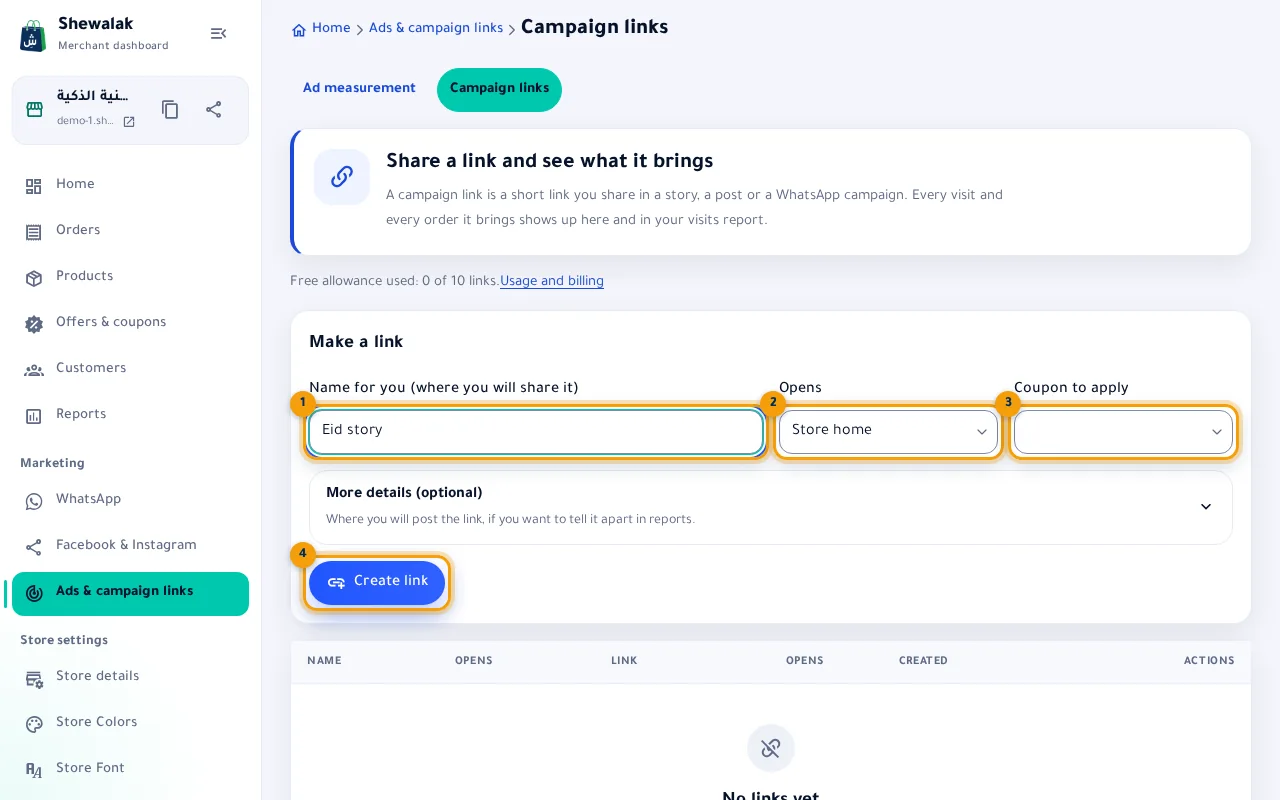
In the dashboard sidebar, under Marketing, choose Ads & campaign links, then the Campaign links tab. In the Make a link card:
- Under Name for you (where you will share it) write, for example,
Eid story. - Under Opens choose Store home, A product, A category or The offers page, then pick the product or category if asked.
- Optionally pick a Coupon to apply so whoever opens the link gets the discount without typing a code.
- Select Create link. Link created: appears with copy and share buttons, and the link is added to the table.
To tell the link apart in reports, open More details (optional): under Where will you share it? pick the platform, such as Instagram, WhatsApp or TikTok, and write a Campaign name such as eid-2027. With Other you type the Platform and Type yourself.
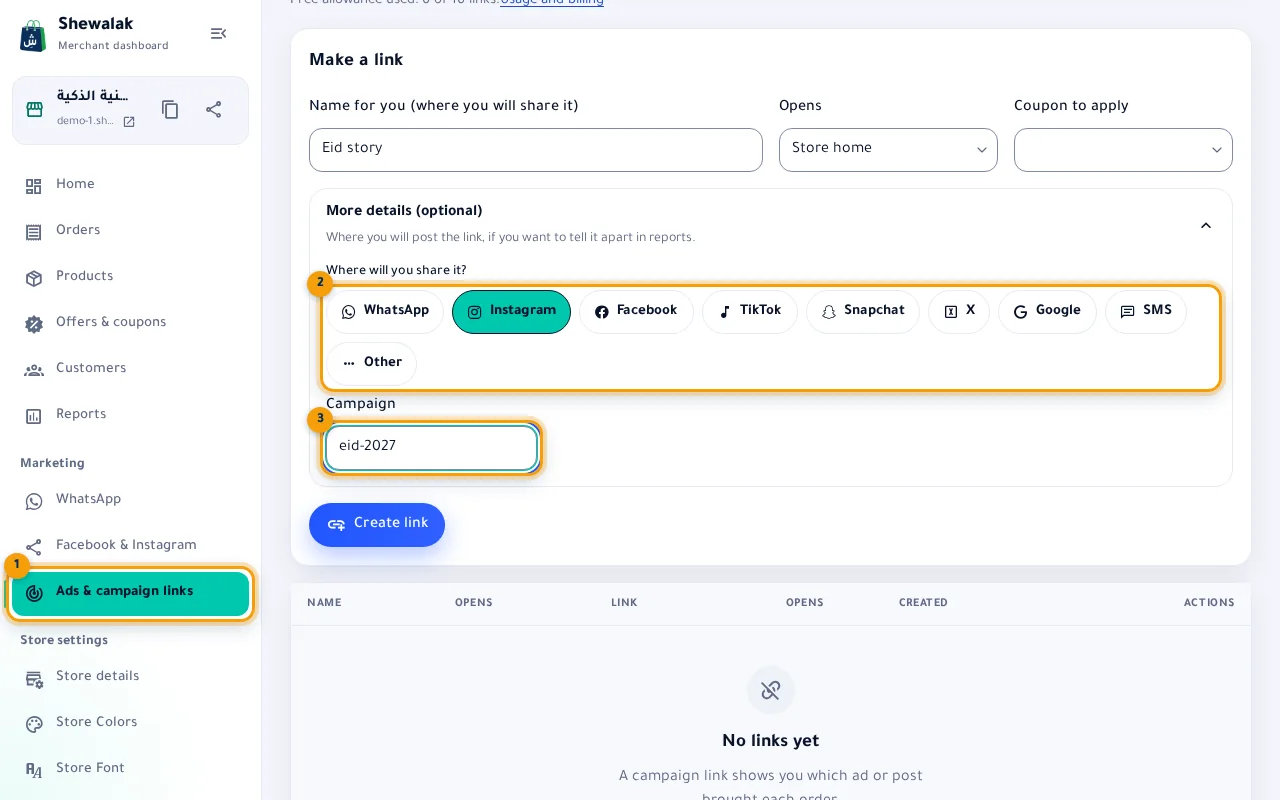
The table shows how many Opens each link had, and the Visits tab in Reports ties every order to the platform and campaign it came from. Free links are limited by your plan; the line above the form shows what you have used.
2. Connect the ad measurement codes
Open the Ad measurement tab. Under Ad measurement codes each platform has a card marked Connected or Not connected; select the card to open it, paste the ID, then select its own Save button:
- Facebook and Instagram ads → Meta pixel ID (Facebook & Instagram): Meta Events Manager → your pixel → Settings; digits only.
- Google Analytics → Google Analytics 4 measurement ID: starts with
G-. - Google Tag Manager → Google Tag Manager container ID: starts with
GTM-. - TikTok ads → TikTok pixel ID, and Snapchat ads → Snap pixel ID: from each platform's ads manager.
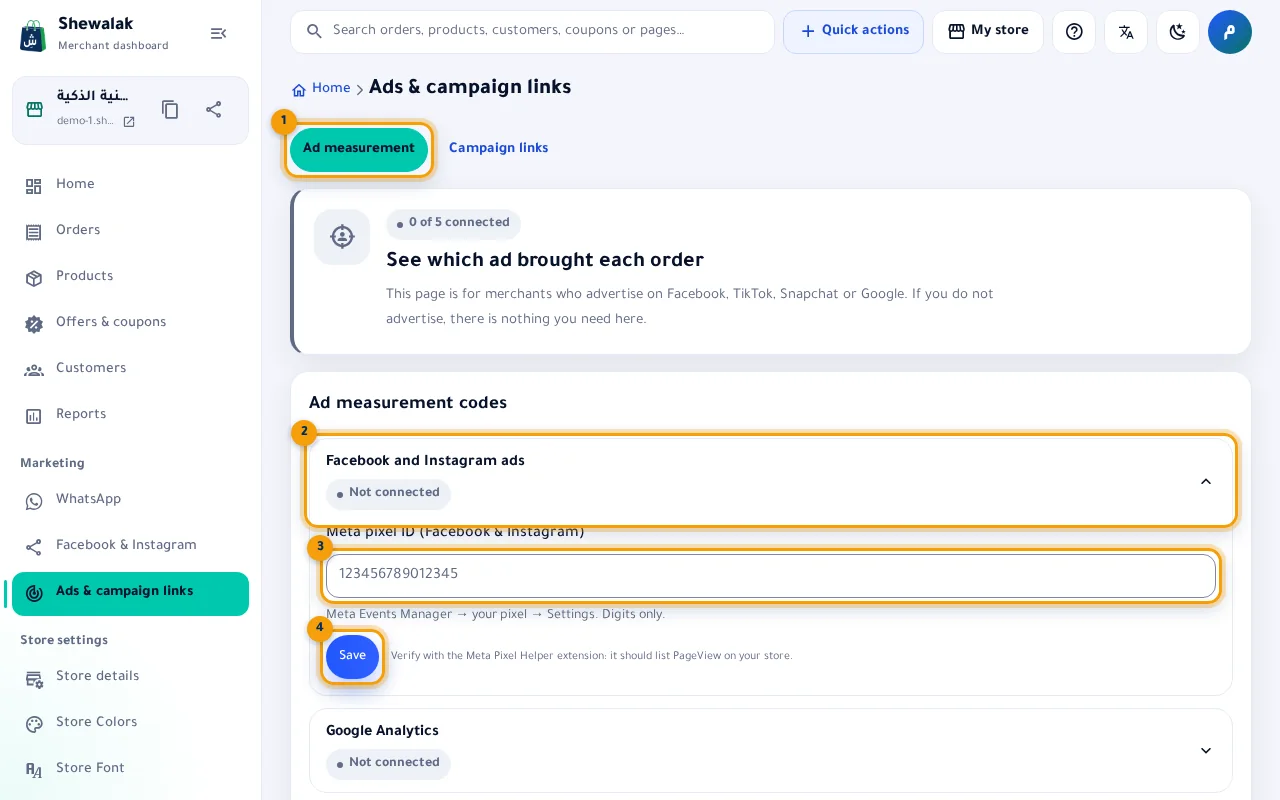
After saving, verify the way described under each field, for example the Meta Pixel Helper extension should list PageView on your store. From then on each platform sees the visit, the product view, the add to basket and the purchase.
If a notice says Google, TikTok and Snapchat ad measurement is not switched on for your store yet, only the Meta pixel is available to you for now and the other cards show Not available for your store; ask us on WhatsApp to turn them on.
Google Tag Manager runs any script added to the container inside your store, so grant access to your container only to people you trust.
You are reading the app way: the Shewalak merchant app on your phone.
1. Create a campaign link
In the app, tap the More tab in the bottom bar, then Ad measurement, then Campaign links. Tap Make a link (or Make your first link):
- Under Link name (for you) write where you will share it, for example
Eid story. - Under What does the link open? choose The whole store, A product, A category or The offers page, then Choose the product, Choose the category or Choose the offer if asked.
- Optionally pick a coupon under Coupon applied automatically (optional) so whoever opens the link gets the discount without typing a code; No coupon removes it.
- Optionally under Where will you share it? (optional) pick the platform, such as Instagram, WhatsApp or TikTok, and write a Campaign name (optional) such as
eid-2027. With Somewhere else you also write the Name of the place and the Kind of post. - Tap Make a link. Your link is ready appears with copy and share buttons, and the link joins the list.
The list shows each link's Visits, and Copy, Share and Delete link buttons. If a message says campaign links are not switched on for your store yet, ask us on WhatsApp to turn them on.
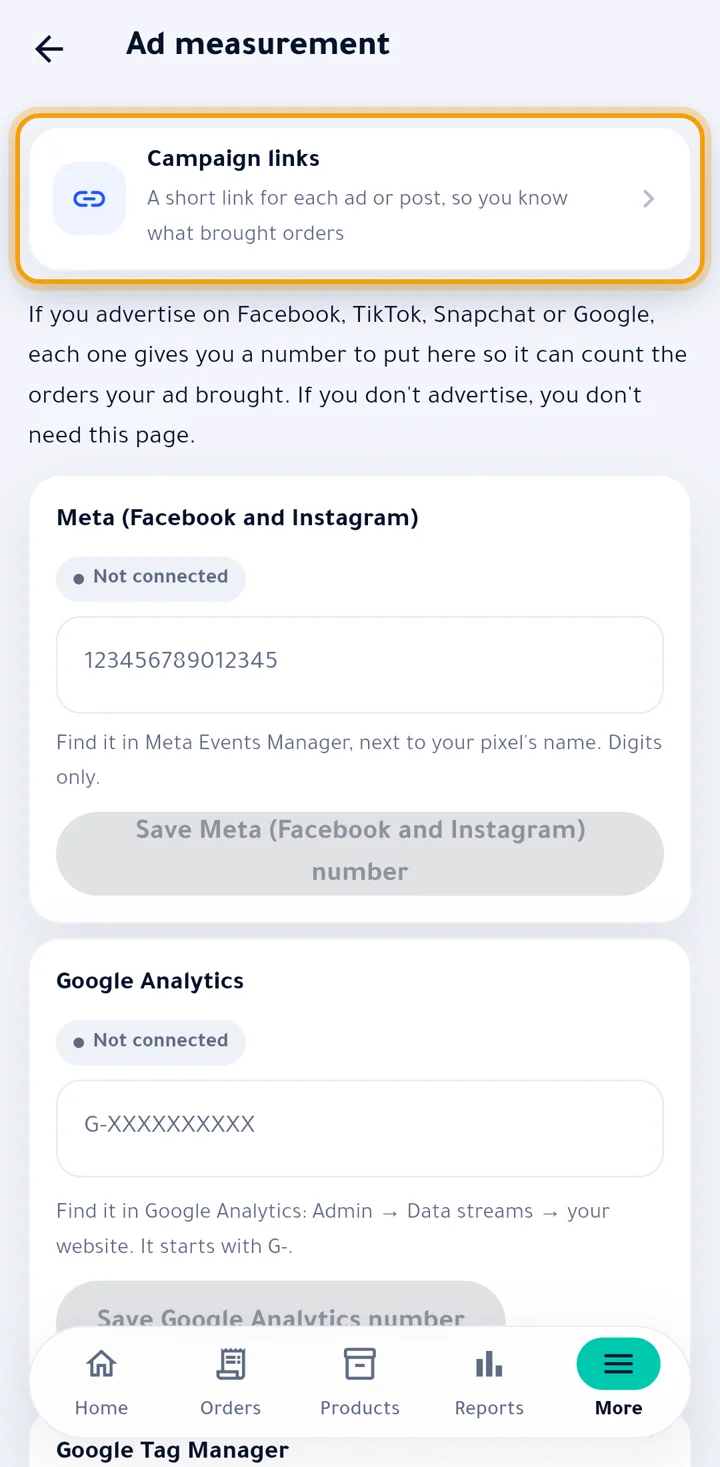
2. Connect the ad measurement codes
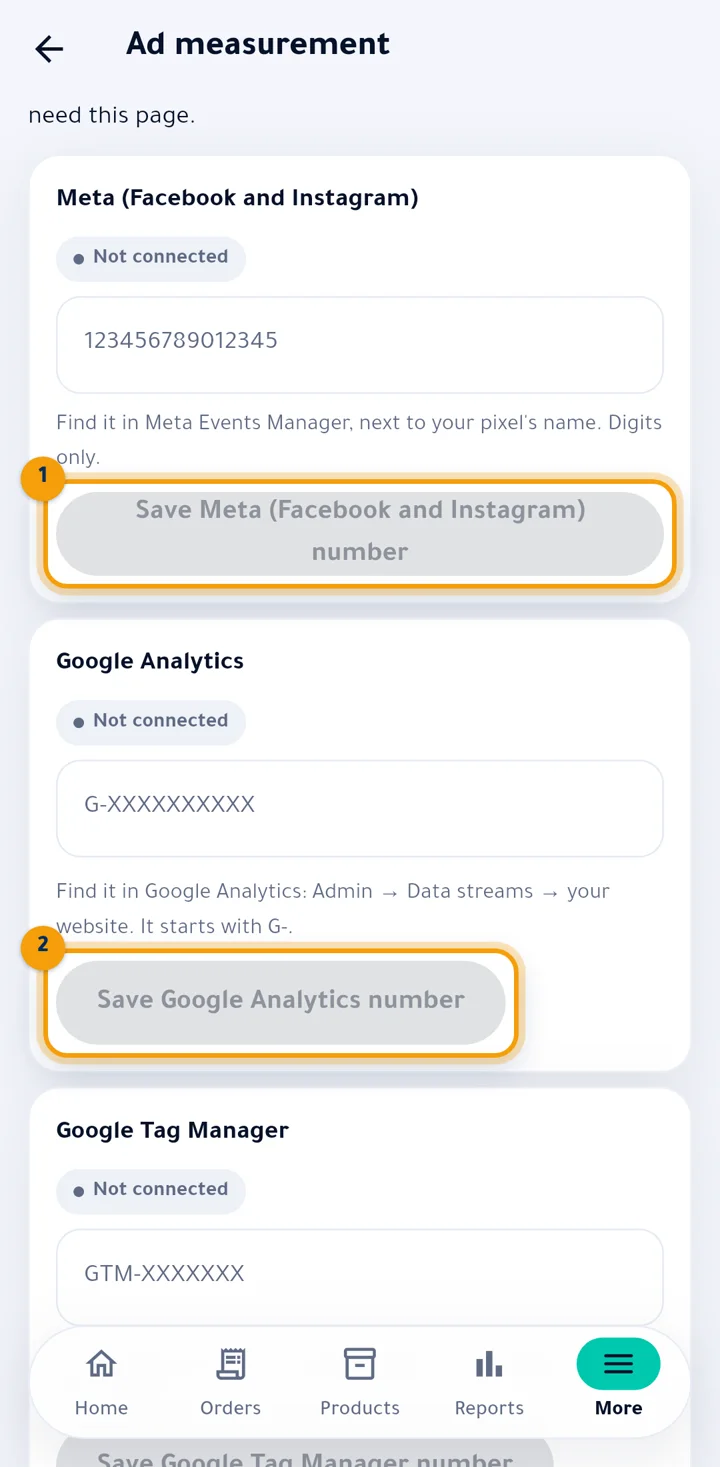
Go back to Ad measurement. Each service has a card marked Connected or Not connected: Meta (Facebook and Instagram), Google Analytics, Google Tag Manager, TikTok and Snapchat. Type the number in the card's field and tap that card's Save … number button, for example Save Meta (Facebook and Instagram) number:
- Meta (Facebook and Instagram): digits only, 6 to 20, from Meta Events Manager.
- Google Analytics: starts with
G-. - Google Tag Manager: starts with
GTM-. - TikTok and Snapchat: from each platform's ads manager; the card says where to find it.
After saving the app says Saved. Counting starts with your store's next visits. A card marked Not available for your store yet has not been switched on for your store; ask us on WhatsApp.
What happens next
With the first orders from the links, the Visits tab in Reports shows which platform deserves the effort. See Create an offer and Create a coupon to pair each campaign with its discount.
Last updated: 2026-11-19
All Marketing articles