Create a sale offer on selected products
Set the discount as a percentage or a fixed amount, choose what the offer covers and set its dates; the reduced price shows with the old price struck through.
An offer lowers the price for every customer with no code; a coupon needs a code the customer types. If more than one offer applies to a product, the customer automatically gets the better one.
You are reading the web way: your store dashboard in a computer browser.
1. Open Offers
In the sidebar choose Offers & coupons; it opens on the Offers tab. Each offer shows its Discount, the number of Products, the Period and the Status: Live now, Scheduled, Expired or Inactive. The switch in the Actions column pauses or activates an offer at once. Select Add offer.
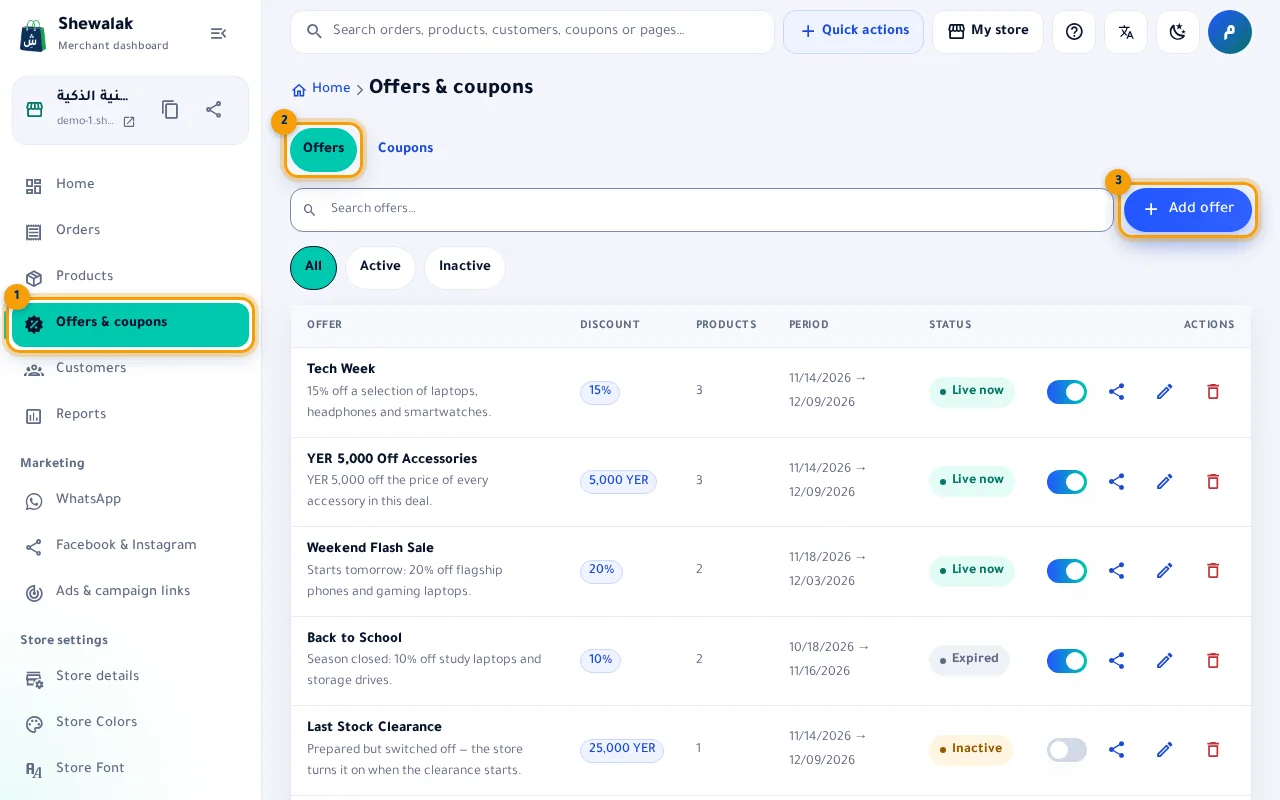
2. Set the discount and what it covers
- In the Discount card choose the Discount type: Percentage (%) such as
20, or Fixed amount such as2000YER-S off each item. - Enter the Discount value.
- Under Applies to choose All store products, One category or Selected products.
- With Selected products, pick the products in Select products; the discount applies to all of them. With One category, pick the category.
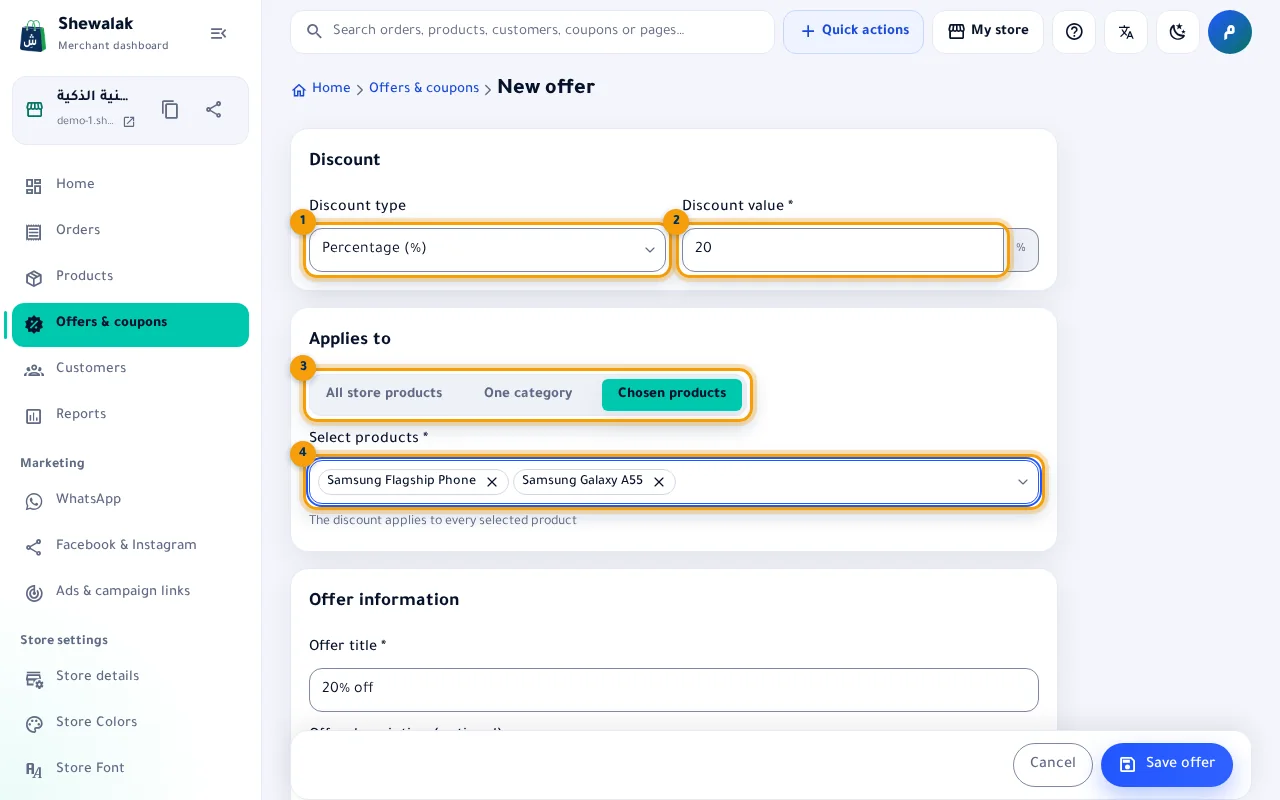
An offer on the whole store or on a category covers only the products you have now; products added later are not included automatically.
3. Write the title and save
- Under Offer information the form suggests a title from the discount, such as
20% off; change it to what the customer should see, such asEnd-of-season sale. You can add an Offer description (optional). - Open Dates and status (optional) if you want a Start date and End date; leave both empty to start now and keep the offer permanent.
- Leave the status switch on Active and select Save offer.
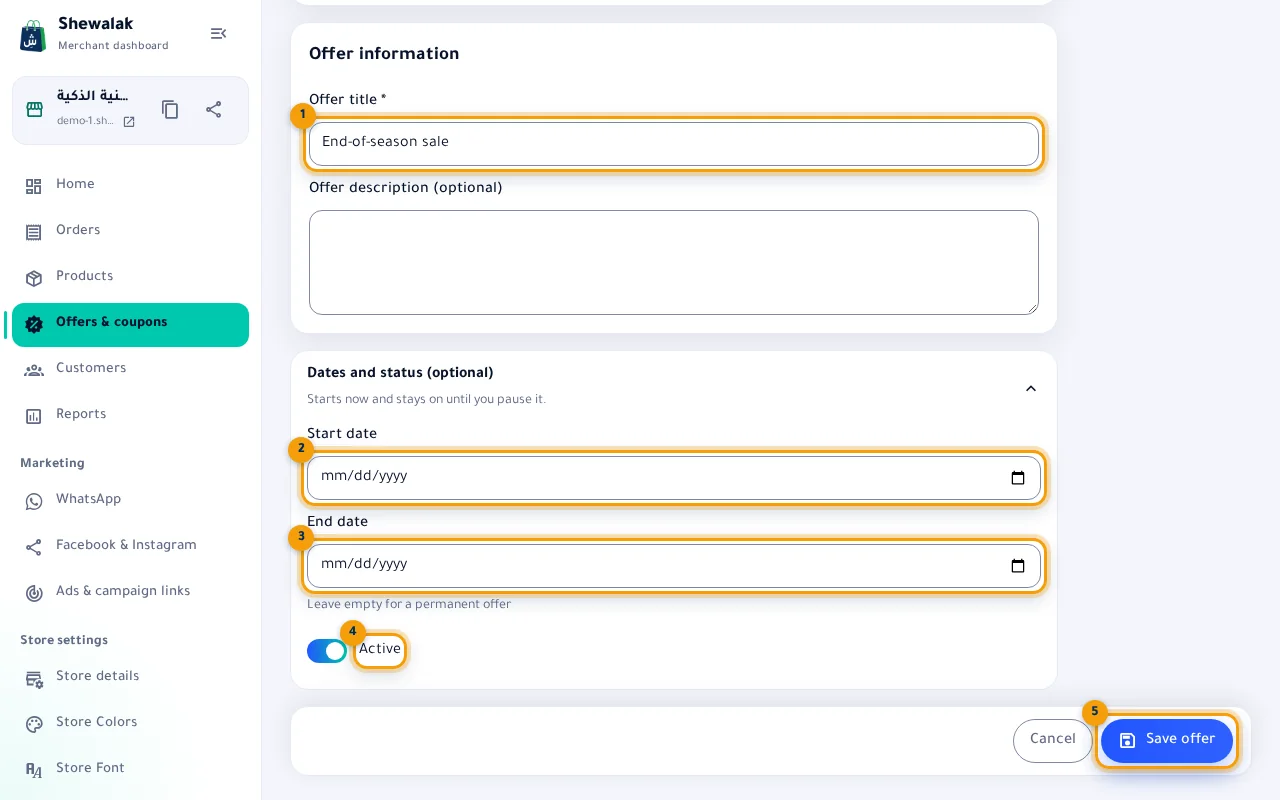
4. Check it in the store
At the top of the dashboard select My store, then Open store, and open a covered product: you see the new price, the old price struck through and a discount badge such as −20%. From the offers list use Edit offer to change the value or period, Share to send the offer to your customers, and Delete offer to remove it.
An offer on a product that is not for sale is invisible to customers. Prepare seasonal offers in advance as Inactive and switch them on on the first day, or set a start date so the offer shows as Scheduled until then.
You are reading the app way: the Shewalak merchant app on your phone.
1. Open Offers
In the app, tap the More tab in the bottom bar, then Offers & coupons; it opens on the Offers tab. Each offer shows its discount, the number of products, the period and the status: Live now, Scheduled, Expired or Inactive. The switch on an offer pauses or activates it at once. Tap Add offer.
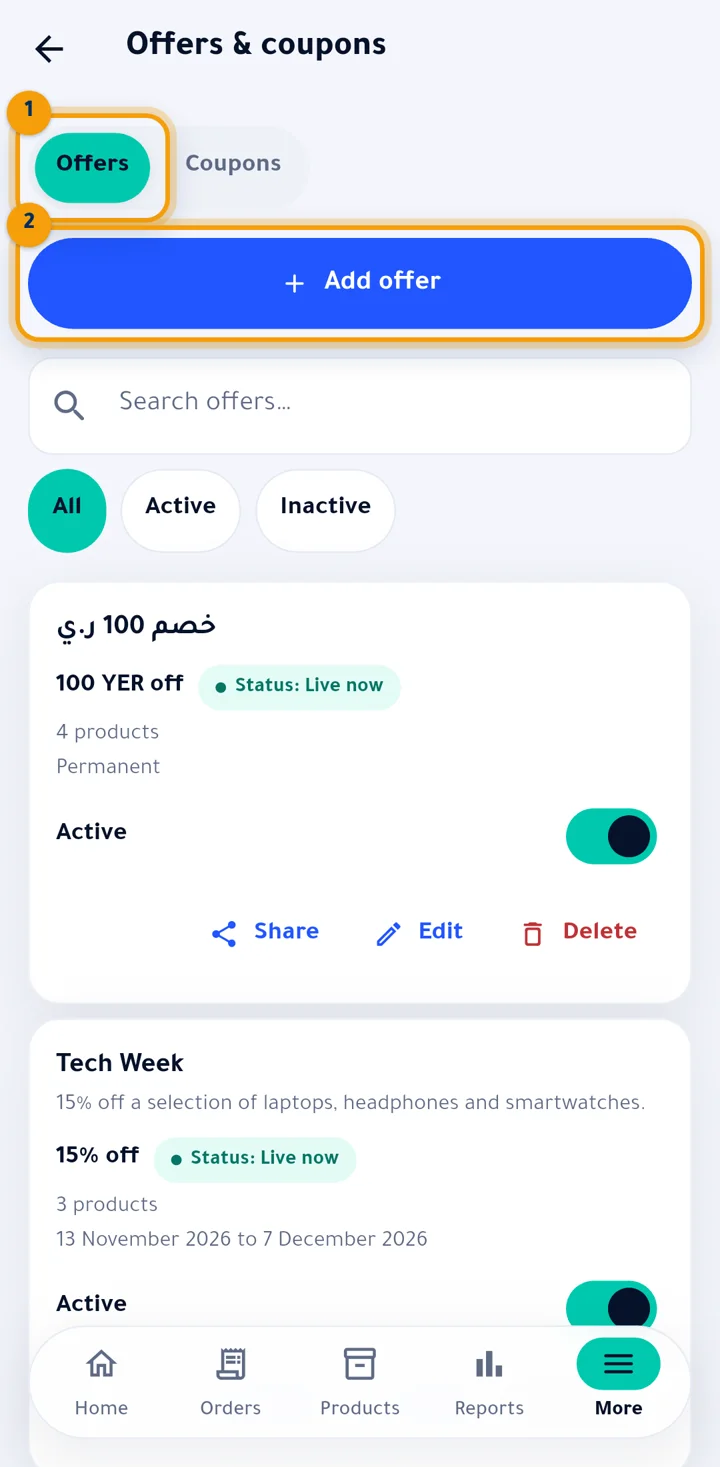
2. Set the discount and what it covers
- In the Discount section choose the Discount type: Percentage (%) such as
20, or Fixed amount such as2000off each item. - Enter the value in Discount percentage (1 to 100) or Discount amount.
- Under Applies to choose All store products, One category or Selected products.
- With Selected products tap Choose products, pick them and tap Done; the discount applies to all of them. With One category tap Choose the category.
An offer on the whole store or on a category covers only the products you have now; products added later are not included automatically.
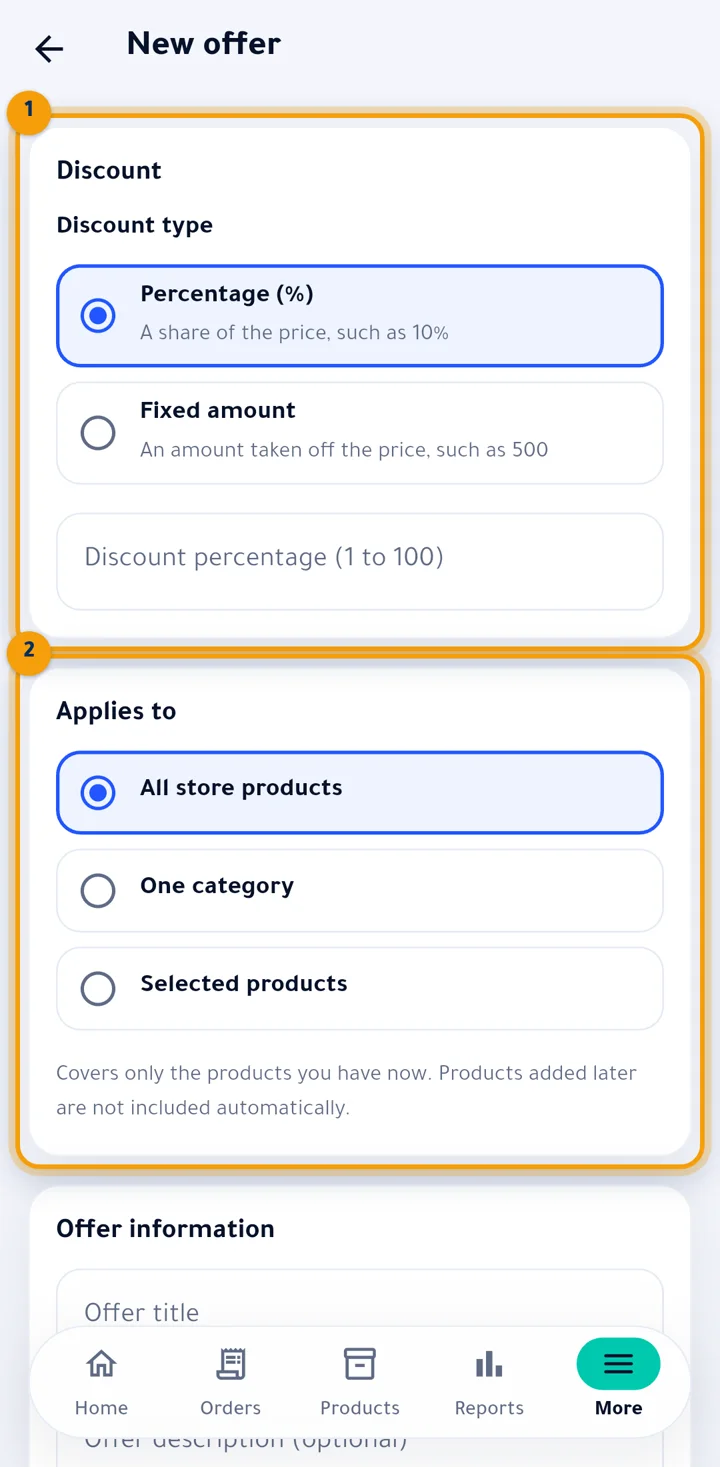
3. Write the title and save
- Under Offer information type the Offer title the customer should see, such as
End-of-season sale. You can add an Offer description (optional). - Open Dates and status (optional) if you want a Start date and End date; leave both empty to start now and keep the offer permanent.
- Check What will be saved?, which writes the offer in words, then tap Save offer.
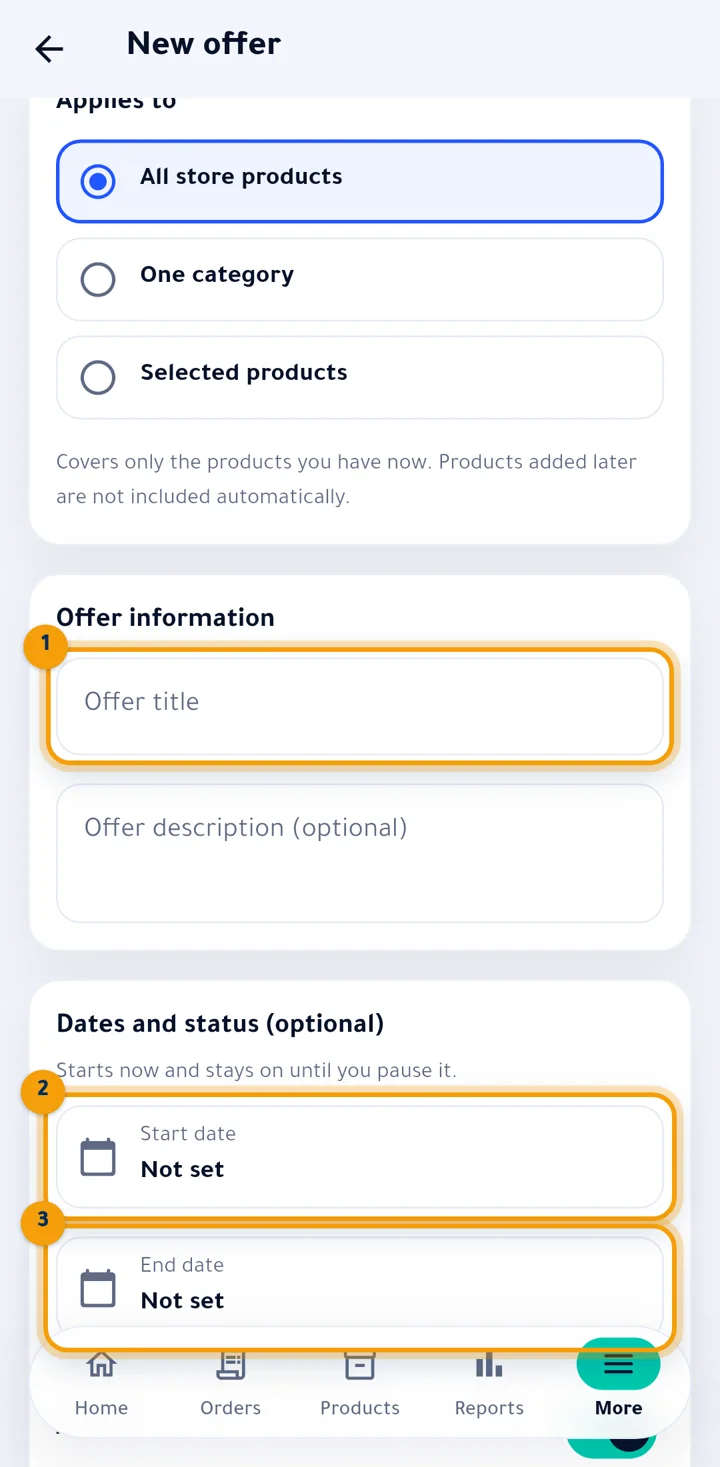
4. Check it in the store
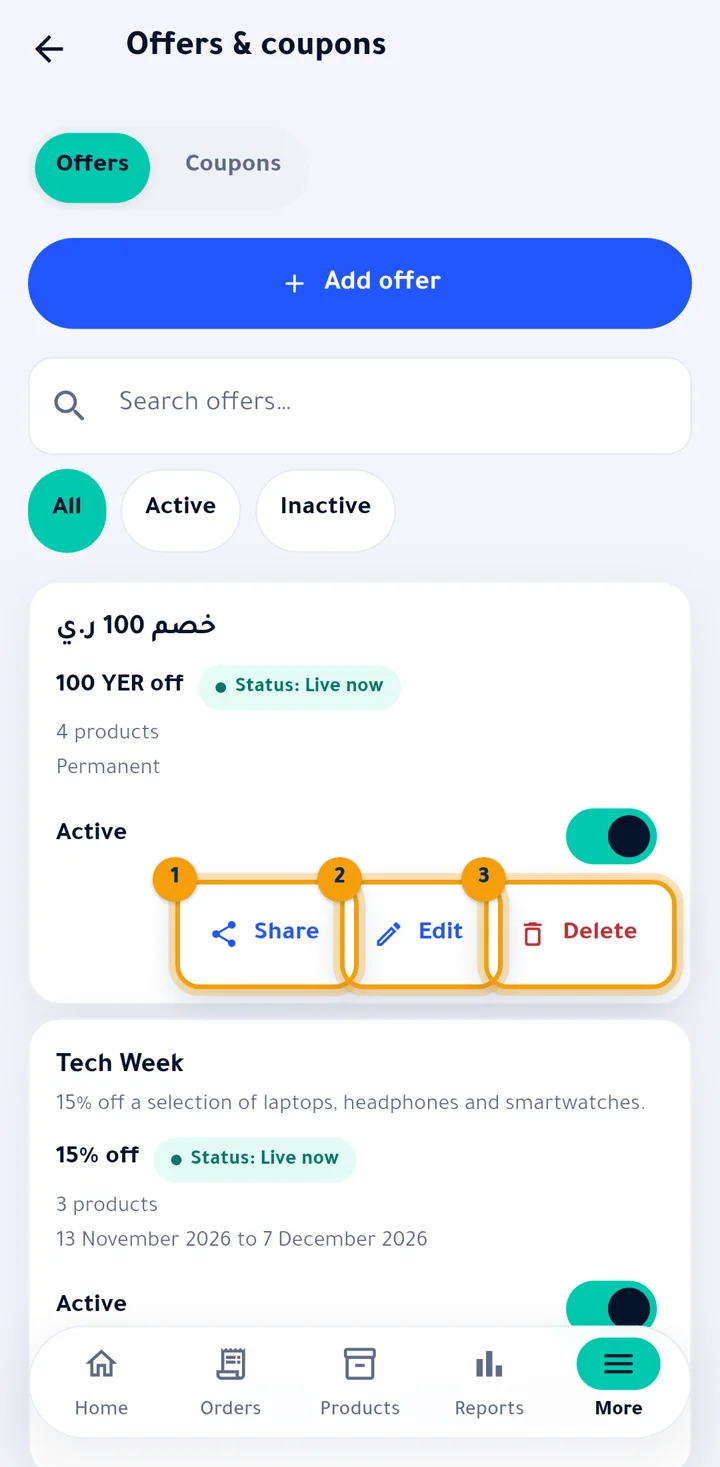
After saving, the app shows Offer saved. Share it with your customers now. with Share the offer. Open your store link and open a covered product: you see the new price, the old price struck through and a discount badge such as −20%. From the offers list use Edit to change the value or period, Share to send the offer to your customers, and Delete to remove it.
An offer on a product that is not for sale is invisible to customers. Prepare seasonal offers in advance with the status switch off and turn them on on the first day, or set a start date so the offer shows as Scheduled until then.
What happens next
The offer appears in the Offers & discounts section on your store's home page. Create a campaign link to learn which platform sold the most, or a coupon for specific customers.
Last updated: 2026-11-21
All Marketing articles