Set up the payment methods your customer chooses from
Enable cash on delivery and add your wallet, bank account or exchange transfer with instructions for the customer; the customer picks the method at checkout.
Short answer
How do customers pay my Shewalak store?
On Shewalak your customer chooses at checkout between cash on delivery and a transfer to your wallet, bank account or money transfer agency, from the methods you enable on the Payment Methods page with your instructions. Shewalak does not collect the money for you: it reaches you directly, and you record the payment from the order page.
Have your wallet or account number and the account holder's name ready, exactly as registered. Shewalak does not collect the money for you: the customer transfers to you directly or pays on delivery, and you record the payment from the order page.
You are reading the web way: your store dashboard in a computer browser.
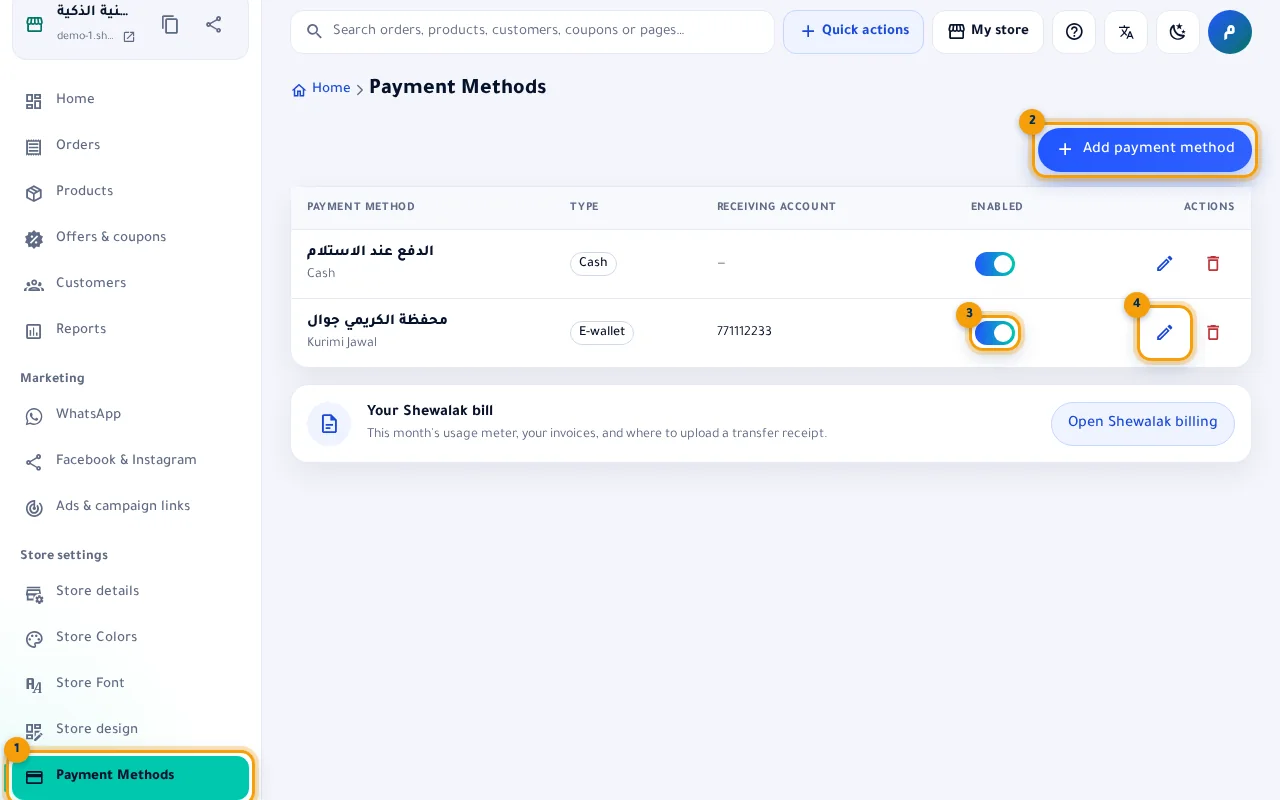
1. Open Payment Methods
From the sidebar in the dashboard choose Store settings → Payment Methods. For each method the table shows the Payment method, its Type, the Receiving account and an Enabled switch, with the edit and delete buttons under Actions.
- To pause a method without deleting it, turn Enabled off.
- To change its details, select the edit (pencil) button.
2. Add a method
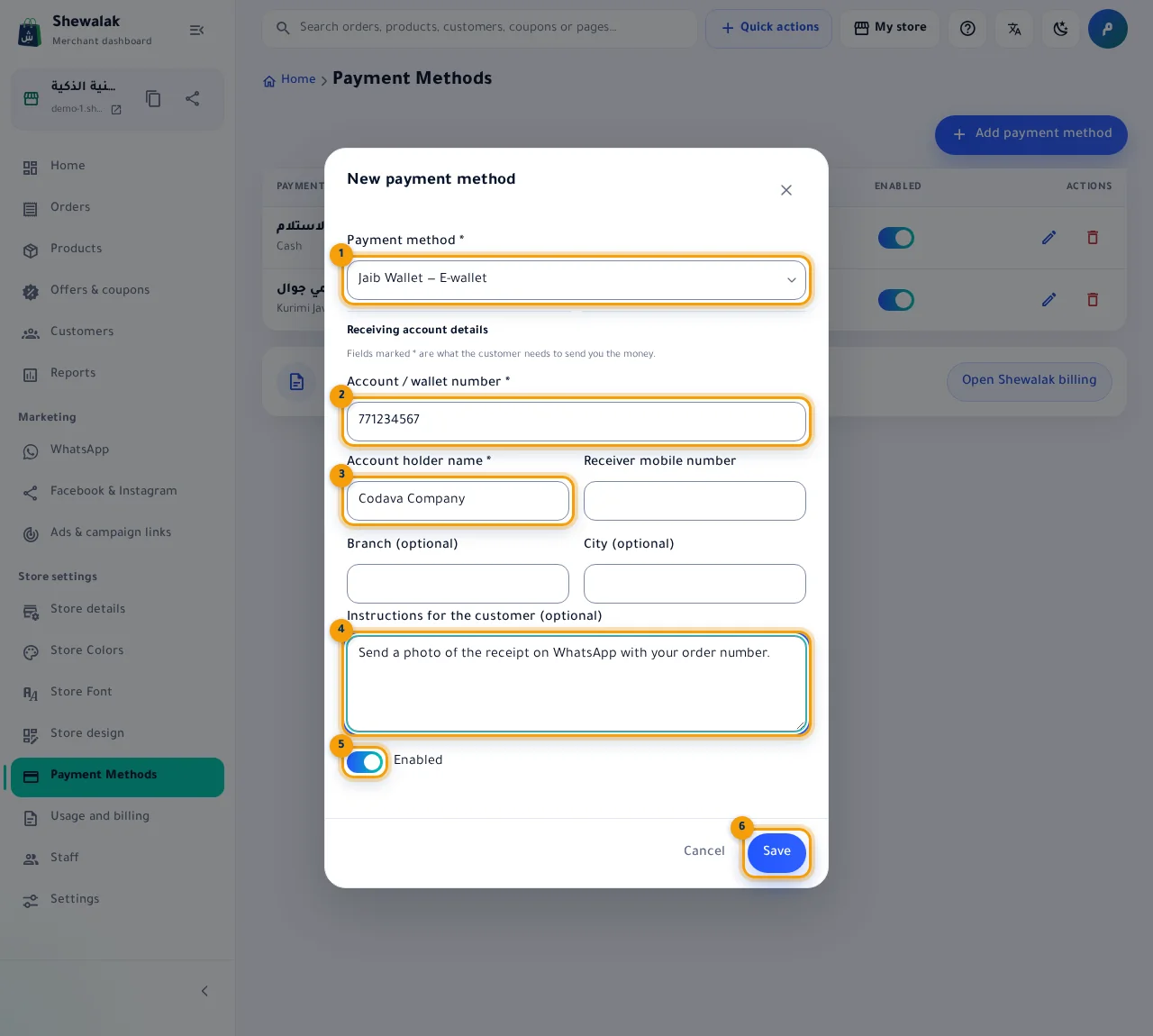
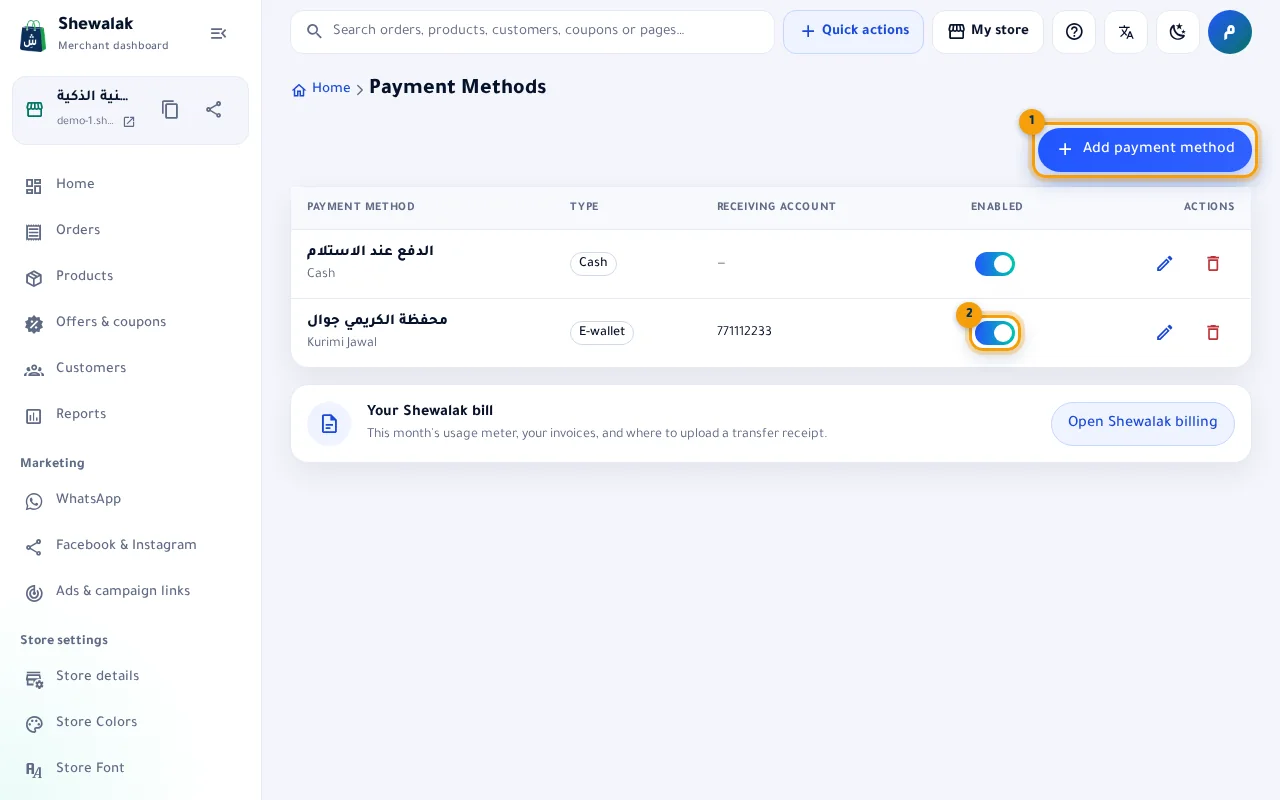
- Select Add payment method; the New payment method dialog opens.
- Under Payment method choose from the groups: Cash, E-wallet (Al-Kuraimi Jawal, Al-Kuraimi Mfloos, Jaib Wallet, Floosak Wallet, Al-Qutaibi Mobile), Bank transfer (Al-Kuraimi Bank, Al-Qutaibi Bank, Tadhamon Bank, Bank of Aden, Yemen Kuwait Bank) or Money transfer agency (Al-Najm Exchange, Emtiaz Express, Al-Akwaa Exchange).
- For anything but cash, Receiving account details appear. Fields marked * are what the customer needs to send you the money:
- Wallets and banks: Account / wallet number and Account holder name.
- Money transfer agencies: Account holder name and Receiver mobile number.
- Branch and City are optional.
- Under Instructions for the customer (optional) write what to do after the transfer, for example:
Send a photo of the receipt on WhatsApp with your order number. - Make sure Enabled is on. The switch stays locked until the required fields are filled in.
- Select Save.
The Display name (optional), such as
My orders wallet, appears when you edit a saved method. If a method shows On with missing details: customers won't know where to pay, select edit and complete the receiving account.
You are reading the app way: the Shewalak merchant app on your phone.
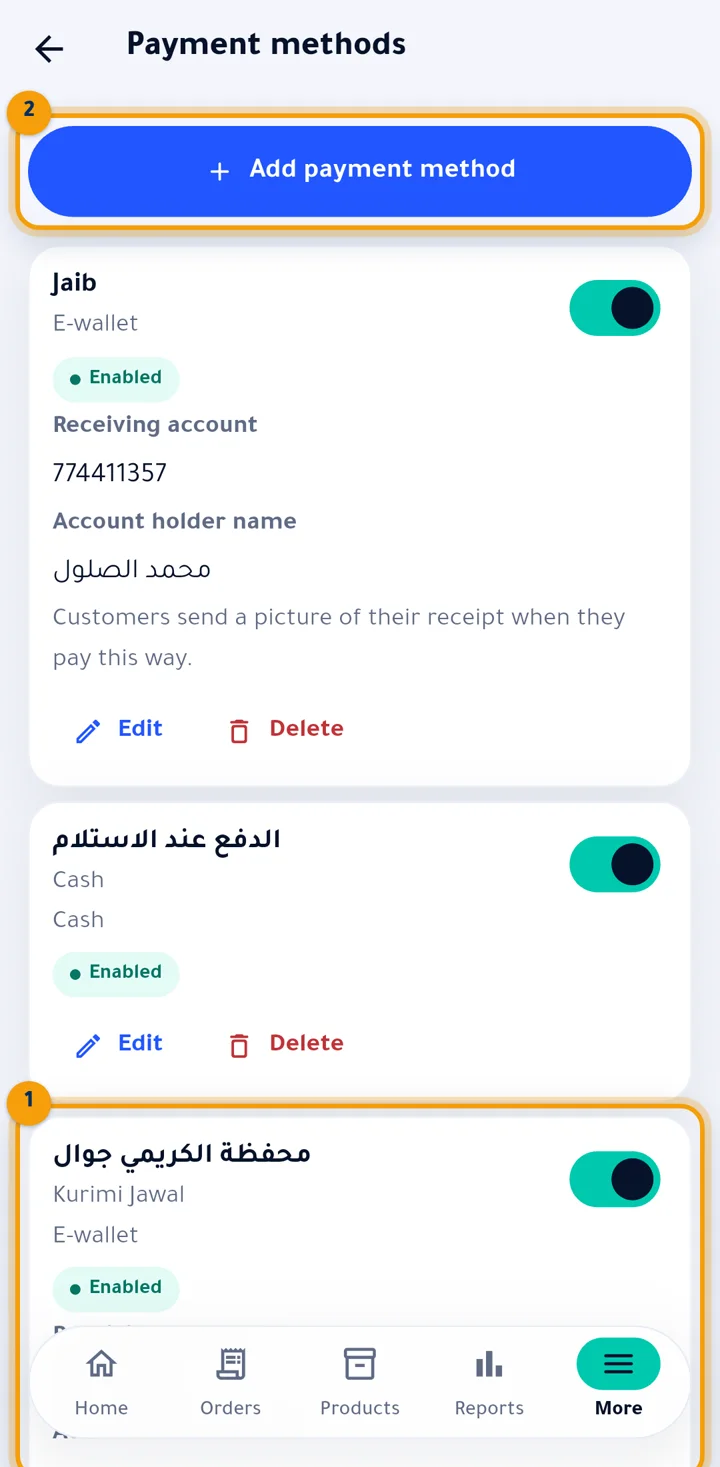
1. Open Payment methods
In the app, tap the More tab in the bottom bar, then Payment methods. Each method is a card showing its Receiving account, an Enabled switch (or Off) and the Edit and Delete buttons.
- To pause a method without deleting it, turn its switch off.
- To change its details, tap Edit.
2. Add a method
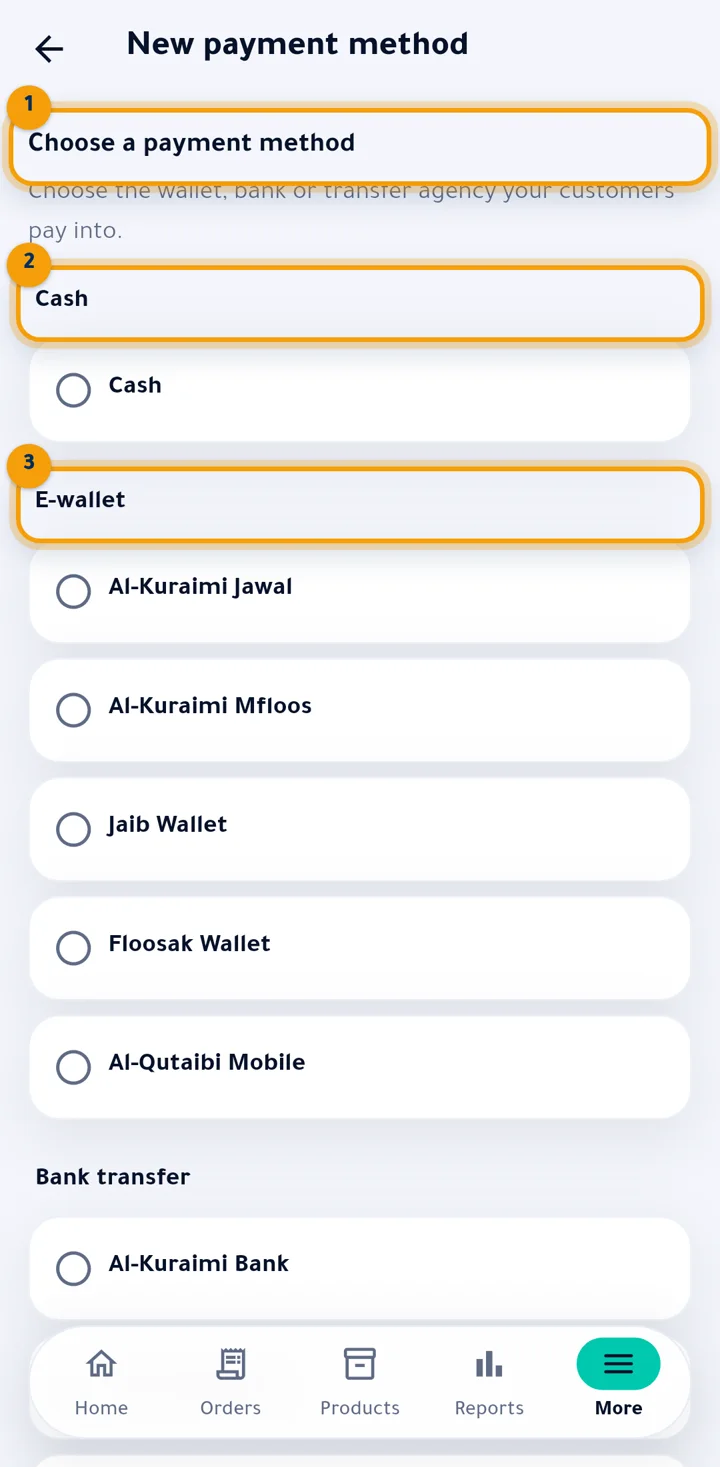
- Tap Add payment method; the New payment method screen opens.
- Under Choose a payment method pick a group: Cash, E-wallet, Bank transfer or Money transfer agency, then the wallet, bank or agency (the same names as in the dashboard).
- For anything but cash, Receiving account details appear. Fields marked * are what the customer needs to send you the money:
- Wallets and banks: Account or wallet number and Account holder name.
- Money transfer agencies: Receiver name and Receiver mobile number.
- Branch (optional) and City (optional) can stay empty.
- Under Instructions for the customer (optional) write what to do after the transfer.
- Make sure the Enabled switch is on. It stays locked until the fields marked * are filled in.
- Tap Save. For a new or changed number the app asks Is the number correct? and shows it with the holder's name; tap Yes, save, or Edit the number to fix it.
If a method shows On with missing details: customers won't know where to pay, tap Edit and complete the receiving account.
What the customer sees
At checkout the customer chooses only from the enabled methods. For a wallet, bank or exchange transfer they see the receiving details and your instructions, and the order reaches you with the status Awaiting payment until you verify the transfer and record it.
What happens next
Record every amount you receive from the order page (Manage your first order) so the Balance due stays correct, then review Not yet collected in Reports. The Your Shewalak bill card at the bottom of the page is for Shewalak's fees to you, explained in How Shewalak charges you.
Last updated: 2026-11-19
All Money and reports articles