Know your customers and message them
Everyone who ordered from your store appears in Customers with their orders and what you collected, and you can filter them by group and message them on WhatsApp in one tap.
You do not need to add customers by hand: a customer record is created from the first order, whether from the store or from a phone order you entered yourself. To record a customer before they order, add them yourself as shown at the end of this guide.
You are reading the web way: your store dashboard in a computer browser.
1. Open customers
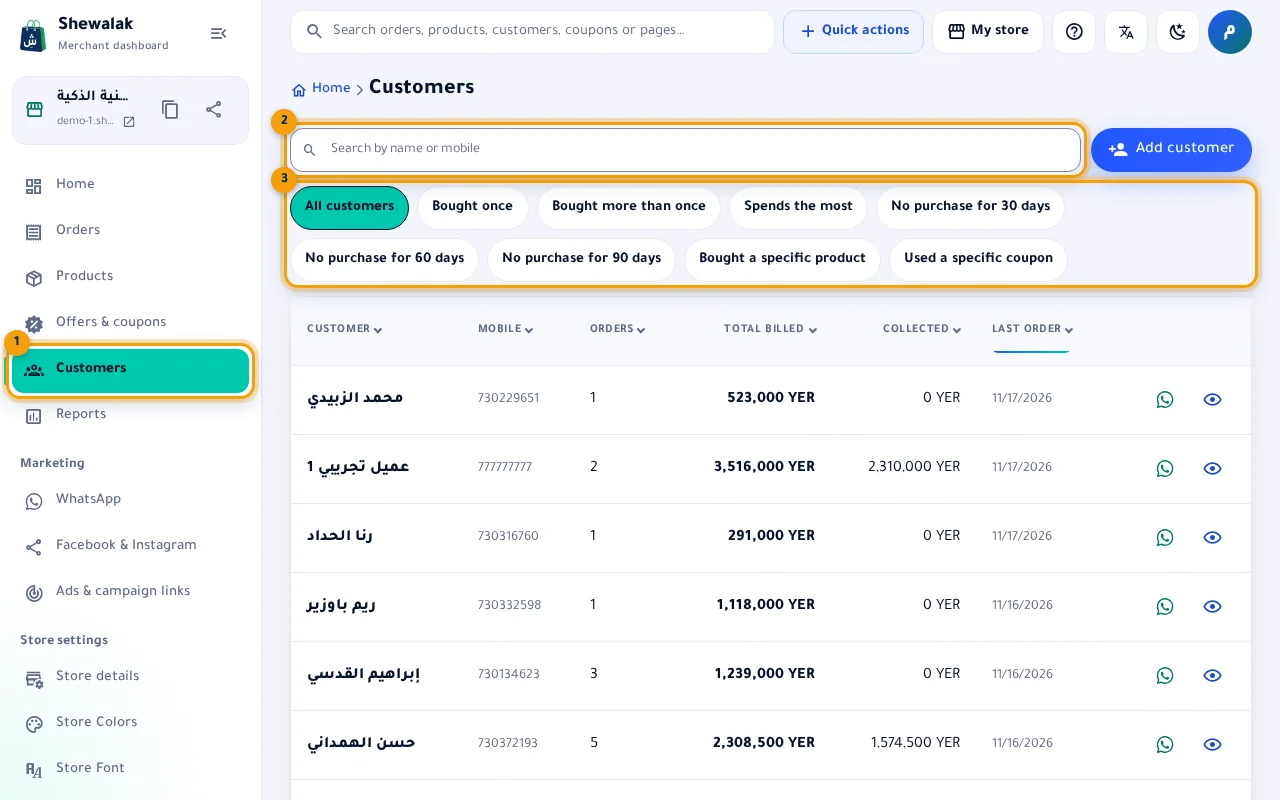
From the dashboard side menu choose Customers. The table shows the Customer, Mobile, Orders, Total billed, Collected and Last order, with a WhatsApp button and a View customer button next to each customer. Search by name or mobile in the search box.
2. Filter customers by group
The Customer group buttons above the table take you straight to the people who deserve an offer or a reminder: All customers, Bought once, Bought more than once, Spends the most, No purchase for 30 days, or 60 or 90 days. Choosing Bought a specific product or Used a specific coupon shows a Product or Coupon field to pick from directly.
3. Open a customer page
Select the customer's name. At the top you see their name, mobile and last order date, then their summary: Orders, Total billed, Collected and Still owed, and below it the This customer's orders table with every order and its status.
- Message on WhatsApp opens Send store link via WhatsApp, so you can send them your store link with a Note for the customer (optional).
- New phone order opens the phone order form with the customer's details filled in.
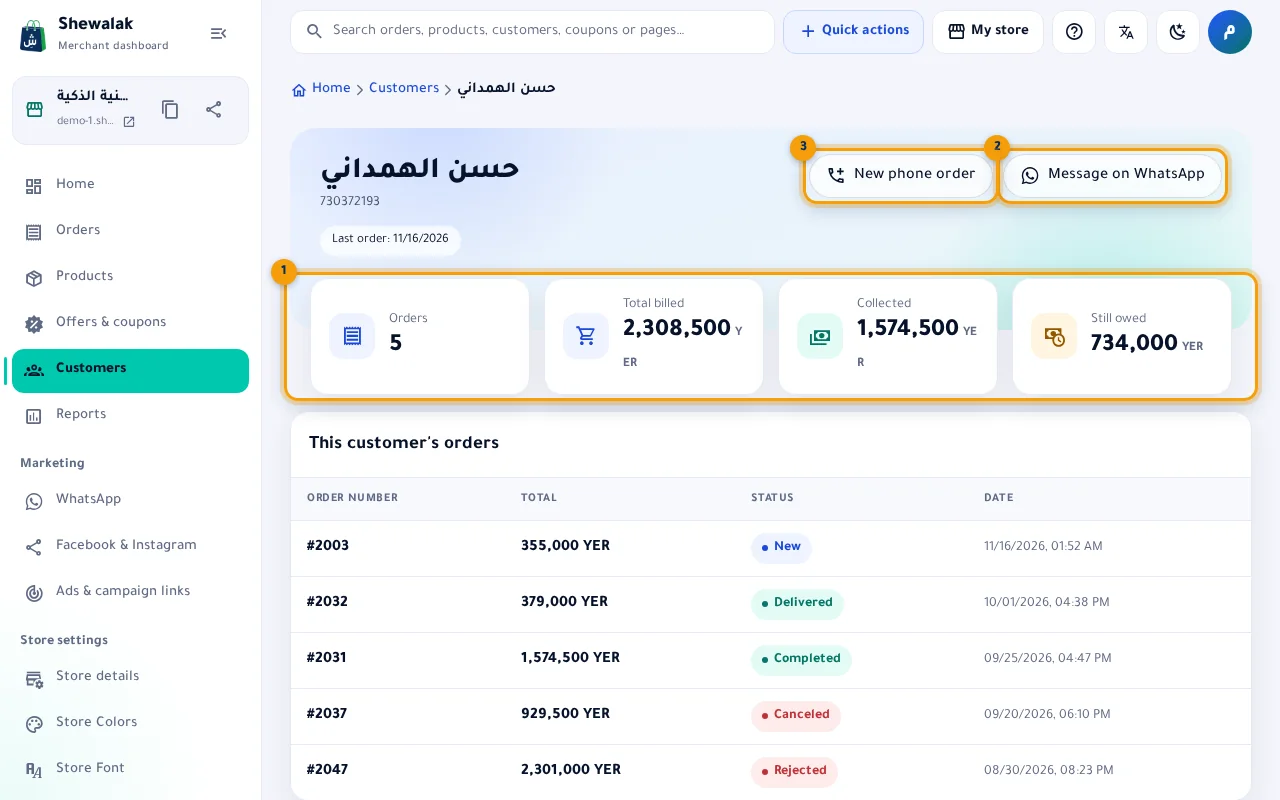
Still owed adds up what is uncollected across all their orders. Record collections from the order page itself, not from here.
Add a customer yourself
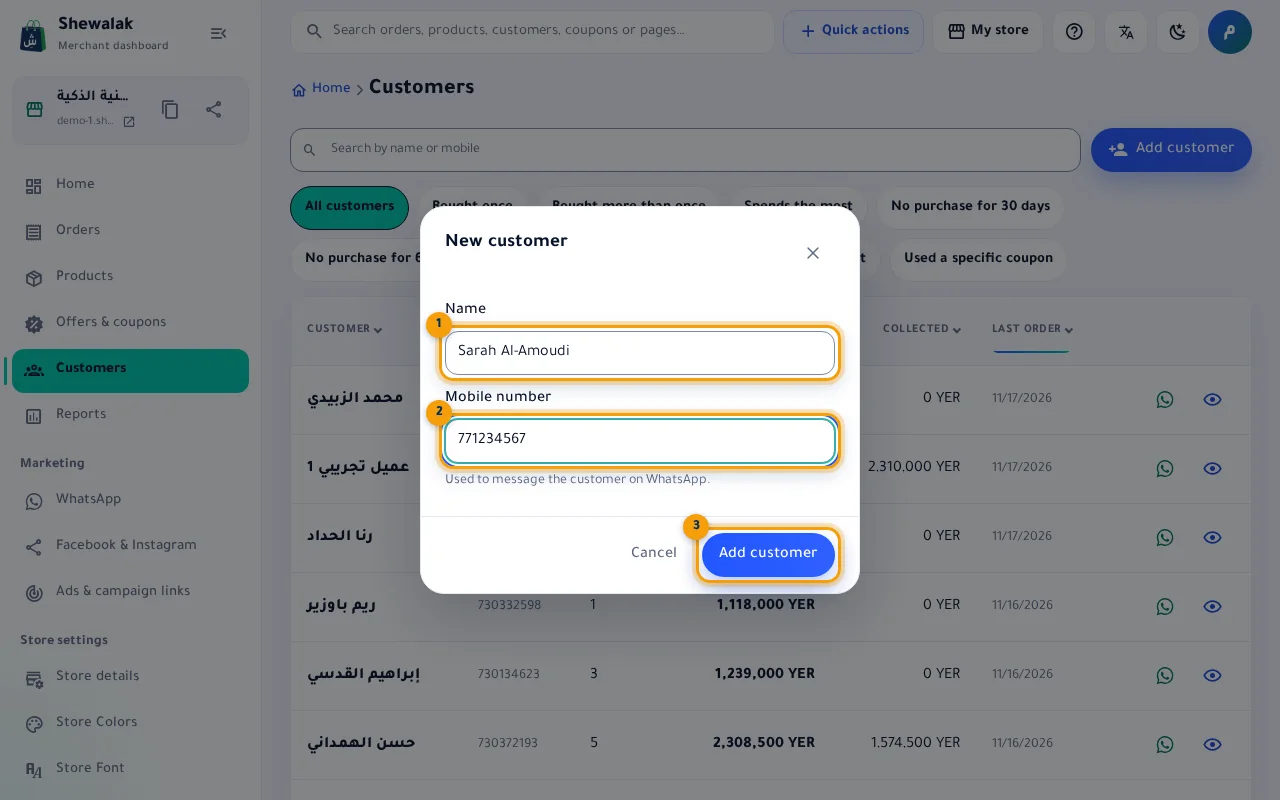
Select Add customer above the list to open New customer. Enter the Name and Mobile number (used to message the customer on WhatsApp), then select Add customer. If the number is already registered you get View customer instead of a duplicate.
You are reading the app way: the Shewalak merchant app on your phone.
1. Open customers
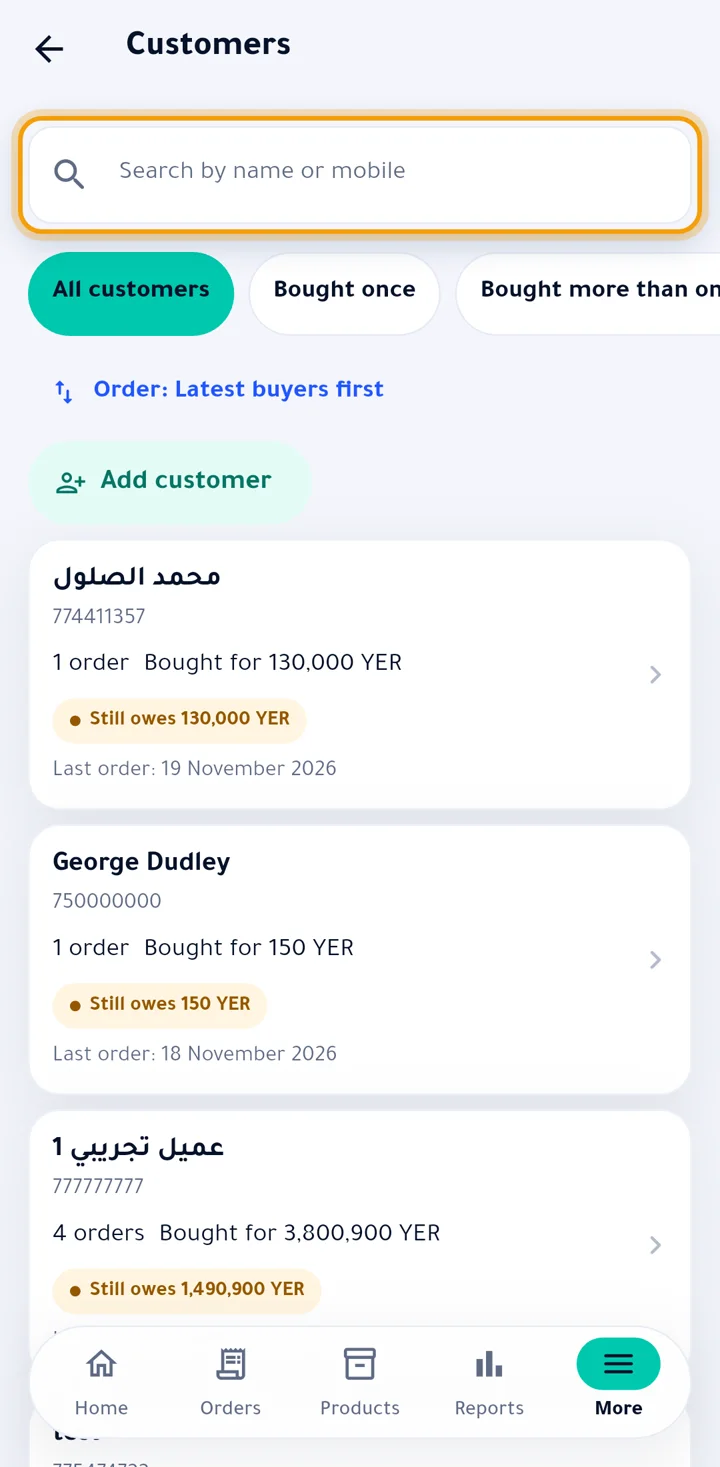
In the app, tap More in the bottom bar, then Customers. Each customer shows their name, number of orders, what they bought for and what they still owe. Type a name or mobile in Search by name or mobile; Open the customer opens their page.
2. Filter customers by group
Under Which customers do you want to see? choose a group: All customers, Bought once, Bought more than once, Biggest buyers, No purchase for 30 days (or 60 or 90 days). Bought a certain product and Used a certain coupon ask you to pick the product or the coupon. The Order chip changes how the list is sorted.
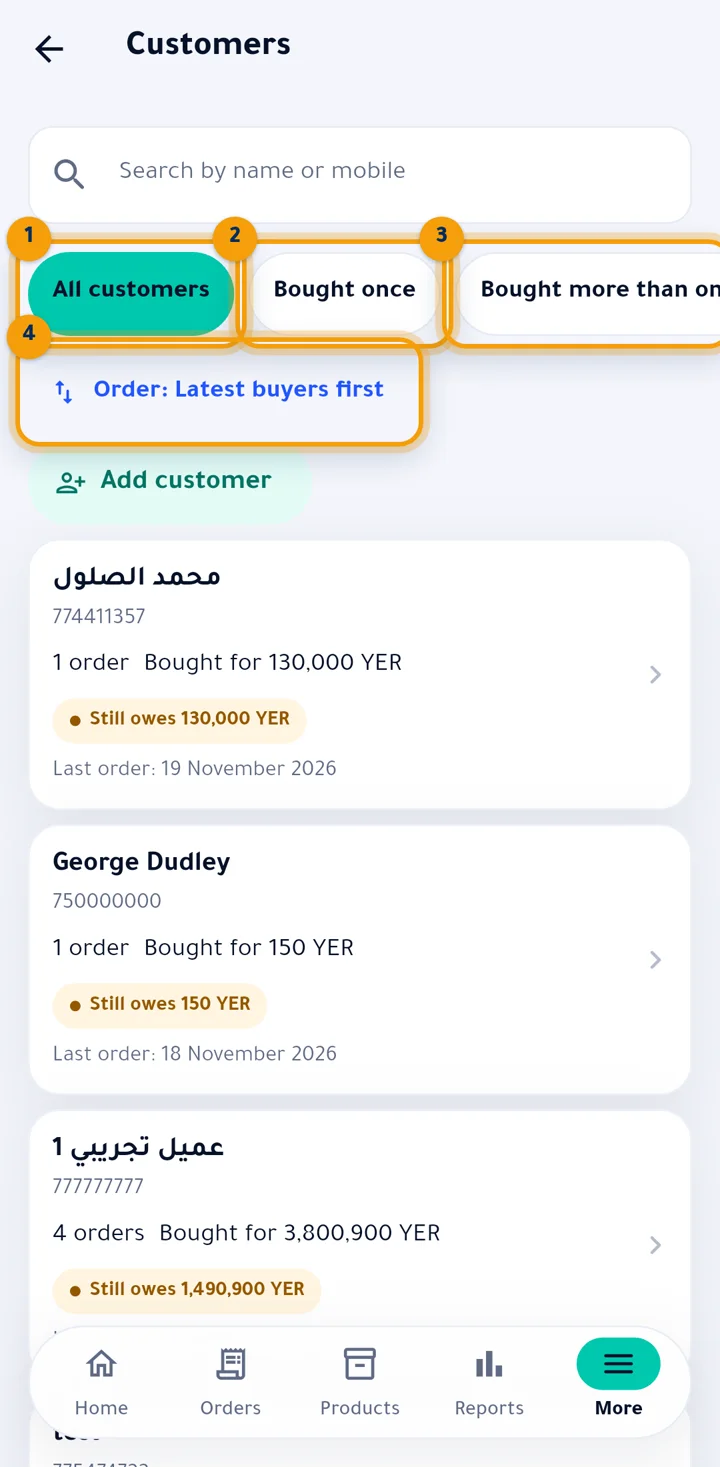
3. Open a customer page
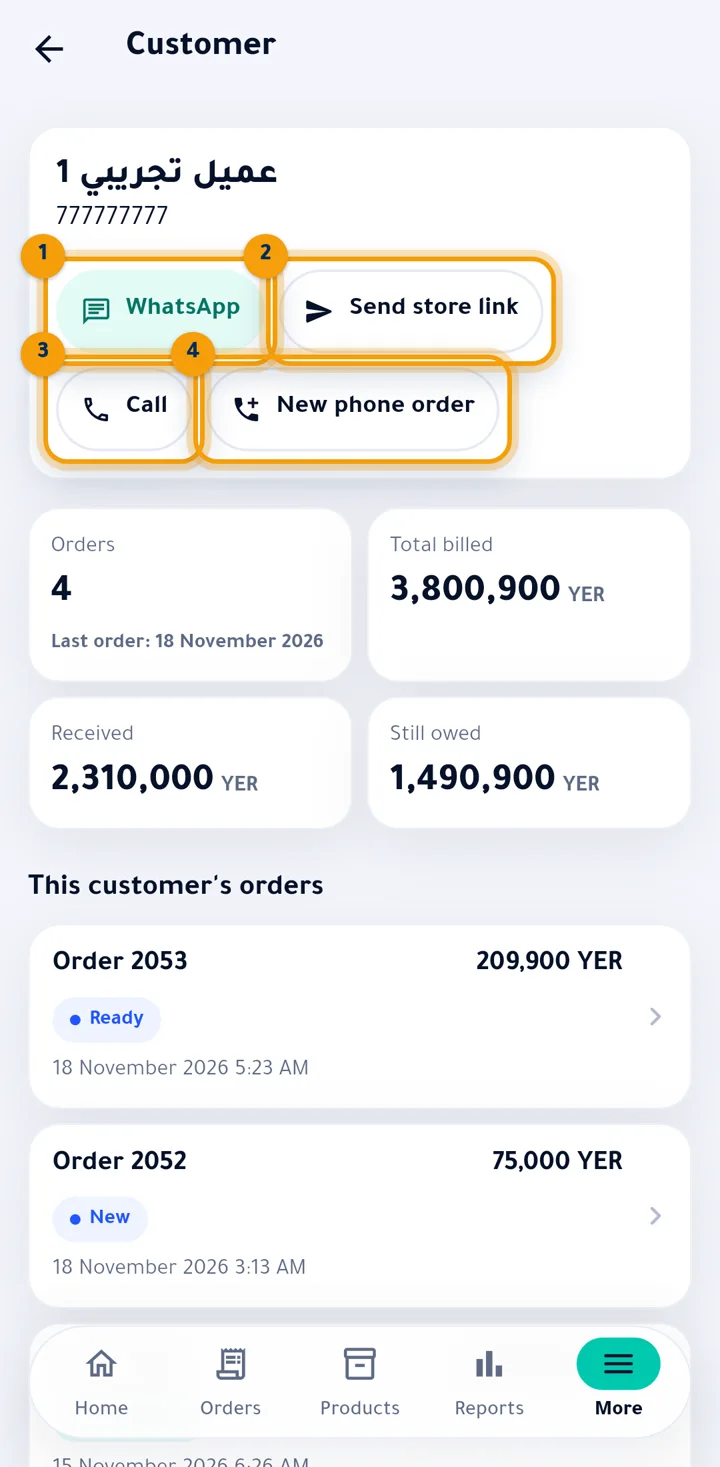
Tap the customer. The Customer page shows their summary: Orders, Total billed, Received and Still owed, and below it This customer's orders with each order and its status.
- WhatsApp opens a chat with the customer on your phone.
- Send store link opens Send your store link to this customer: check Customer's WhatsApp number, add A note for the customer (optional) and tap Send.
- Call dials the customer.
- New phone order opens the phone order form with the customer's details filled in.
Still owed adds up what is uncollected across all their orders. Record collections from the order page itself, not from here.
Add a customer yourself
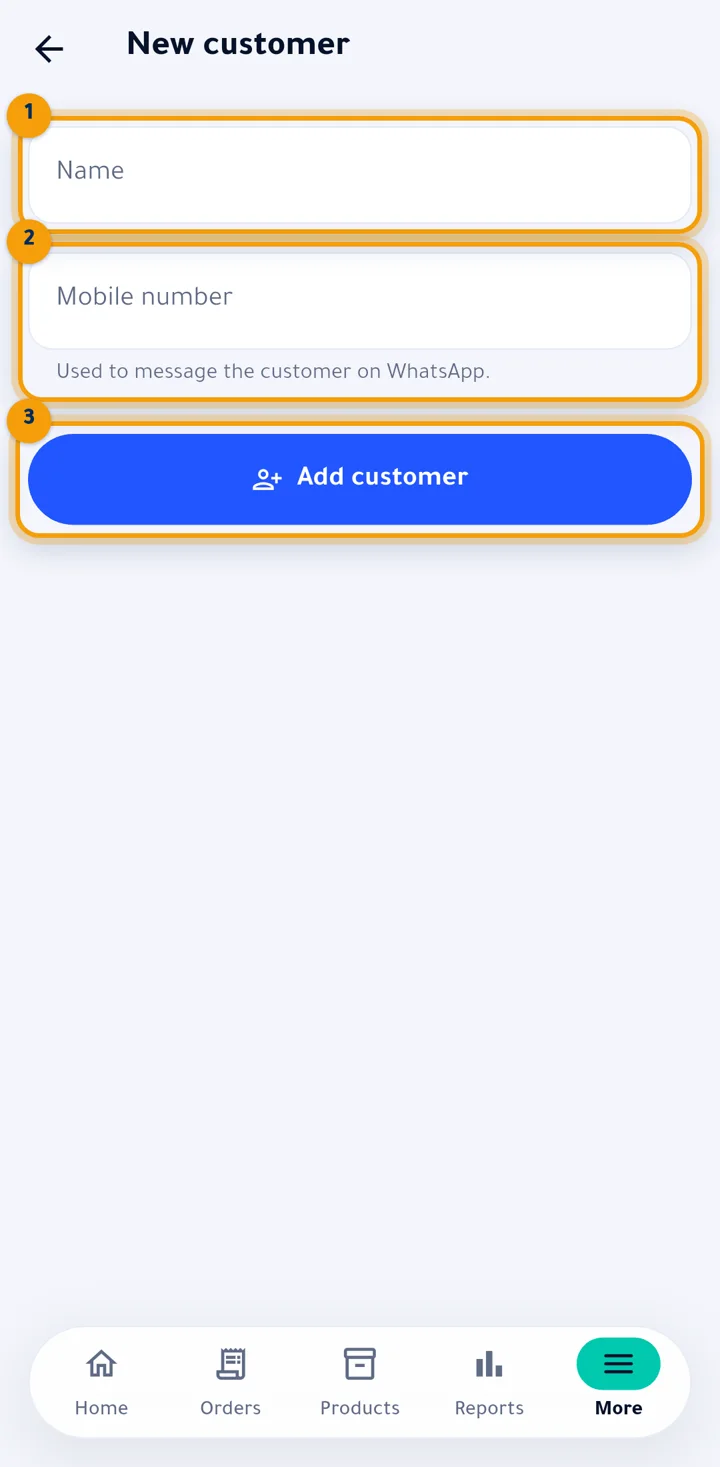
On the Customers list tap Add customer to open New customer. Enter the Name and Mobile number (used to message the customer on WhatsApp), then tap Add customer. If the number is already registered you get Open the customer instead of a duplicate.
What happens next
The record updates with every new order and every collection. Next: create a coupon for one group.
Last updated: 2026-11-19
All Orders and customers articles