Add an invite code when you open your store
If a Shewalak partner helped you open your store, enter their code once after signing up, or continue without one, and learn what the partner can and cannot see.
An invite code is 6 digits given to you by the Shewalak partner who helped you open your store. Shewalak asks for it once, right after you confirm your mobile number; it is optional and does not affect your store's fees. Only the store's owner can add it.
You are reading the web way: your store dashboard in a computer browser.
1. Enter the code
After sign-up the Did a Shewalak partner invite you? page opens. If you close it before choosing, it appears the next time you sign in.
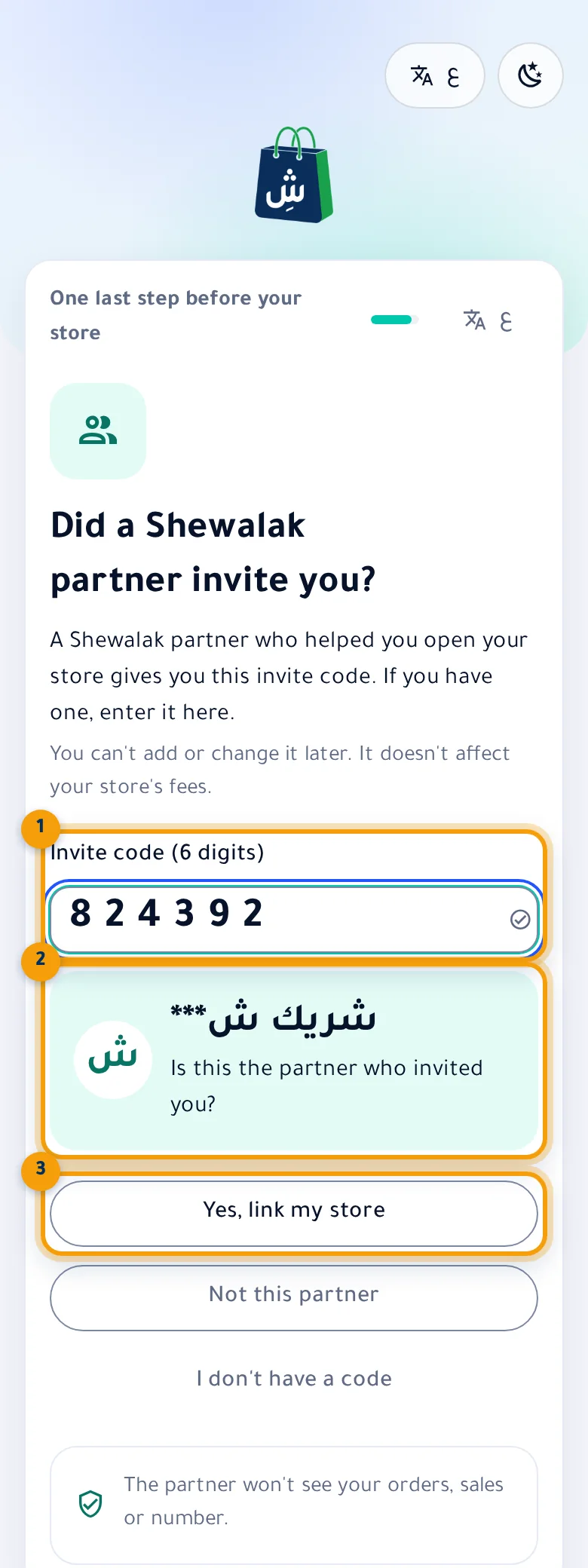
- Enter the Invite code (6 digits).
- The partner's shortened name appears with Is this the partner who invited you?. Check that it is them.
- Select Yes, link my store. Your store is now linked to the partner who invited you. appears.
- If it is someone else, select Not this partner and enter the code again.
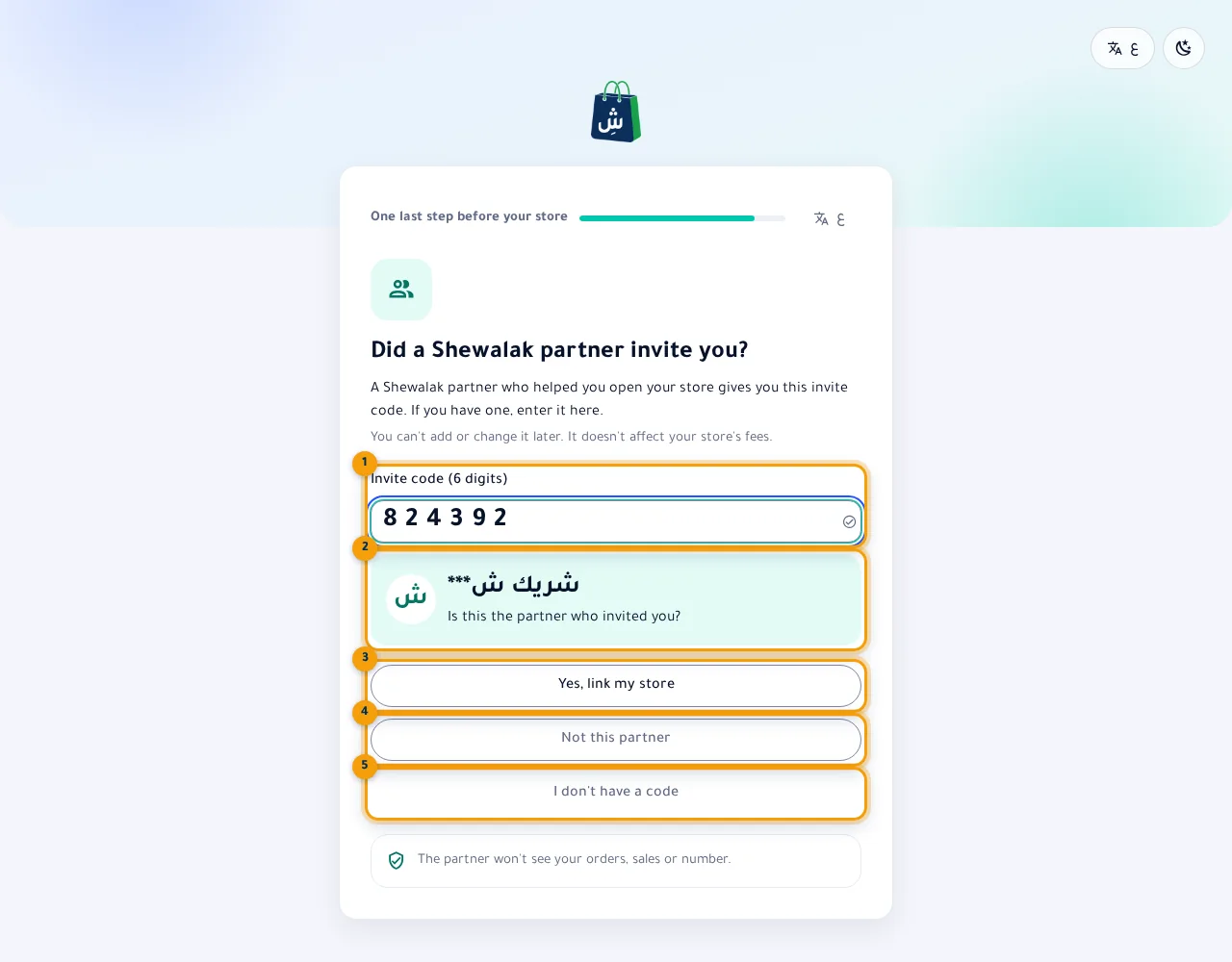
In a phone browser it is the same page:
2. Or continue without a code
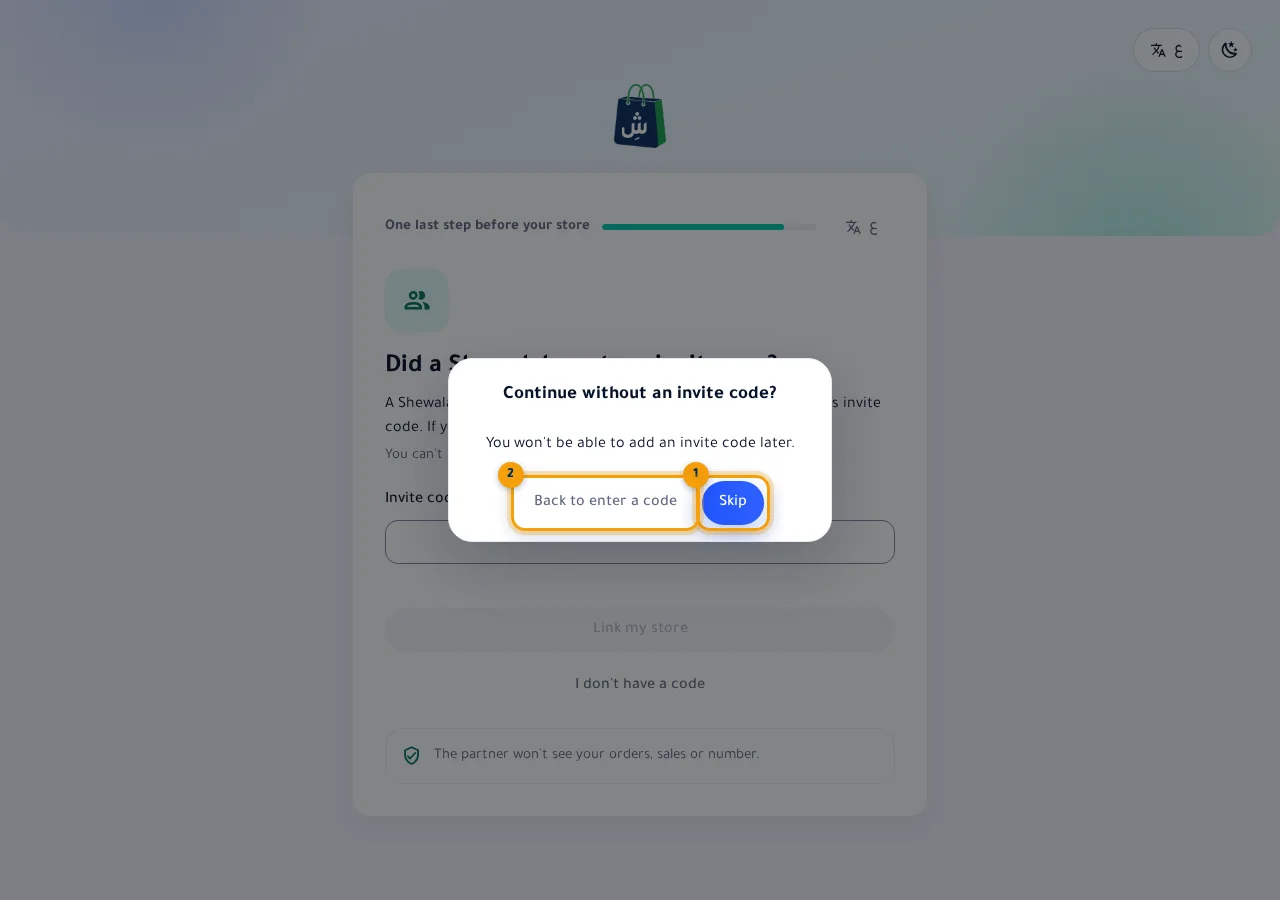
Select I don't have a code, then:
- Select Skip to go on to your store. You cannot add a code on your own afterwards.
- Or select Back to enter a code if you remember it.
3. If the code is not accepted
- We couldn't find this code: check the digits with the partner.
- This is your own invite code: your store cannot be linked to yourself.
- Too many attempts: wait a while and try again, or continue without a code.
You are reading the app way: the Shewalak merchant app on your phone.
1. Enter the code
After sign-up in the app the Did a Shewalak partner invite you? screen opens. If you close it before choosing, it appears the next time you sign in.
- Type the Invite code (6 digits). Code found appears with the partner's shortened name.
- Check that it is them under Is this the partner who invited you?, then tap Yes, link my store.
- If it is someone else, tap Not this partner and type the code again.
2. Or continue without a code
Tap I don't have a code, then Skip to go on, or Back to enter a code. After skipping you cannot add a code on your own.
3. If the code is not accepted
- We couldn't find this code: check the digits with the partner.
- This is your own invite code: your store cannot be linked to you.
- Too many tries: wait a while, then try the code again.
If you missed the code
If you skipped the step or did not know the code, contact Shewalak support within the first 14 days of opening your store with the partner's code, and the team will attach it to your store. After that it cannot be attached, and a store already linked to a partner is not moved to another at your request.
What does the partner see?
The partner does not see your orders, sales or number. They see the first two letters of your store's name, its join month, and whether your store pays fees or not. Shewalak pays their commission out of its own fees, so your bill does not grow.
If you want to earn too
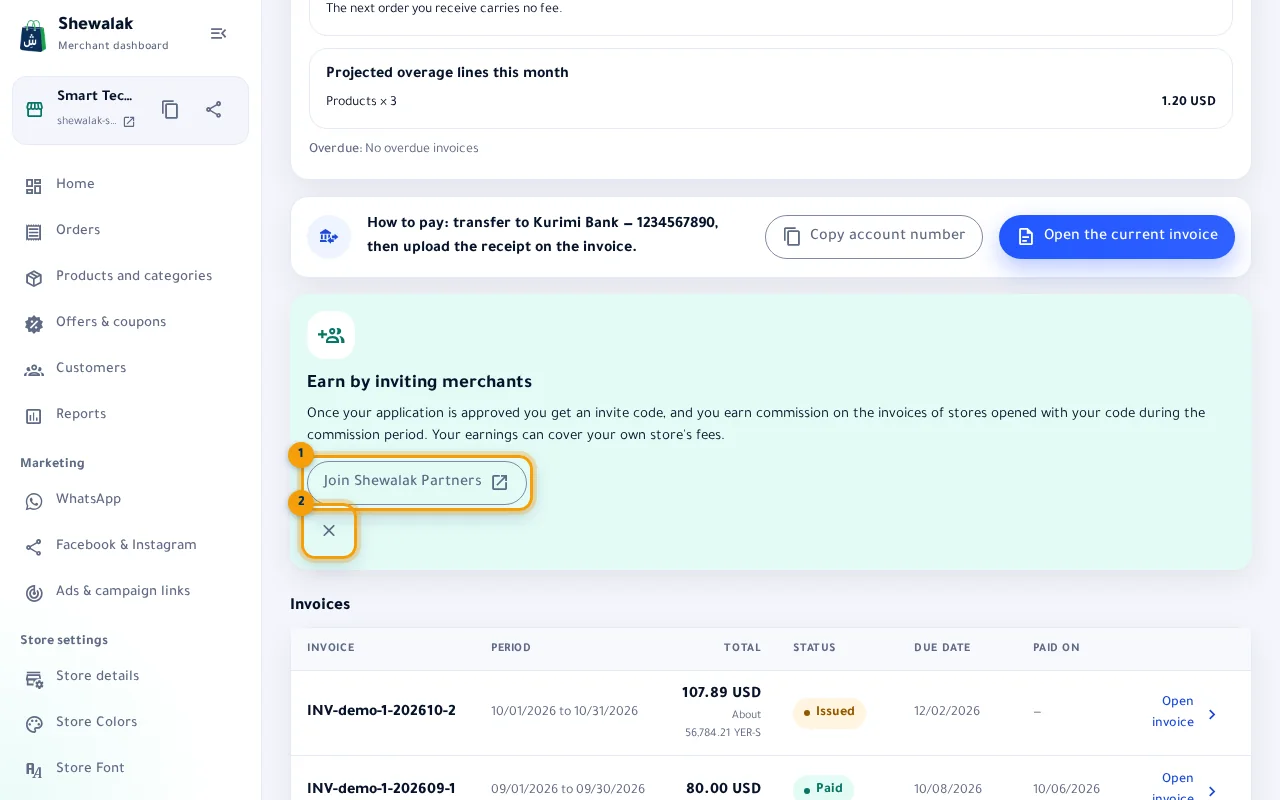
The Earn by inviting merchants card is on Home and on the Usage and billing page; in the app it is called Earn with Shewalak Partners, under More and in Your Shewalak bill:
- Select Join Shewalak Partners to open the partner portal, where you sign in with your mobile number.
- Or select the close button Hide this card (in the app, Hide) to hide it for 30 days.
What happens next
Once you link or skip, your store opens. Next step: your first hour on Shewalak.
Last updated: 2026-11-25
All Getting started articles