Connect WhatsApp to your store with a linking code
Link the store number with an eight-character linking code from the dashboard or the merchant app; no QR picture needed.
Short answer
How do I connect WhatsApp to my Shewalak store?
Shewalak links your store's number with an eight-character linking code: on the WhatsApp page of the dashboard or the merchant app, enter the store number and request the code, then type it in WhatsApp on the store phone under Linked devices. No developer account is needed; use a number set aside for the store, not your personal one.
Prepare a dedicated store number on a phone where WhatsApp is working. Linking uses WhatsApp Web (an unofficial method) and the number may be banned by WhatsApp, so do not link your personal number.
You are reading the web way: your store dashboard in a computer browser.
1. Open the connection screen
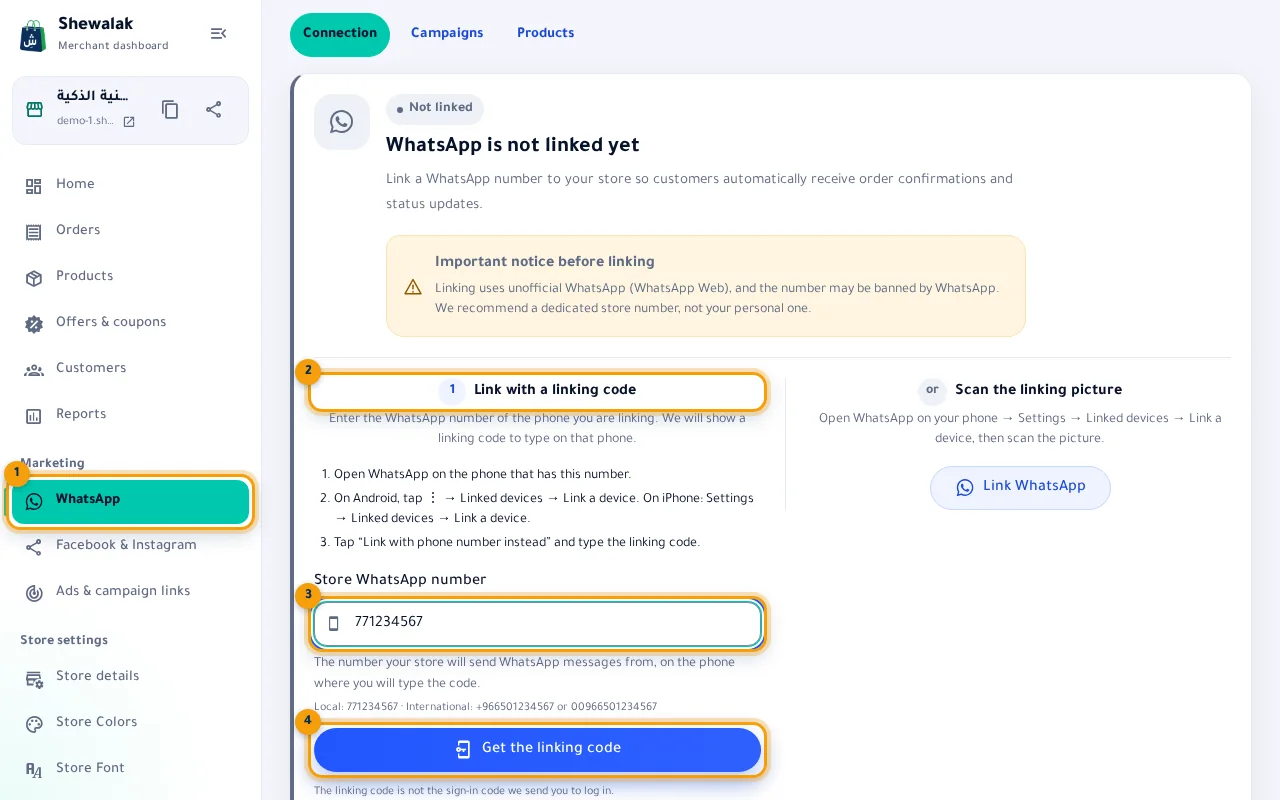
In the dashboard sidebar, under Marketing, choose WhatsApp; it opens on the Connection tab. You see the status Not linked, the title WhatsApp is not linked yet and an Important notice before linking; read it.
Below it are two ways to link: Link with a linking code (the easiest) and Scan the linking picture with the Link WhatsApp button.
2. Enter the store number and request the code
- In Store WhatsApp number enter the number on the phone you are linking: local such as
771234567, or international such as+966501234567or00966501234567. - Select Get the linking code. Preparing your linking code… this can take a few seconds. shows, then Your linking code appears with eight characters and a This code ends in … seconds countdown, and the status becomes Waiting for the code.
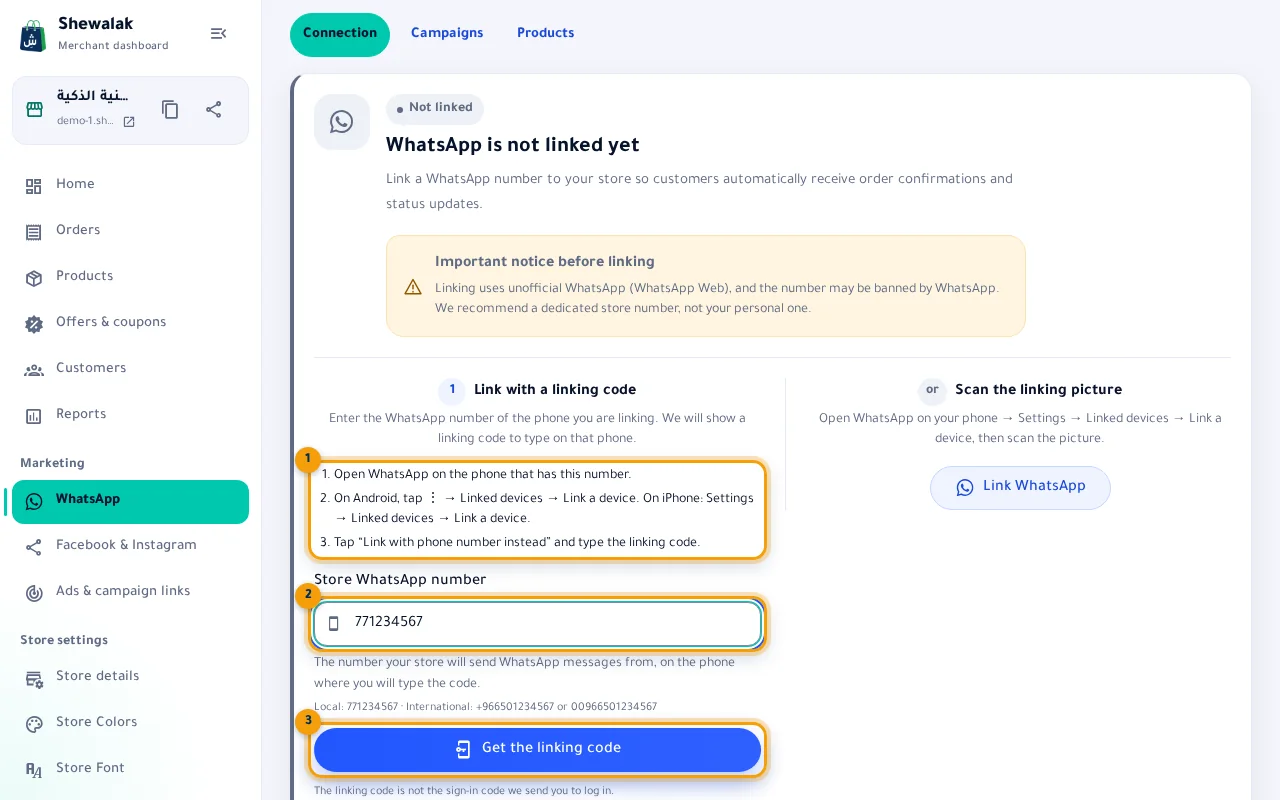
The linking code is not the sign-in code we send you to log in. Never give it to anyone, and type it only into WhatsApp on the store's phone; we will never ask you for it in a call or a message.
3. Type the code in WhatsApp
On the phone that has the number:
- Open WhatsApp. On Android tap ⋮ → Linked devices → Link a device. On iPhone: Settings → Linked devices → Link a device.
- Tap Link with phone number instead.
- Type the eight-character code.
The connection page updates by itself: the status becomes Connected with the title WhatsApp is linked and working, the Connected number and Connected since. If the code expires before you type it, select Get a new code; to stop the attempt, select Cancel linking.
4. Turn on notifications and test
Once linked, the WhatsApp settings appear under the status card:
- Automatic notifications: Order confirmation, Order status updates, New order alerts to the store number, Payment reminders, WhatsApp campaigns, Checkout reminders and Review requests. Turn on what you need with the switch next to each one.
- Selling in chat: Chat ordering, so your number answers customers with ready-made menus, and Product cards and store link.
Then select Send test message to receive a message on your own number and see how it looks.
You are reading the app way: the Shewalak merchant app on your phone.
1. Open the connection screen
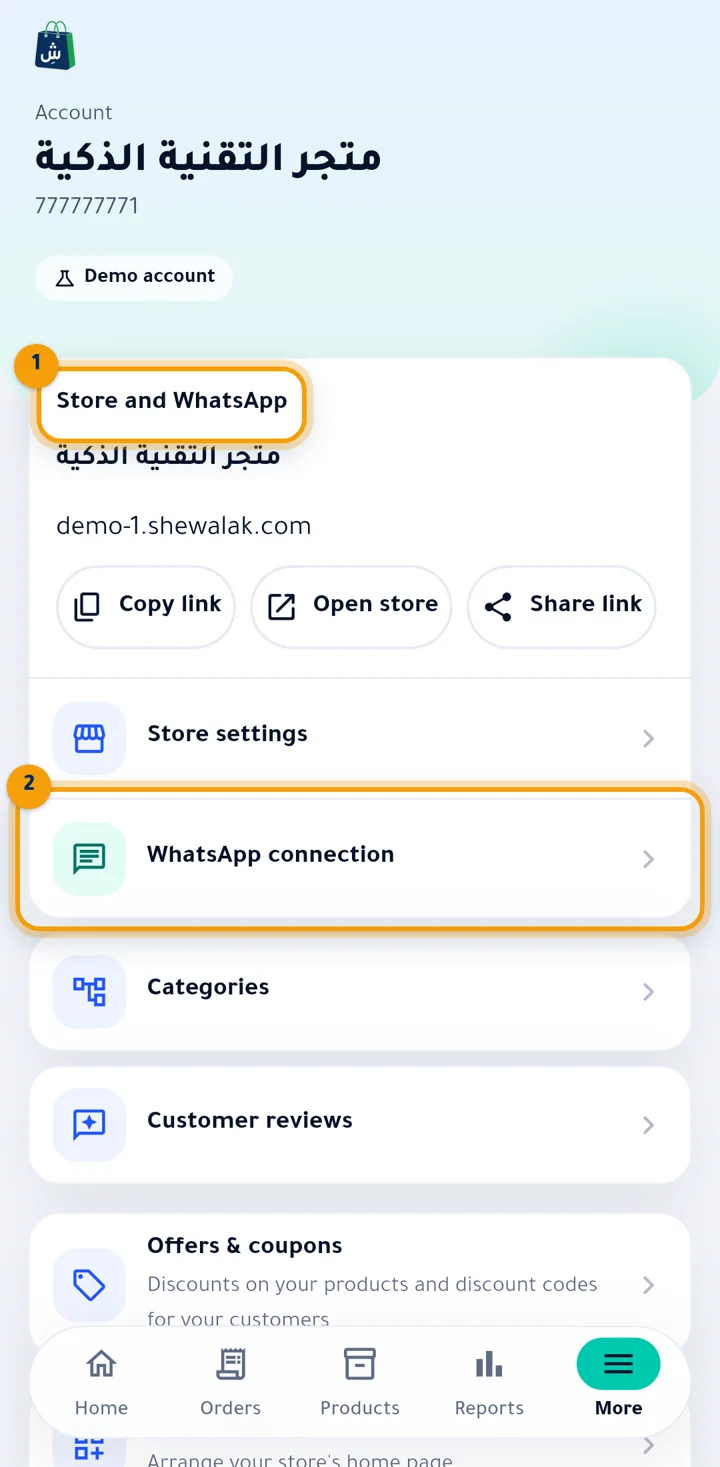
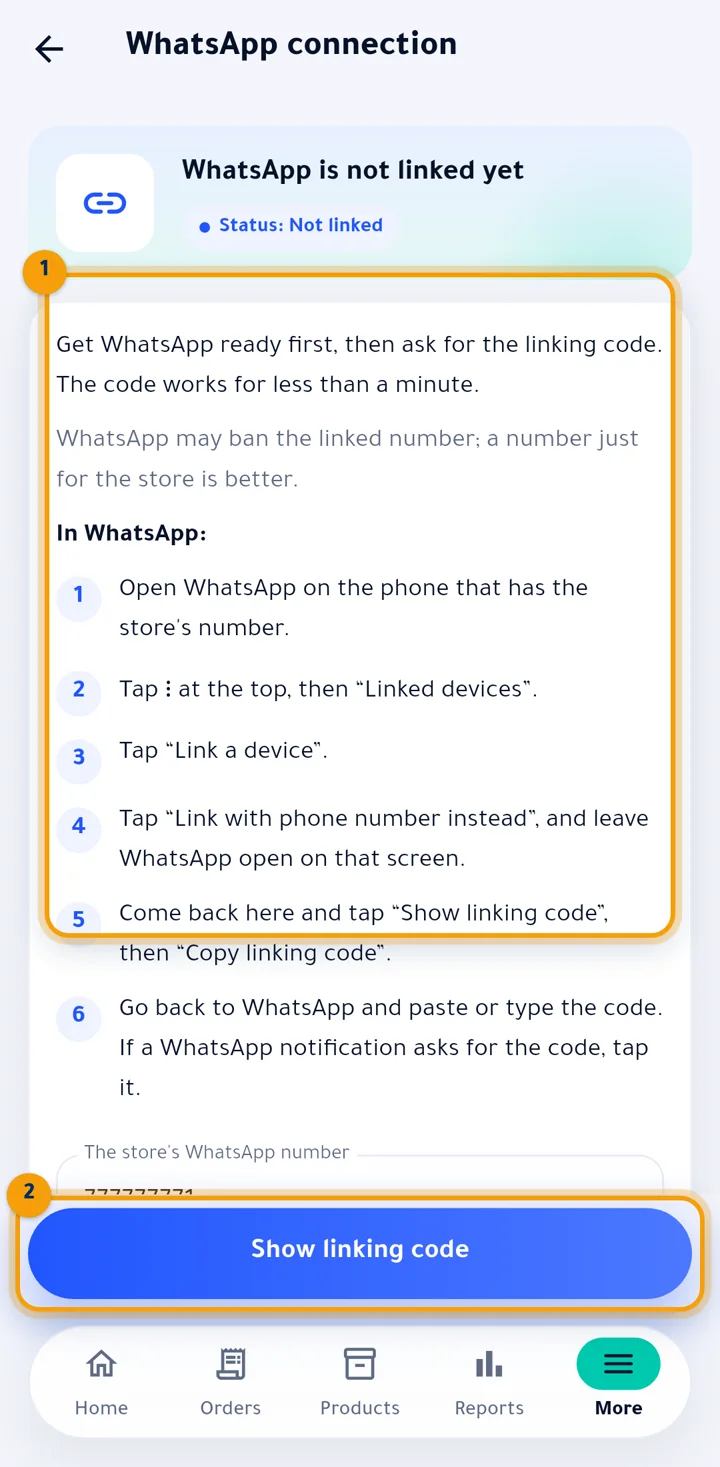
In the app, tap the More tab in the bottom bar, then WhatsApp connection under Store and WhatsApp. You see Status: Not linked, the title WhatsApp is not linked yet and Important notice before linking; read it.
The app links with a linking code, which works on the same phone as the store's WhatsApp. Linking by scanning a picture needs another device, so it is easier from the dashboard (see the web tab).
2. Enter the store number and request the code
- In The store's WhatsApp number check the number: the app fills in the one you sign in with, so change it if the store's WhatsApp is on another number. Write 9 digits starting with 7, or the full number with 967.
- Open WhatsApp first (step 3 below), then come back and tap Show linking code. Getting the linking code… this can take a few seconds shows, then Linking code appears with eight characters and a note of how many seconds it works, and the app says Waiting for the code to be typed in WhatsApp…
- Tap Copy linking code.
Never give the linking code to anyone. Type it only into WhatsApp on the store's phone; we will never ask you for it in a call or a message. Each number gets only a few codes an hour, so ask for a New linking code only after the first one has run out.
3. Type the code in WhatsApp
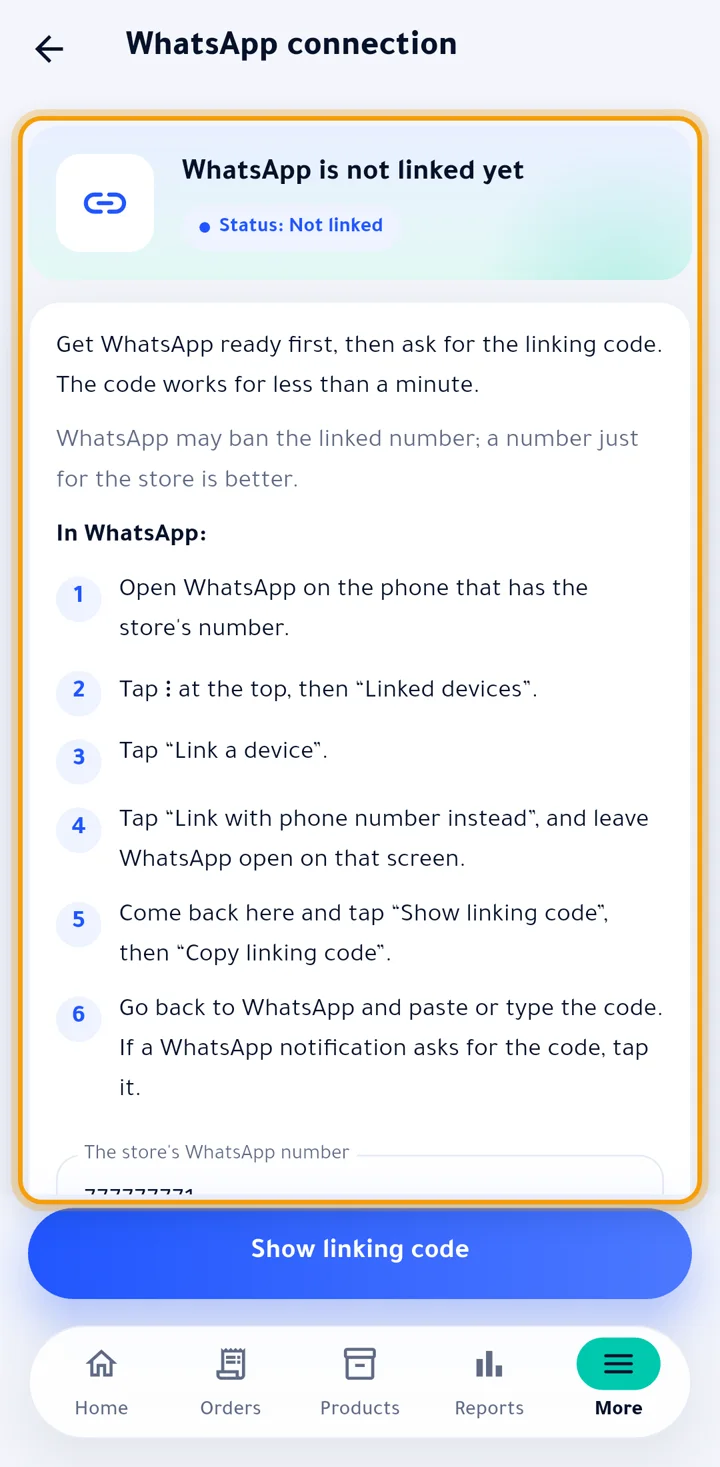
The app lists these steps under In WhatsApp:
- Open WhatsApp on the phone that has the store's number.
- Tap ⋮ at the top, then Linked devices.
- Tap Link a device.
- Tap Link with phone number instead and leave WhatsApp open on that screen.
- Come back to the app, tap Show linking code, then Copy linking code, go back to WhatsApp and paste or type the code.
The screen updates by itself: the status becomes Connected, the title WhatsApp is linked to your store and you see the Connected number and Connected since. If the code runs out before you type it, tap New linking code; to stop the attempt, tap Cancel linking.
4. Turn on notifications and test
Once linked, tap Send test message to receive a message on your own number and see how it looks. Then open Automatic messages to choose what the number sends by itself; each change is saved as soon as you tap it:
- Sent automatically: Order confirmation, Order status updates, New order alerts, Payment reminders, WhatsApp campaigns, Checkout reminders and Review requests.
- Selling in chat: Chat ordering and Product cards and store link.
If you see an error
- We couldn't reach WhatsApp just now: wait a moment and try again.
- Too many requests: wait a few minutes; linking is limited to protect the number.
- WhatsApp didn't send a code this time: ask for a new code, or scan the linking picture instead from a computer or a second phone.
- Enter the WhatsApp number with its country code: type a local 9-digit number, or an international number of 8 to 15 digits.
What happens next
The Connect WhatsApp step on Home is marked Complete. During the first days the number is in its Number warm-up, when the daily sending limit is raised gradually to reduce the risk of a ban. Next: set up delivery.
Last updated: 2026-11-19
All Store settings articles