Post with the ready marketing kit
Build a banner with your invite code in the size you need and download it, copy a ready text, and place the banner on your site with the embed code.
Marketing kit has three tabs, Banners, Ready texts and Embed code, and all of them carry your invite code. The page opens once your application is approved.
You are reading the computer way: the Shewalak Partners portal in a computer browser.
Open Marketing kit from the sidebar.
1. Build a banner
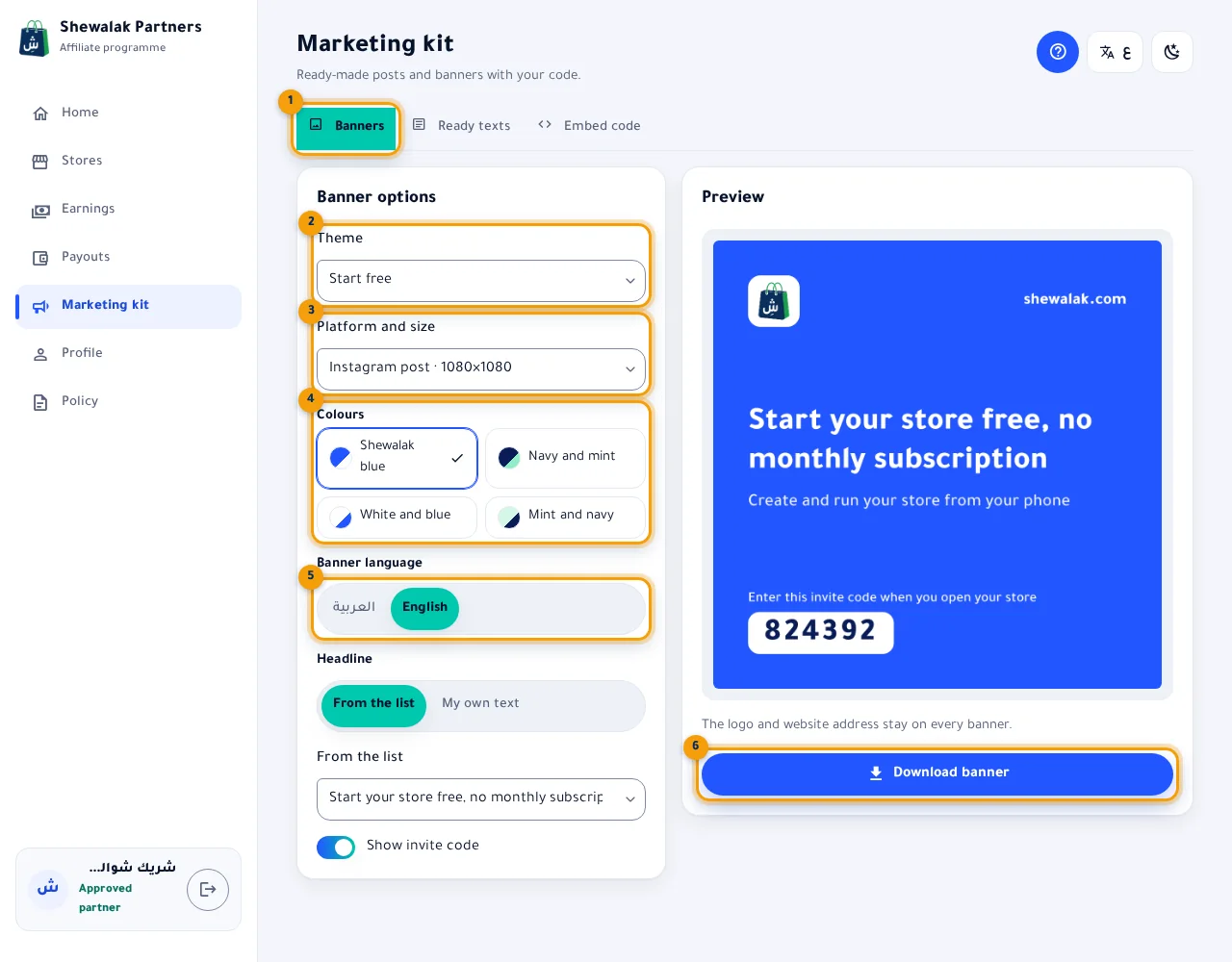
- Open the Banners tab.
- Choose a Theme: Start free, Your store on your phone, Cash on delivery or Your store link.
- Choose the Platform and size for where you will post.
- Choose the Colours.
- Choose the Banner language.
- Check the Preview, then select Download banner to save it as a PNG image.
2. Write your own headline
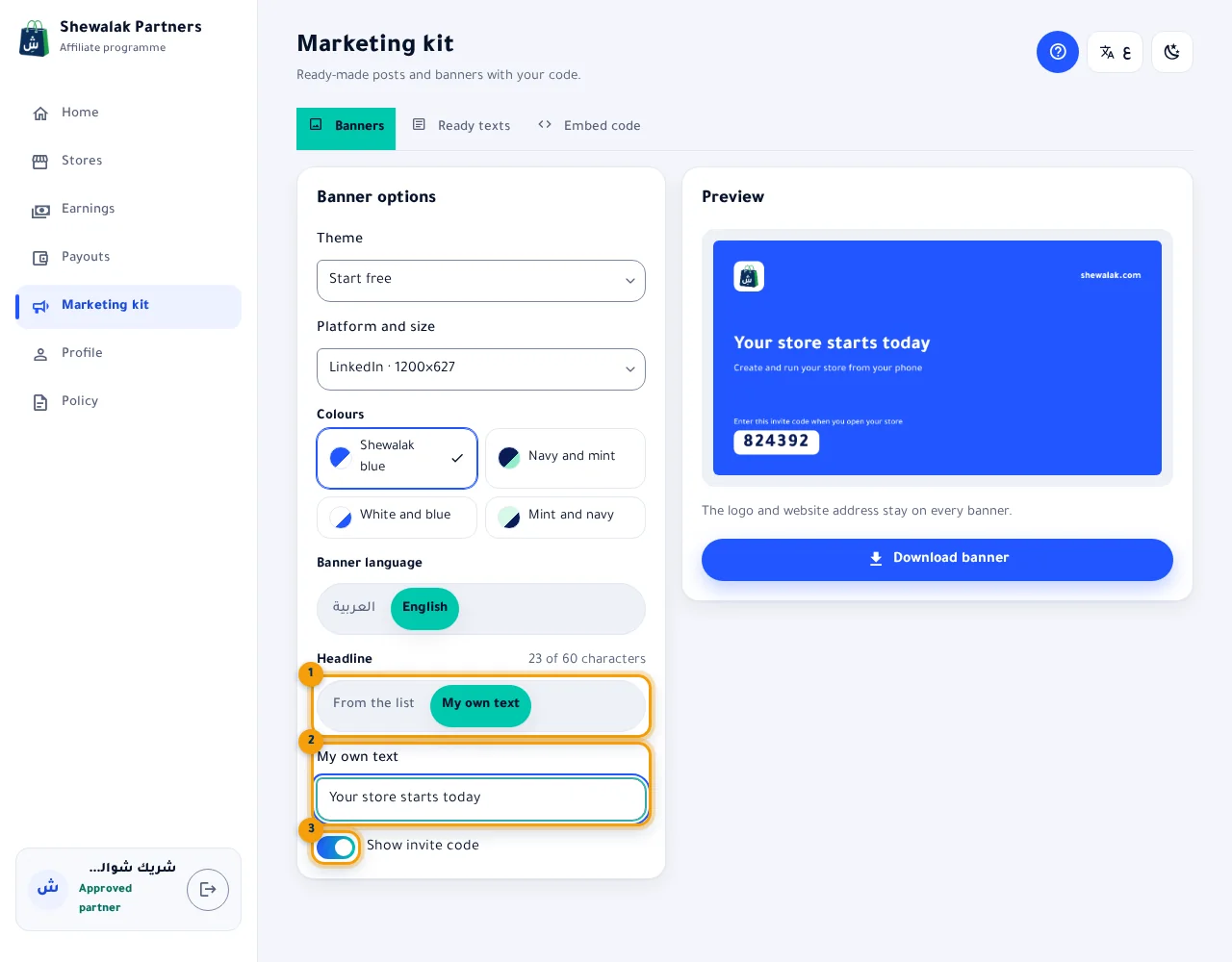
- Under Headline choose My own text instead of From the list.
- Write the headline, up to 60 characters; the counter shows how many you have written.
- Leave Show invite code on so your code appears on the banner.
3. Copy a ready text
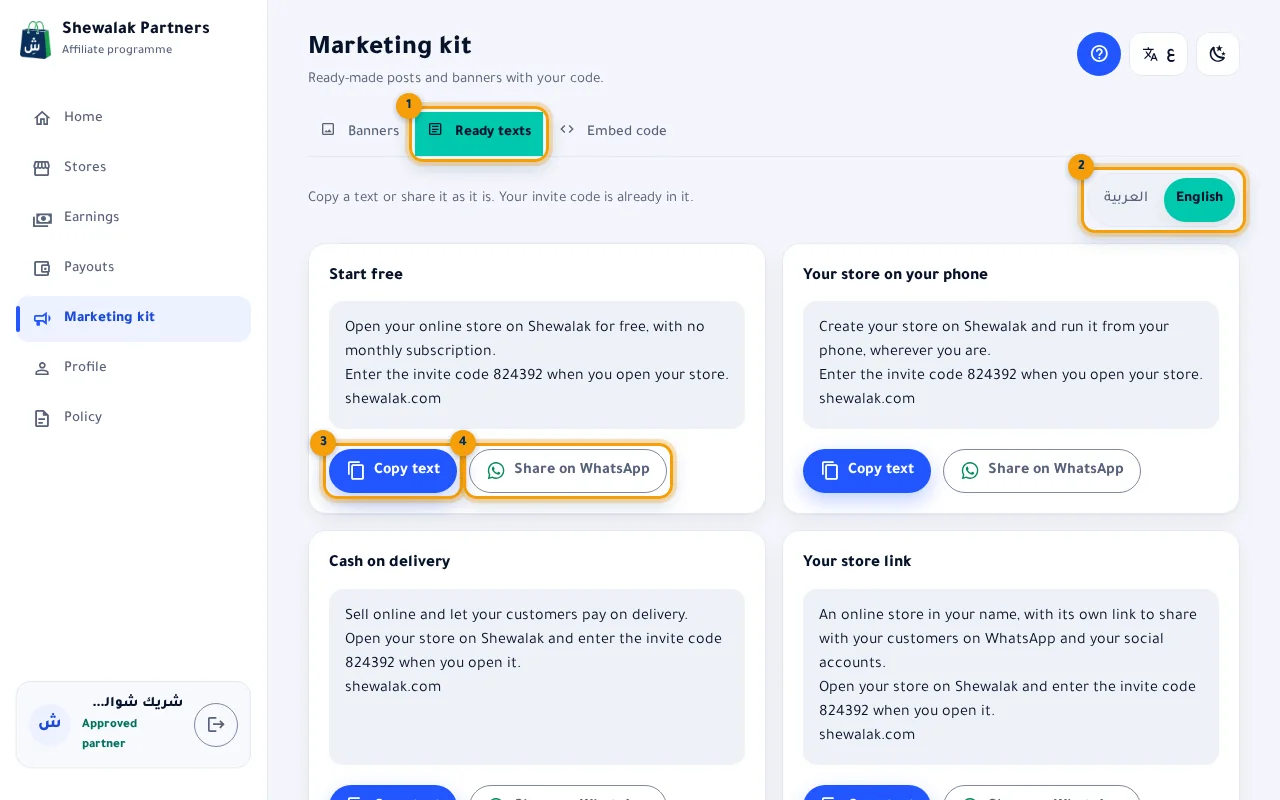
- Open the Ready texts tab.
- Choose the Text language.
- Select Copy text under the text you like.
- Or select Share on WhatsApp to send it right away. Your invite code is in every text.
4. Put the banner on your site
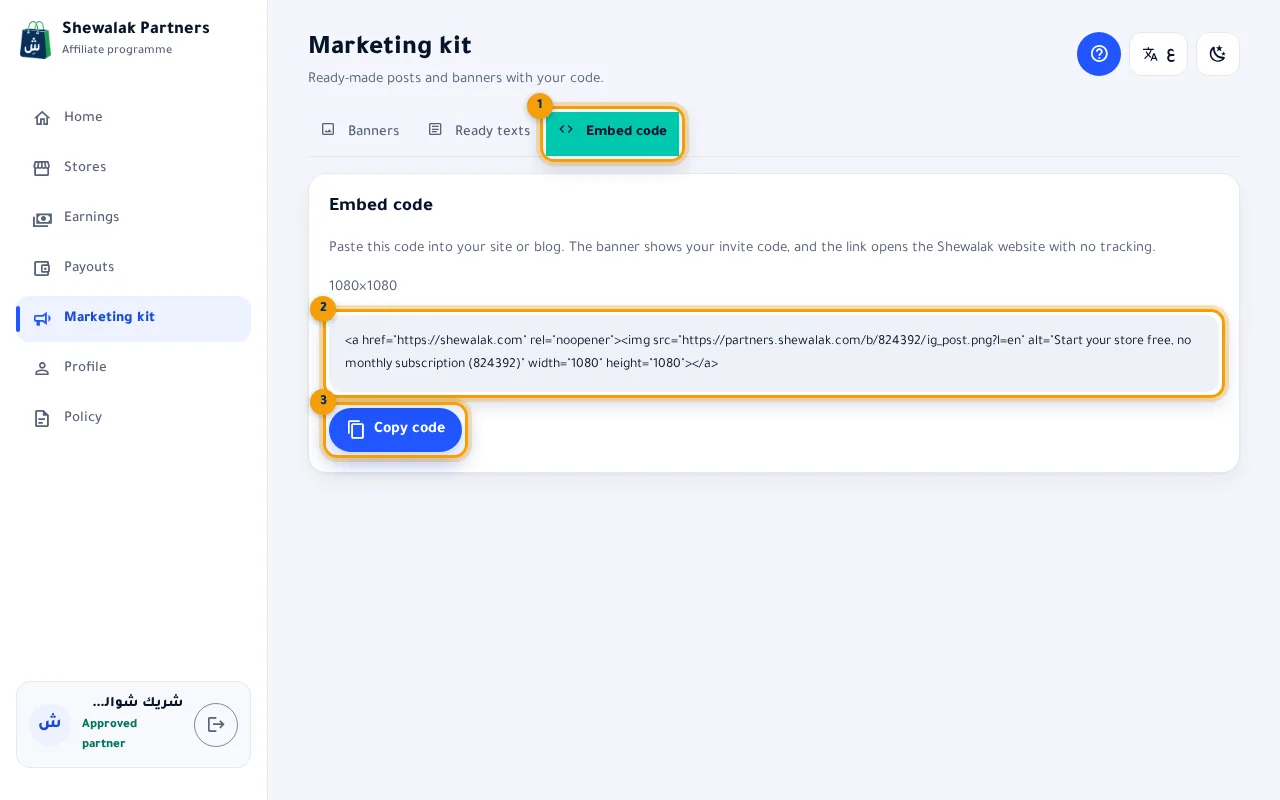
- Once the banner looks right, open the Embed code tab.
- Check the code; it carries the banner's size and your invite code, and the link opens the Shewalak website with no tracking.
- Select Copy code and paste it into a page of your site or blog.
You are reading the phone way: the Shewalak Partners portal at partners.shewalak.com in your phone's browser.
Tap More in the bottom bar, then Marketing kit.
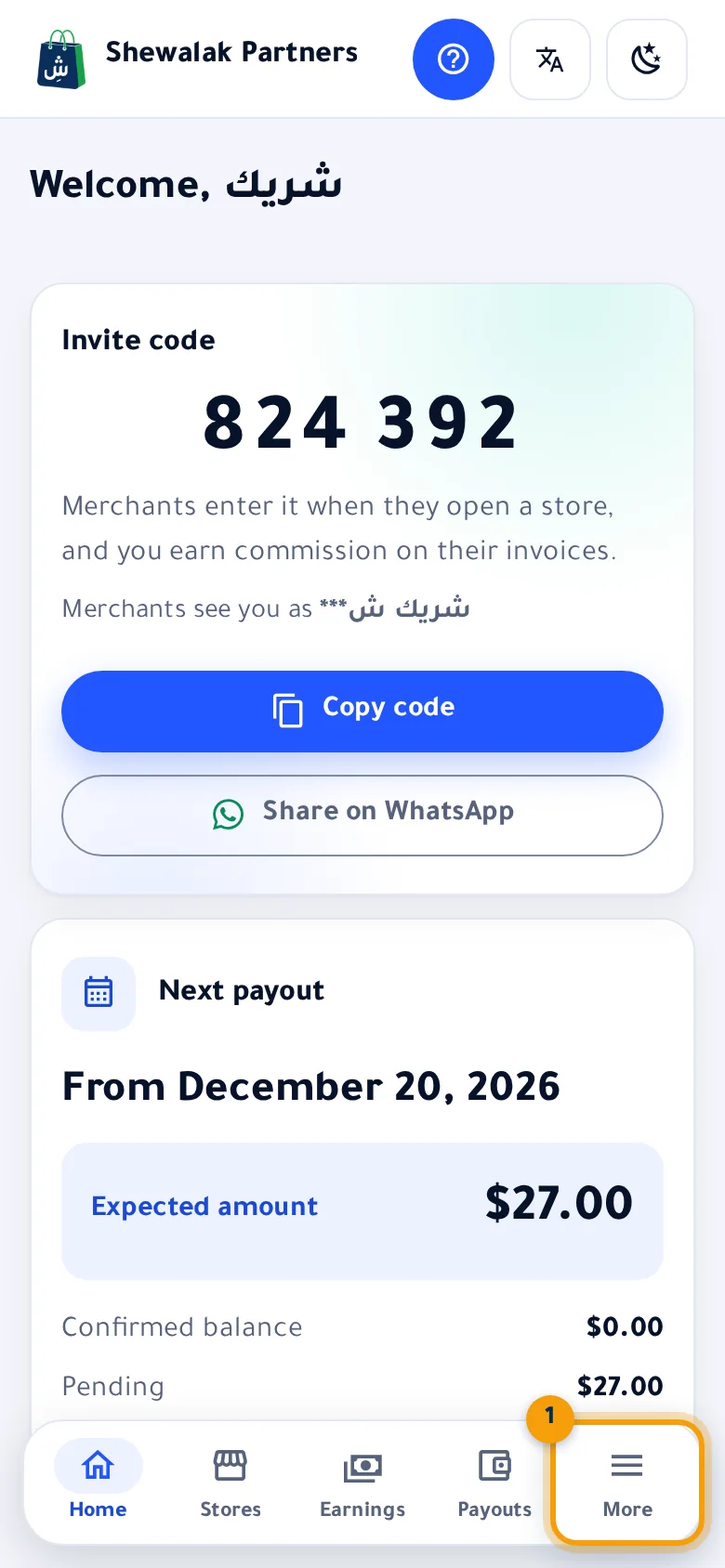
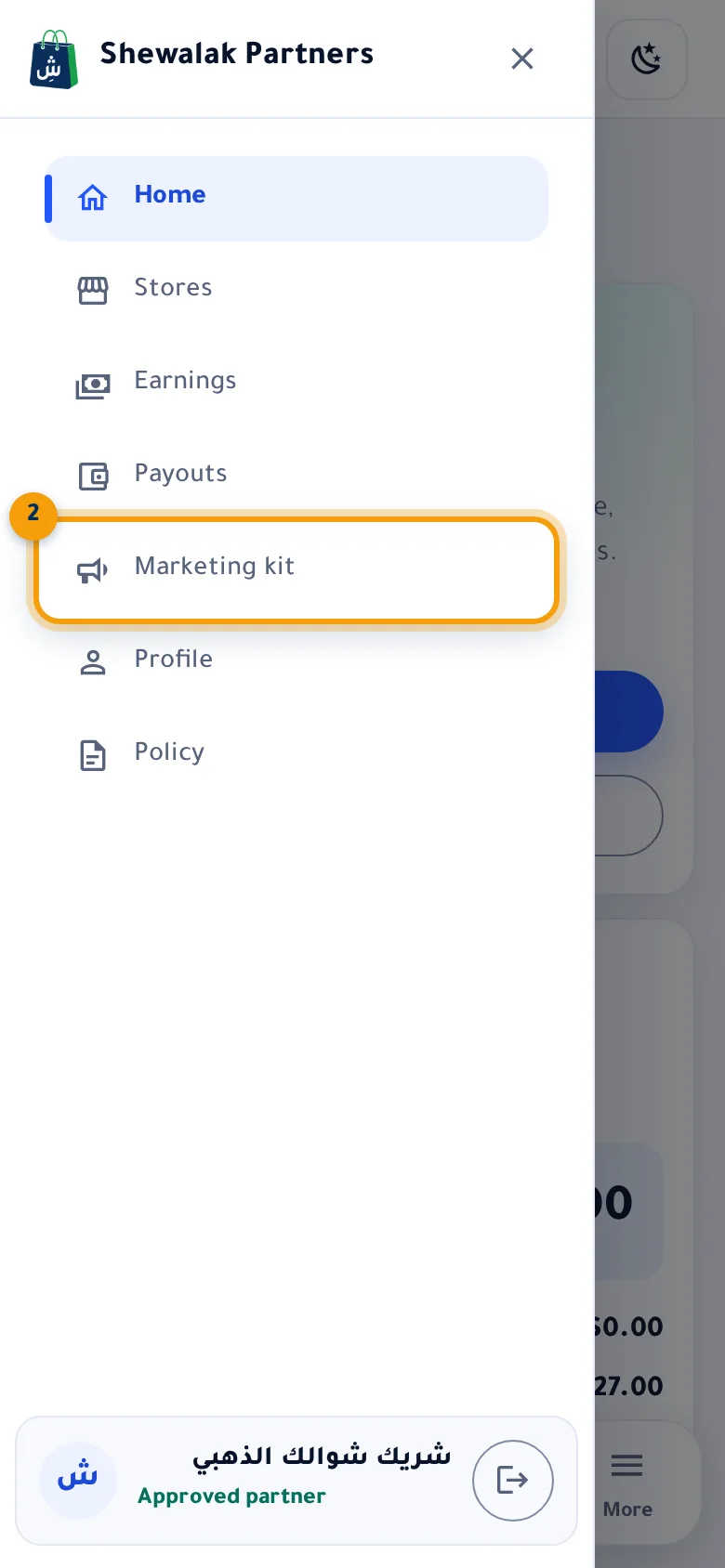
1. Build a banner
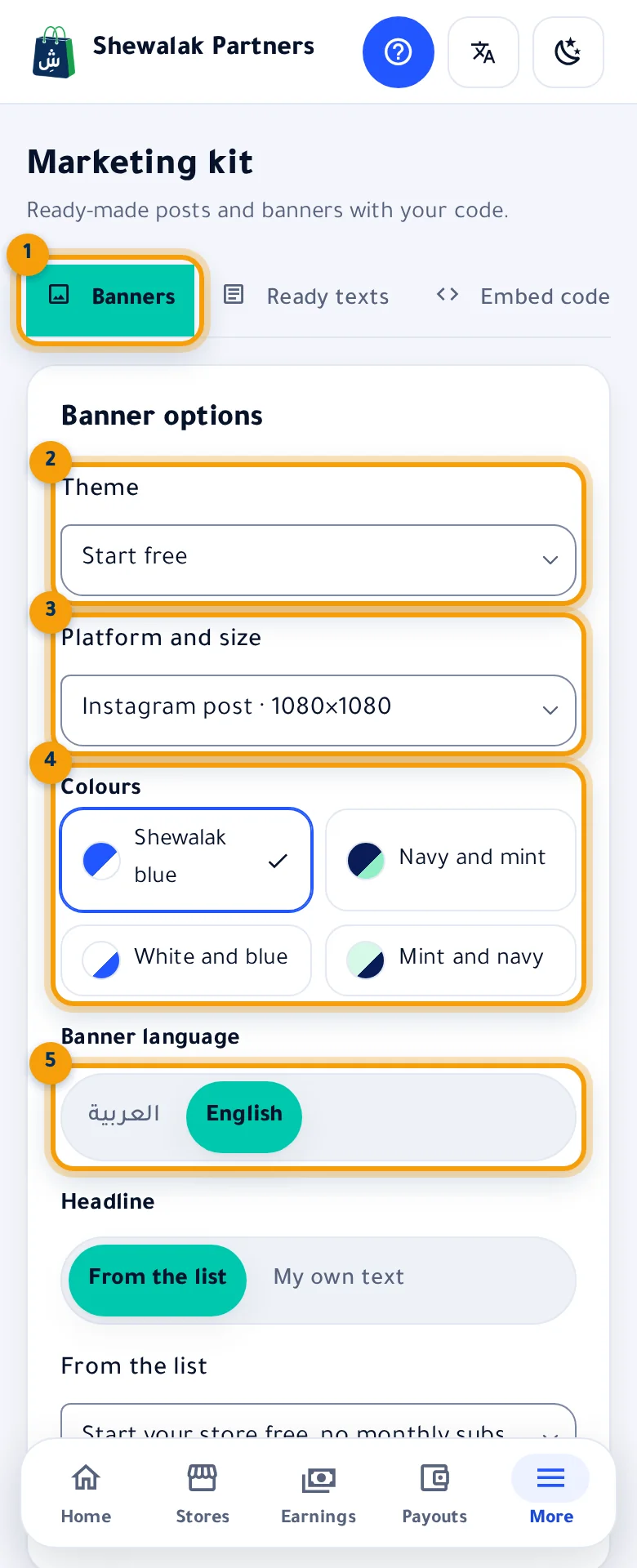
- Open the Banners tab.
- Choose a Theme: Start free, Your store on your phone, Cash on delivery or Your store link.
- Choose the Platform and size for where you will post.
- Choose the Colours.
- Choose the Banner language.
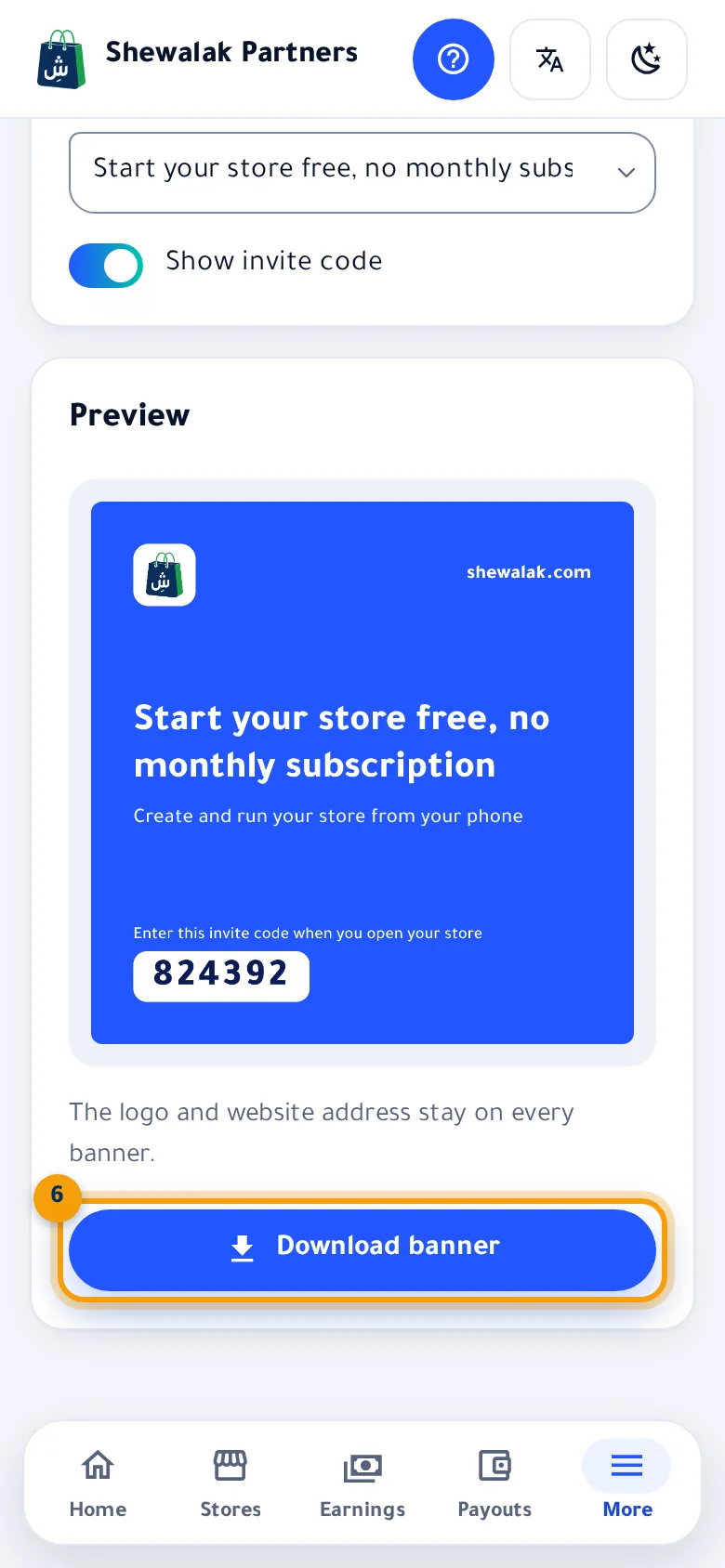
- Scroll to the Preview, then tap Download banner to save it as a PNG image.
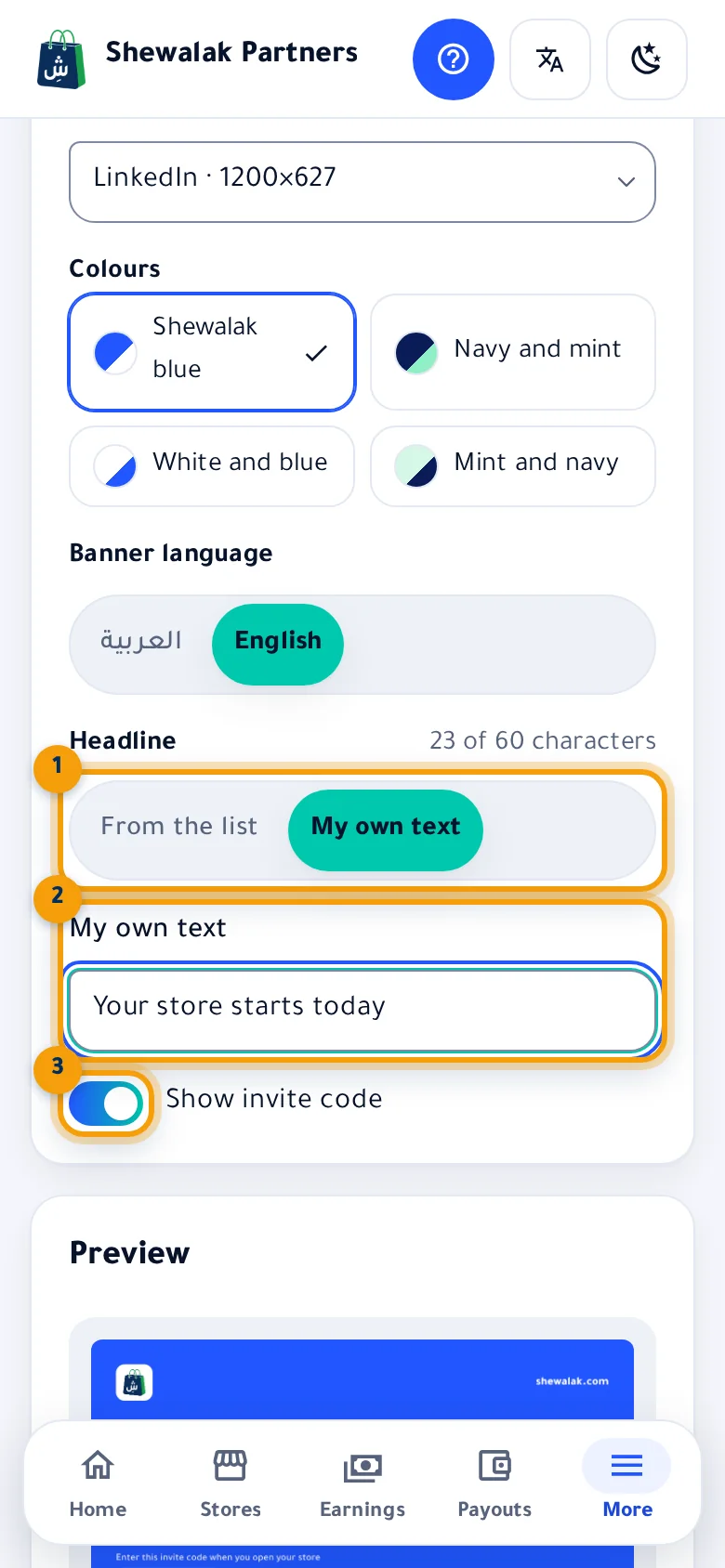
2. Write your own headline
- Under Headline choose My own text instead of From the list.
- Write the headline, up to 60 characters; the counter shows how many you have written.
- Leave Show invite code on so your code appears on the banner.
3. Copy a ready text
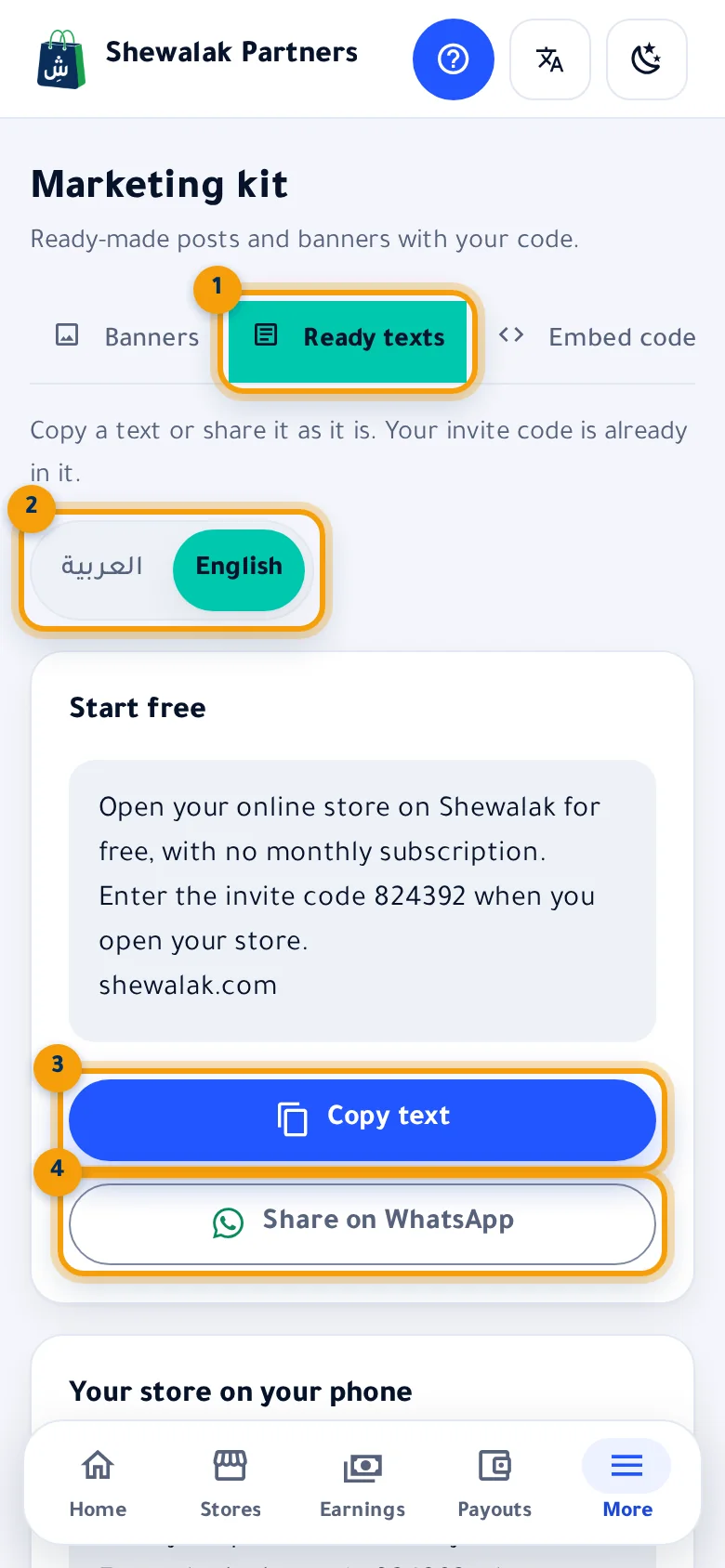
- Open the Ready texts tab.
- Choose the Text language.
- Tap Copy text under the text you like.
- Or tap Share on WhatsApp to send it right away. Your invite code is in every text.
4. Put the banner on your site
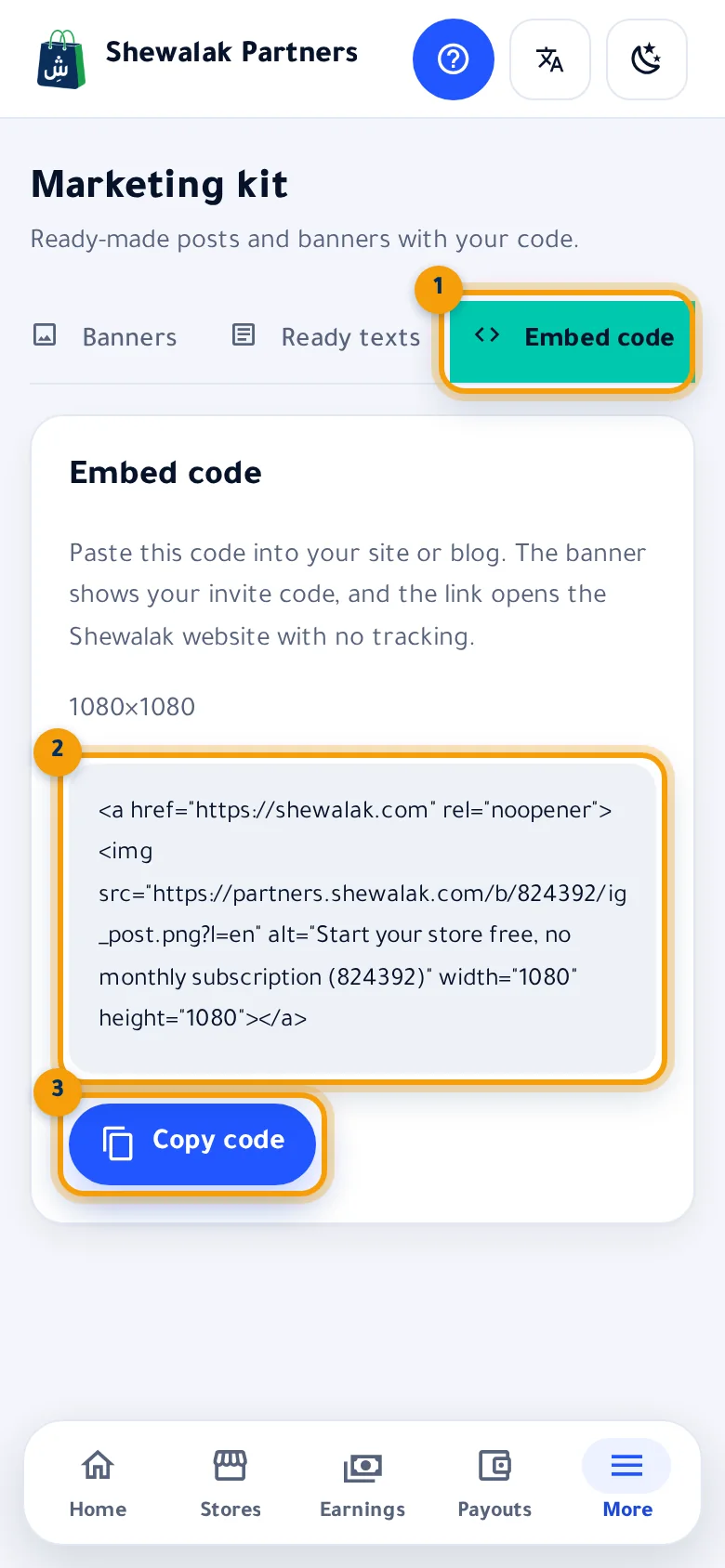
- Once the banner looks right, open the Embed code tab.
- Check the code; it carries the banner's size and your invite code, and the link opens the Shewalak website with no tracking.
- Tap Copy code and paste it into a page of your site or blog.
Banner sizes
In pixels:
| Place | Size |
|---|---|
| Instagram post | 1080×1080 |
| Instagram story | 1080×1920 |
| WhatsApp status | 1080×1920 |
| Facebook post | 1200×630 |
| X | 1600×900 |
| 1200×627 | |
| Website leaderboard | 728×90 |
| Sidebar box | 300×250 |
The Shewalak logo and website address stay on every banner and cannot be removed.
Headline rules
- Letters, numbers and simple punctuation only.
- No link and no account name.
- No phone number and no long number.
- No unsuitable word.
If the headline breaks a rule, a message under it says which one, and the banner cannot be downloaded until you change it.
The embed code uses a headline from the list. A headline you write yourself appears only on the banner you download.
What happens next
When a merchant enters your code while opening a store, the store appears on the Stores page. Next step: understand your earnings and their statuses.
Last updated: 2026-11-25
All Shewalak Partners articles