How to pay your bill
Transfer the invoice amount to a Shewalak account, submit the transaction number or the receipt image from your dashboard, wait for approval, and know what happens 7, 14 and 30 days after the due date.
You need an Issued invoice on the Usage and billing page, and the transfer's transaction number or the receipt image (JPG, PNG or WEBP, up to 2 MB); you can provide both. How the amount is calculated is explained in How Shewalak charges you. There is no online payment at the moment; you pay by transfer to a Shewalak wallet or bank account shown on the invoice, and nothing is charged automatically.
You are reading the web way: your store dashboard in a computer browser.
1. Open the invoice and transfer the amount
- From the sidebar choose Store settings → Usage and billing, then select Open the current invoice, or Open invoice next to it in the Invoices list.
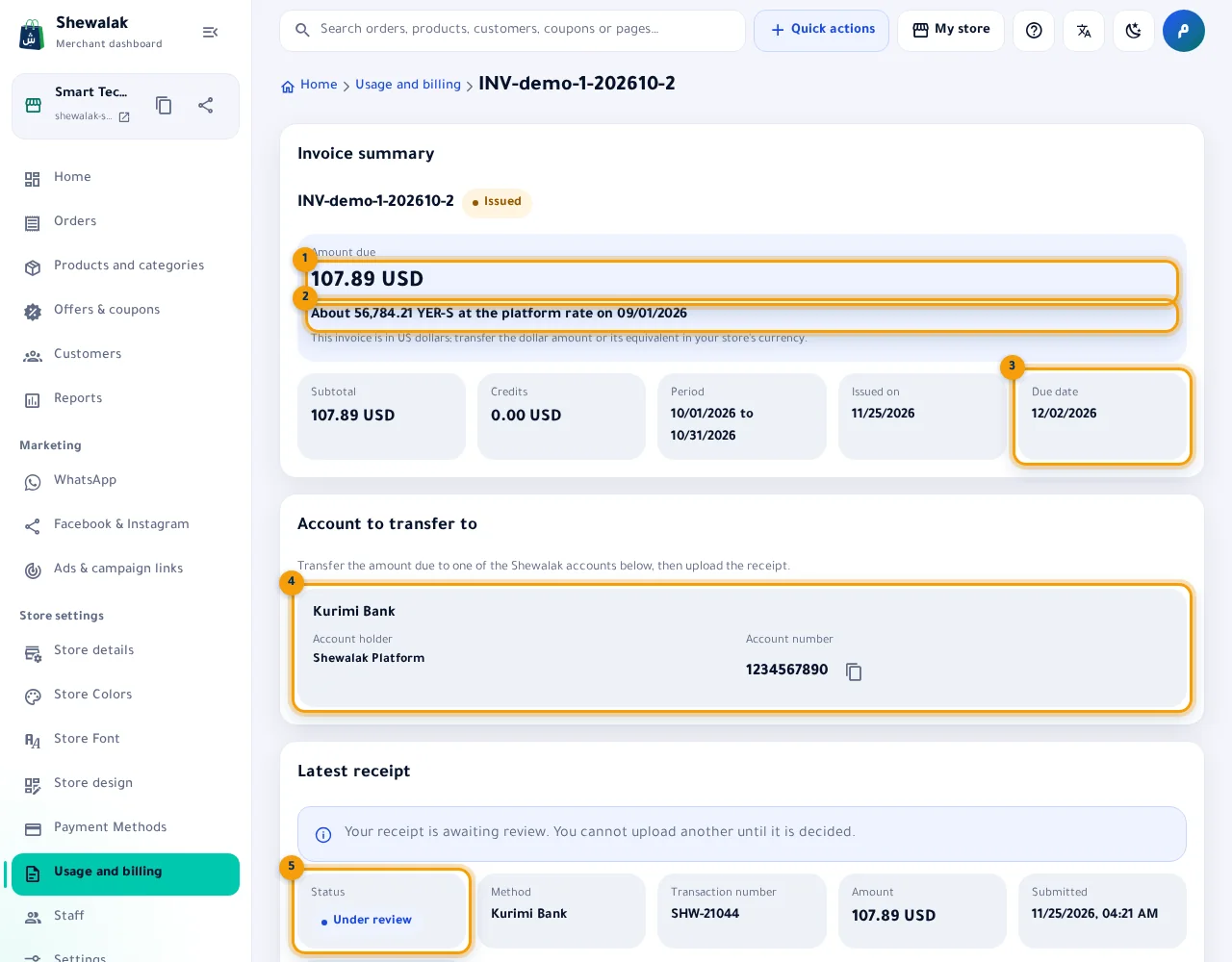
- Read the Amount due in US dollars, its equivalent in your store's currency under it, then the Due date.
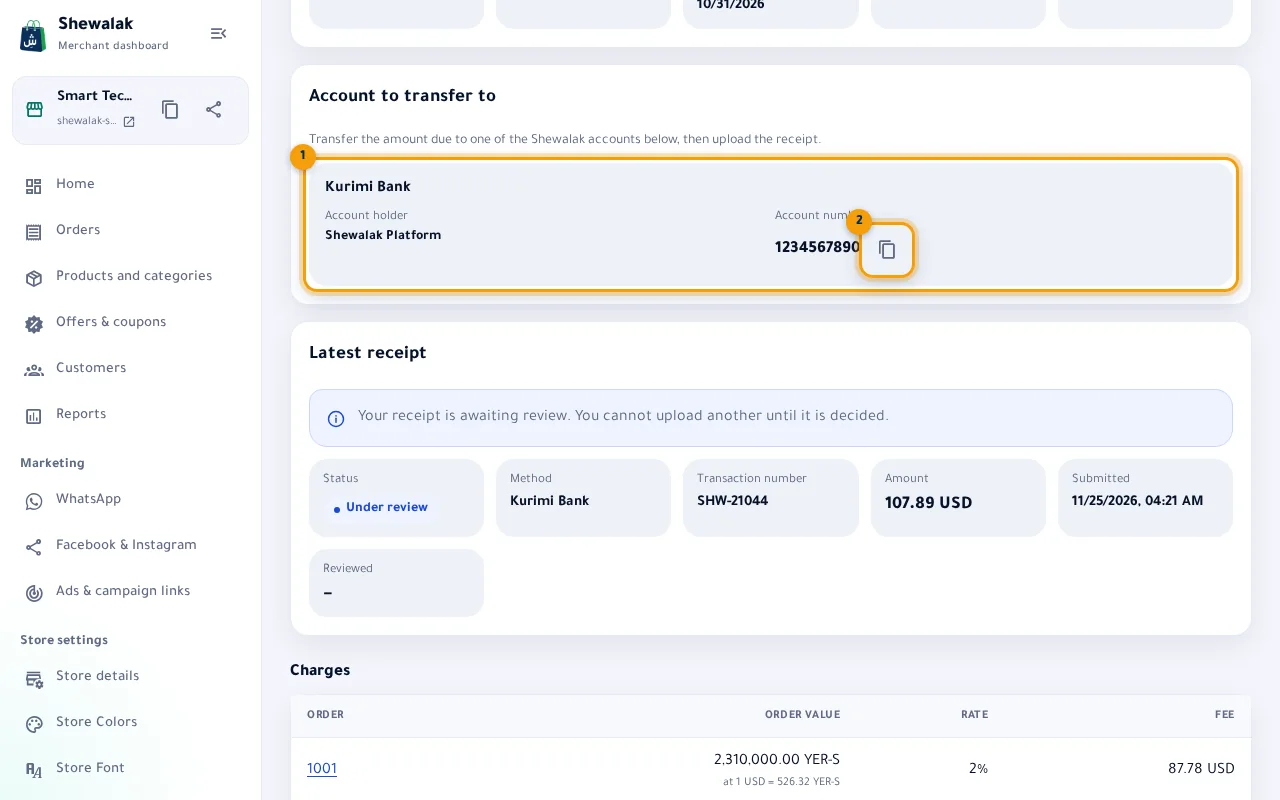
- The Account to transfer to card shows the bank or wallet, the Account holder and the Account number; copy the number with the copy button next to it. If it says "Shewalak has not published a receiving account yet", contact support before transferring.
- Transfer the amount due in US dollars, or the equivalent in your store's currency shown under it at the platform's rate of the day, from your wallet or banking app and keep the receipt; it must show the amount, the date and the transaction number.
2. Upload the receipt
- Under the transfer accounts on the invoice page, select Upload receipt.
- Under Transfer method choose the Shewalak account you transferred to.
- Enter the Transaction number or attach the Receipt image, or both.
- Select Submit receipt. The message Your receipt was submitted and is awaiting review. appears.
The invoice keeps the status Issued, the Latest receipt card shows Under review with the method, transaction number, amount and submission date, and the Upload receipt button stays hidden until this receipt is decided.
3. Wait for approval
- The Shewalak team reviews the receipt and matches it against the actual transfer.
- On approval the invoice turns Paid, its Paid on date appears, and you are notified.
- On rejection the Latest receipt card shows Rejected with a Review note (such as a short amount, an unreadable receipt or a wrong transaction number). The invoice stays Issued and the Upload receipt button returns so you can send a correct receipt.
- A paid invoice is never edited; any correction appears as a Credit on a later invoice.
Every receipt for the invoice stays in the Payment history at the bottom of the page, and View receipt opens any of them.
4. If your receipt is reversed
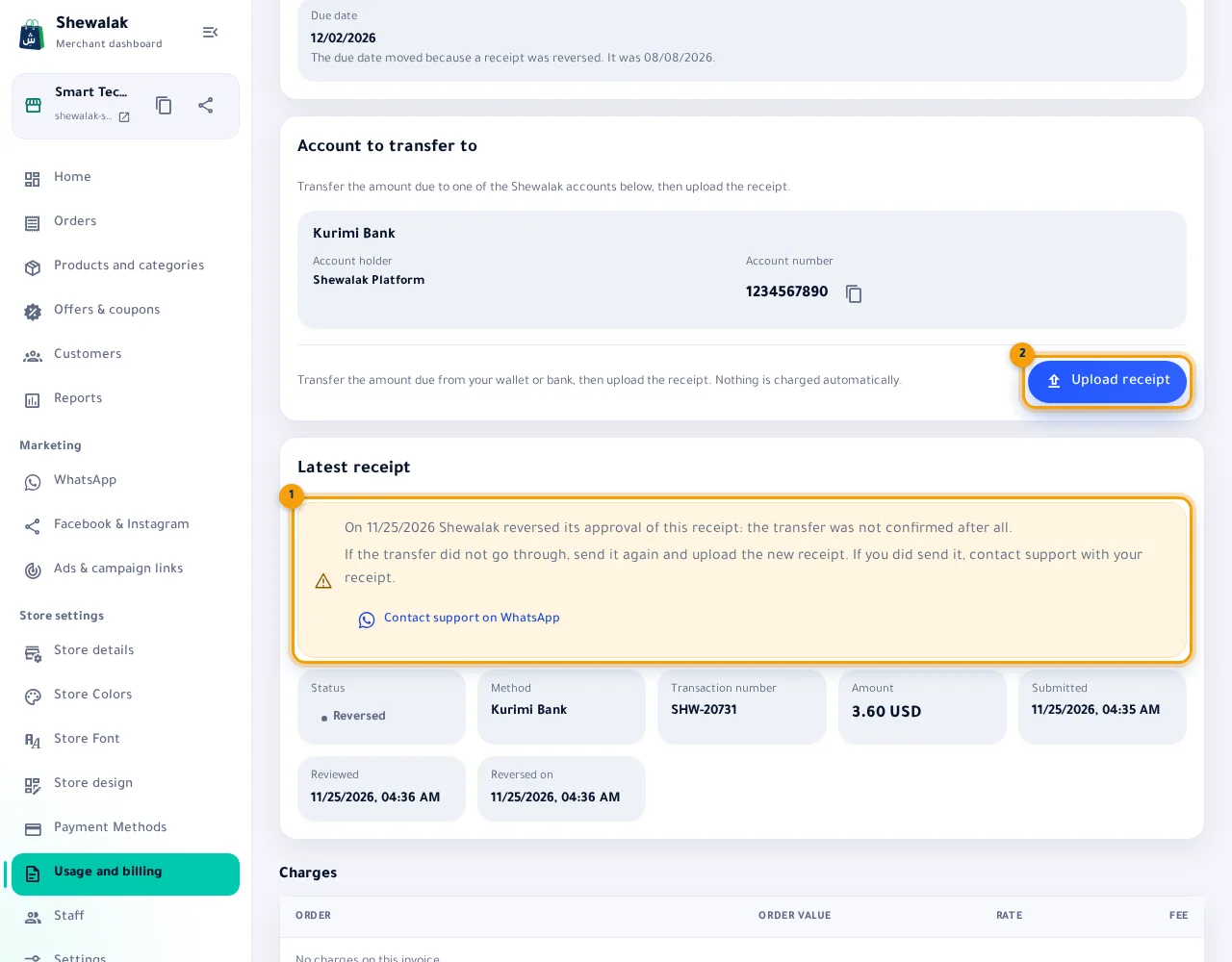
If the transfer did not arrive after all, for example the bank returned it, Shewalak reverses its approval of the receipt. You are told on WhatsApp, the invoice is Issued again with a new due date 7 days later, and the grace periods restart from it.
- Read the notice in the Latest receipt card; the receipt's status there is Reversed, with its Reversed on date.
- If the transfer did not go through, send it again and select Upload receipt. If you did send the money, contact support with your receipt.
5. If the invoice itself is cancelled
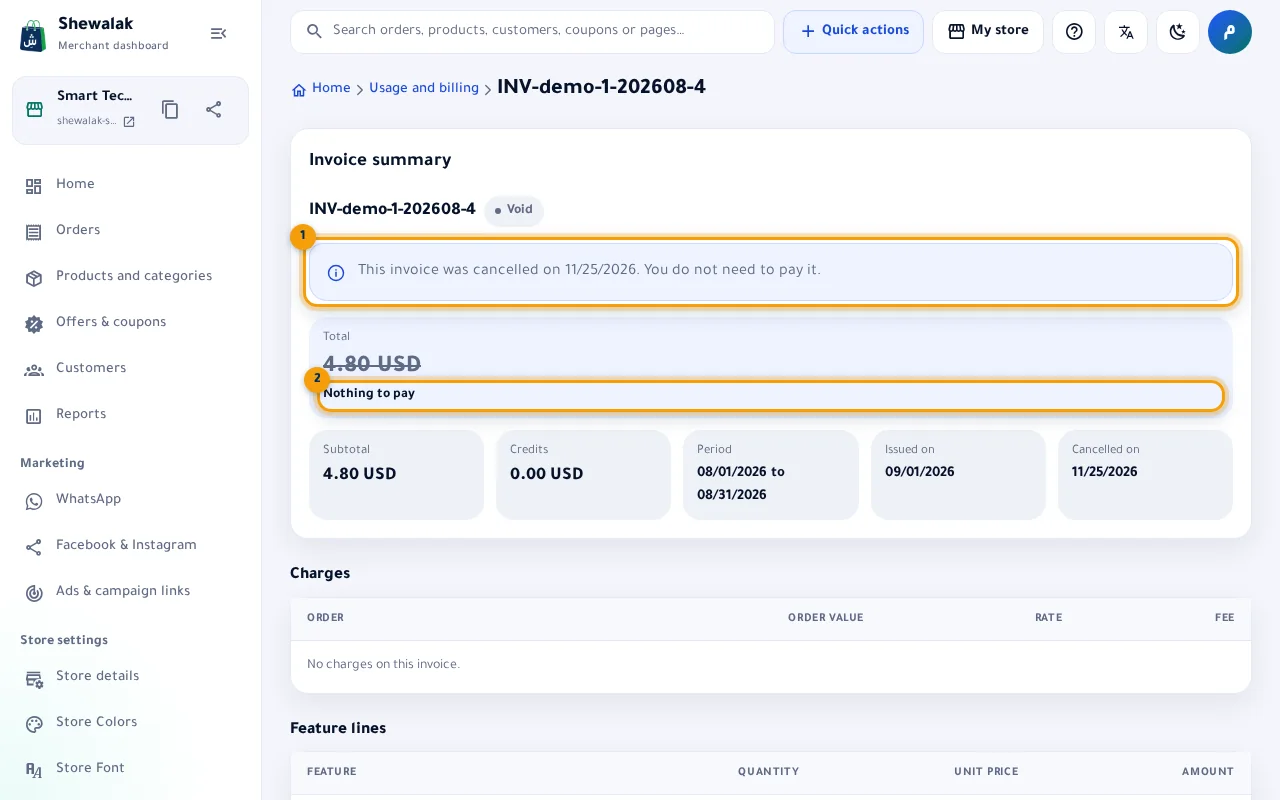
Shewalak cancels an invoice that was issued by mistake:
- The invoice shows the status Void with the line This invoice was cancelled and its date.
- Its total is struck through with Nothing to pay under it. Pay nothing; any credit it used comes back to you.
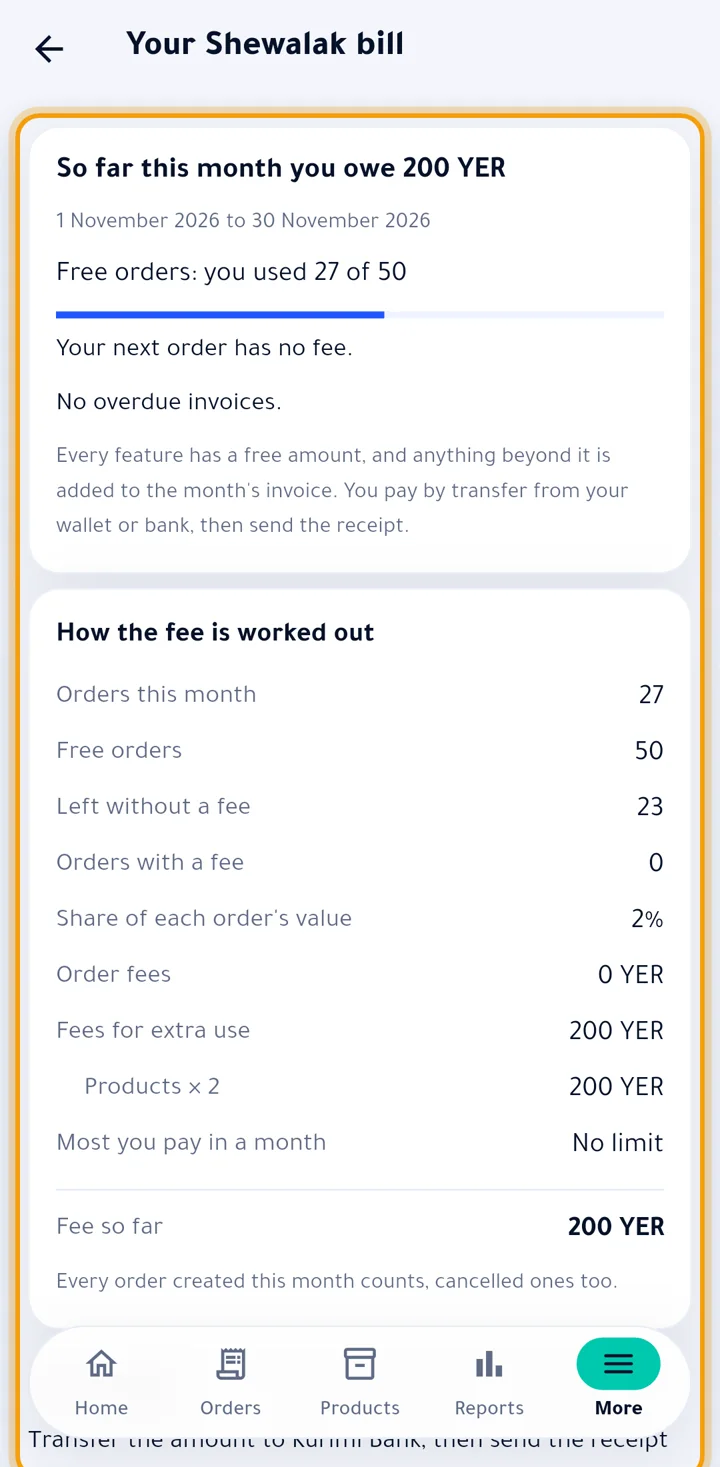
You are reading the app way: the Shewalak merchant app on your phone.
1. Open the invoice and transfer the amount
- In the app, tap the More tab in the bottom bar, then Your Shewalak bill. Under Invoices tap the invoice that says Waiting for payment, or tap Open the invoice to pay near the top.
- Read the Amount due and Pay by.
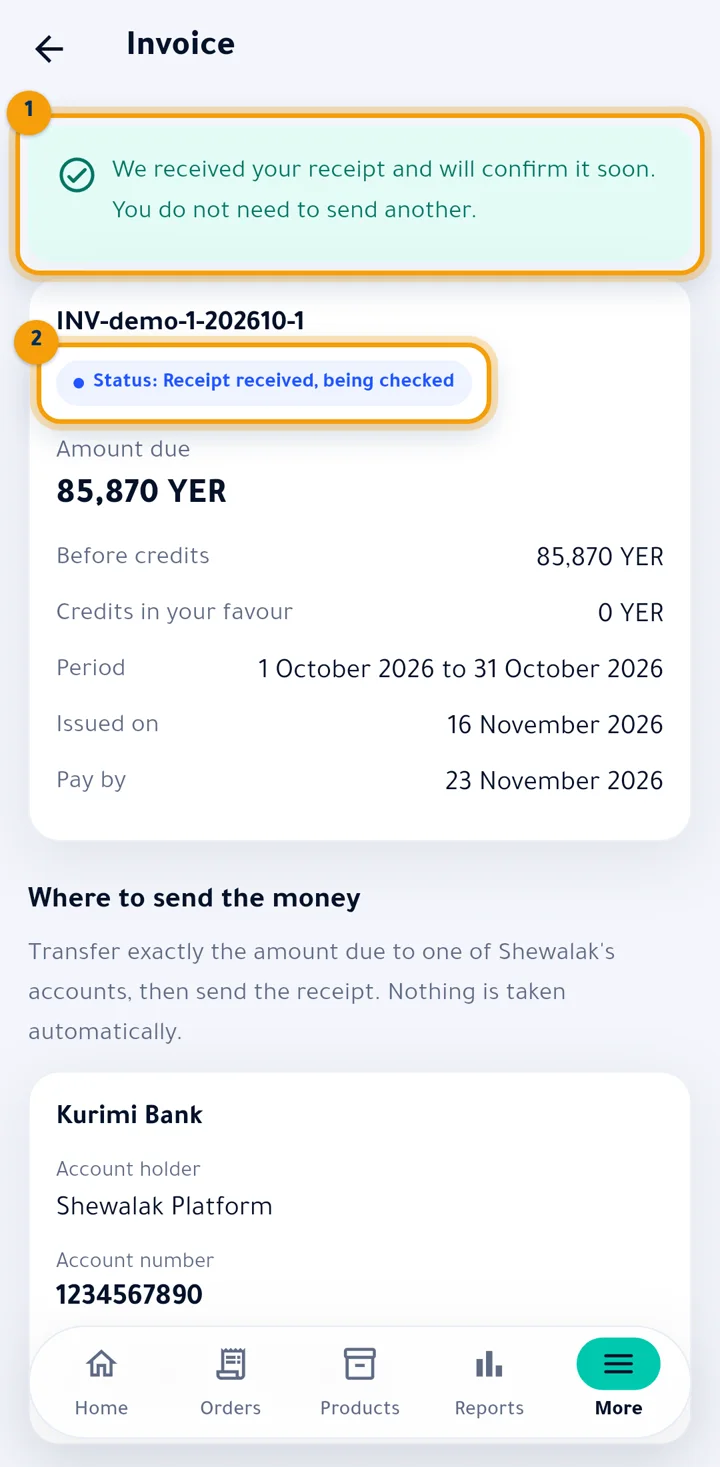
- Where to send the money shows the Account holder and the Account number; tap Copy account number. If it says "Shewalak has not added an account to transfer to yet. Contact us.", contact support before transferring.
- Transfer the amount due in US dollars, or the equivalent in your store's currency shown under it at the platform's rate of the day, from your wallet or banking app and keep the receipt; it must show the amount, the date and the transaction number.
2. Send the receipt
- On the invoice tap Send the receipt.
- Under Which account did you transfer to? choose the Shewalak account.
- Type the Transfer number, or add a Receipt picture with Take a photo or Choose from photos (Remove the picture lets you change it), or both. The app makes the picture smaller for you.
- Tap Send the receipt. The message We received your receipt. We will confirm it. appears and the invoice shows Receipt received, being checked.
3. Wait for approval
- The Shewalak team reviews the receipt and matches it against the actual transfer.
- On approval the invoice shows Paid with Paid on.
- If the receipt is rejected, the invoice shows Receipt not accepted, send another and Shewalak's note says why; tap Send the receipt again with a correct one.
- Every receipt stays under What you sent for this invoice, and See the receipt picture opens it.
- An invoice Shewalak cancelled shows Cancelled and needs no payment. If a receipt is reversed, the invoice goes back to Waiting for payment; the details of the reversal are on the web dashboard.
What happens if you are late?
Days are counted from the due date, a warning is sent before every step, and the Usage and billing page shows a notice with your current stage:
| After | What happens |
|---|---|
| 7 days | The grace period ends: the invoice is marked Overdue and you are warned that the next step is near. |
| 14 days | Your store dashboard becomes read-only until the receipt is approved: you can see your orders and products but not change them, and your storefront stays open to customers. |
| 30 days | Your storefront is suspended for customers until the receipt for the overdue invoice is approved. |
As soon as the receipt is approved everything comes back automatically, whichever stage you were at. The three periods are set and announced in advance by the Shewalak team.
What happens next
The paid invoice stays in the Invoices list with its receipt so you can return to it any time. The next month starts a new counter from zero, and its invoice closes on the first of the month after, as described in How Shewalak charges you.
Last updated: 2026-11-25
All Billing and payments articles