Add colours, sizes and a quantity for each
Answer Yes to the colours and sizes question, choose what differs and its values, then enter each choice's quantity and its price if it differs.
From Products select Add product, or open an existing product and select Edit product. Enter the Product name and Price first in Basic information; every choice you add takes that price automatically.
You are reading the web way: your store dashboard in a computer browser.
Open the Products page of your dashboard in a computer browser.
1. Answer Yes and choose what differs
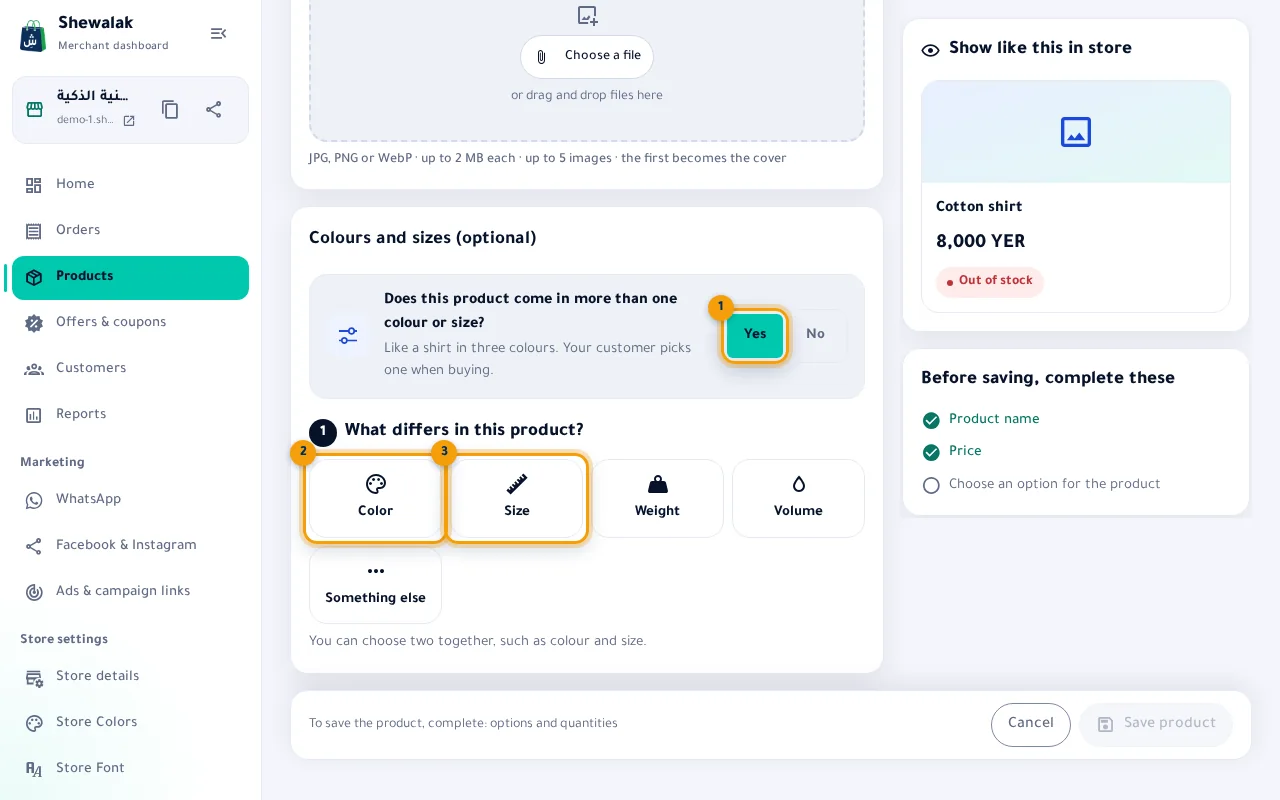
- Scroll to Colours and sizes (optional) and, next to Does this product come in more than one colour or size?, select Yes.
- Under What differs in this product? choose Color or Size, or both. You also find Weight and Volume, and Something else to type your own option name, such as "Flavour" or "Model".
One product can have up to 5 options.
2. Choose the values
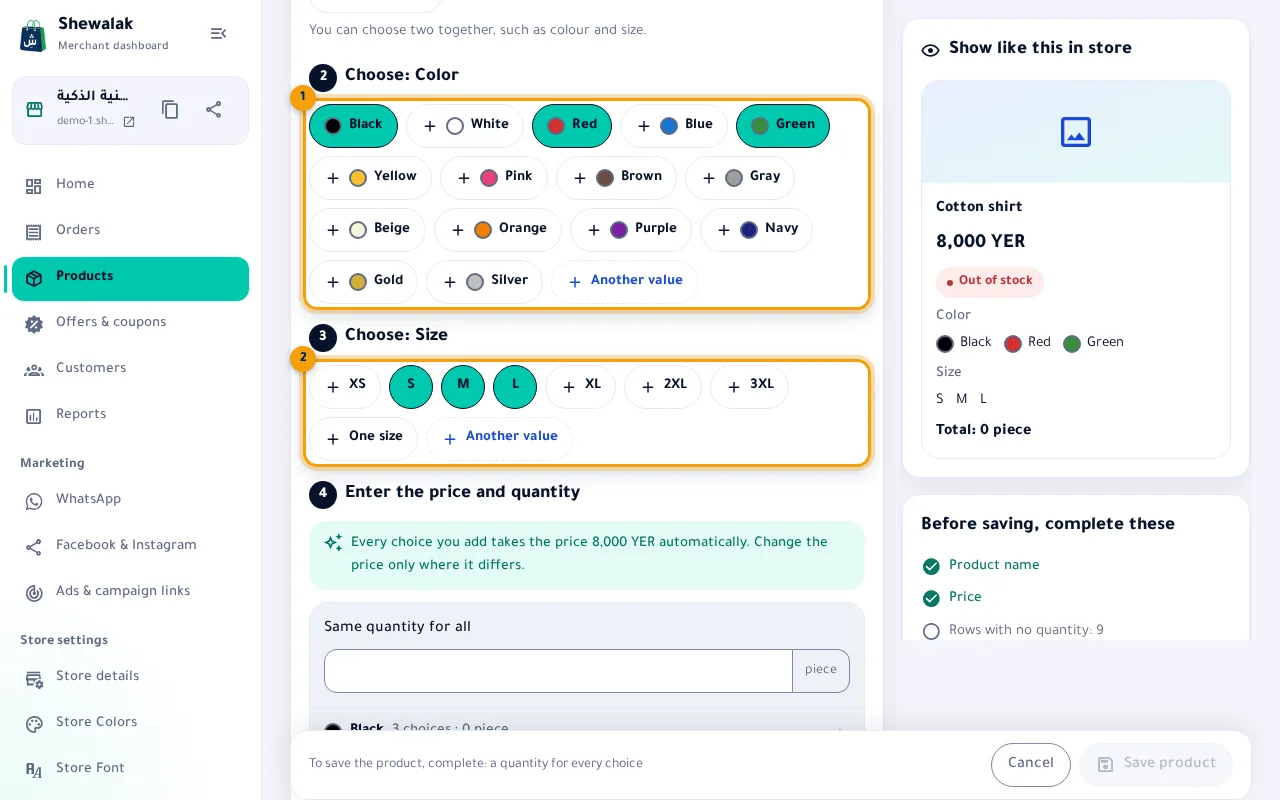
Each option you chose gets a Choose: … step with ready-made values. Select every value you sell to add it, such as Black, Red and Green for colour, and S, M and L for size. If your value is missing, select Another value, type it and select Add. To remove a value, select it again.
Each option takes up to 20 values, and Shewalak builds every combination automatically, such as Black · S and Red · L, up to 100 combinations per product.
3. Enter the quantity and price
In the Enter the price and quantity step:
- Type a number in Same quantity for all and every row without its own quantity takes it, or enter each row's quantity on its own. If some rows already hold a different quantity, Apply to all appears to make them match. Enter
0for a choice that has sold out. - Every row takes the product price automatically. Change the price only on a row that costs more; it then shows a Different price badge. A choice cannot cost less than the product; to go lower, reduce the product price above.
- With two options, the rows are grouped under each colour; select the colour to open or fold its rows, and Total quantity shows at the bottom.
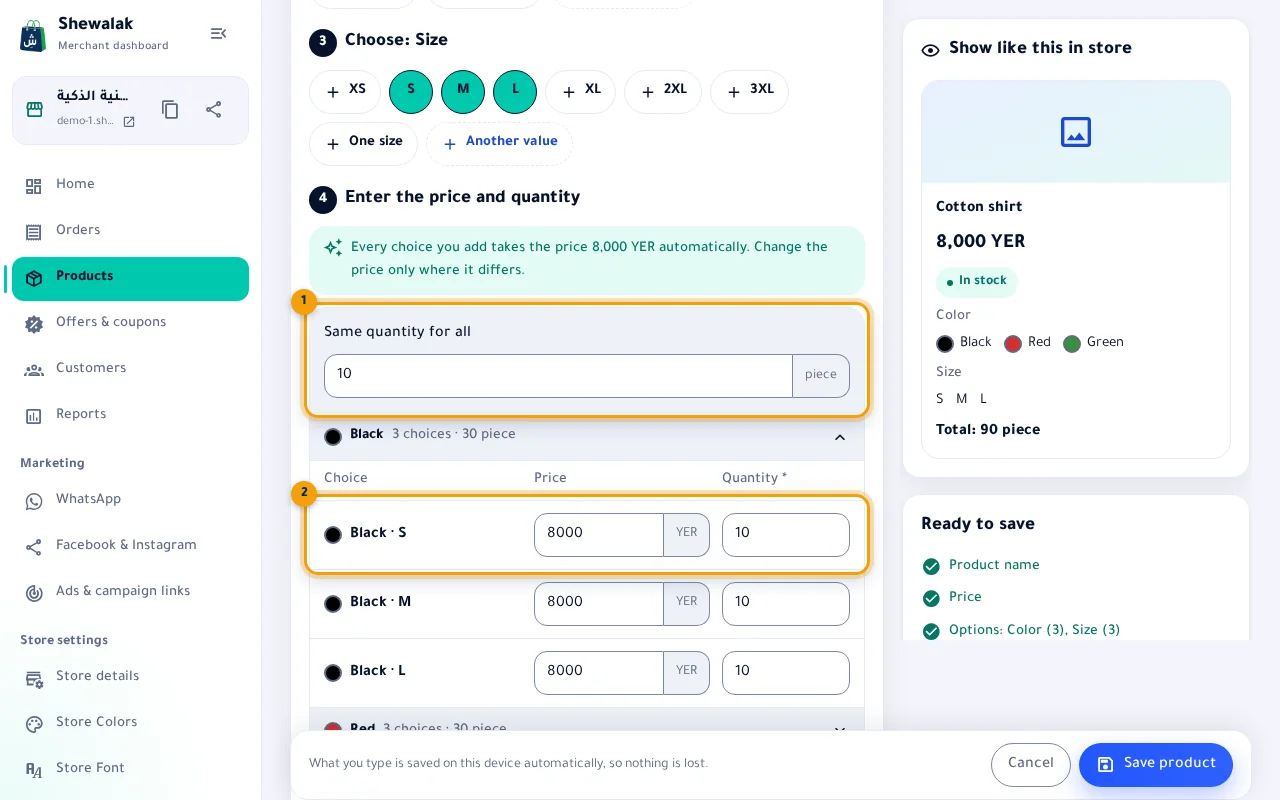
A choice with zero quantity shows to the customer as unavailable and cannot be added to the basket.
4. Save and check the result
Select Save product for a new product, or Save changes when editing. Then open the product from the product list and confirm that its colours, sizes and quantities are right. Next, enter a phone order and pick the choice your customer asked for.
You are reading the app way: the Shewalak merchant app on your phone.
1. Open colours and sizes in the app
- Open the product form: in Products tap Add a product, or open a product and tap Edit product. Write the Product name and Price first in Basic information; every choice you add takes this price by itself.
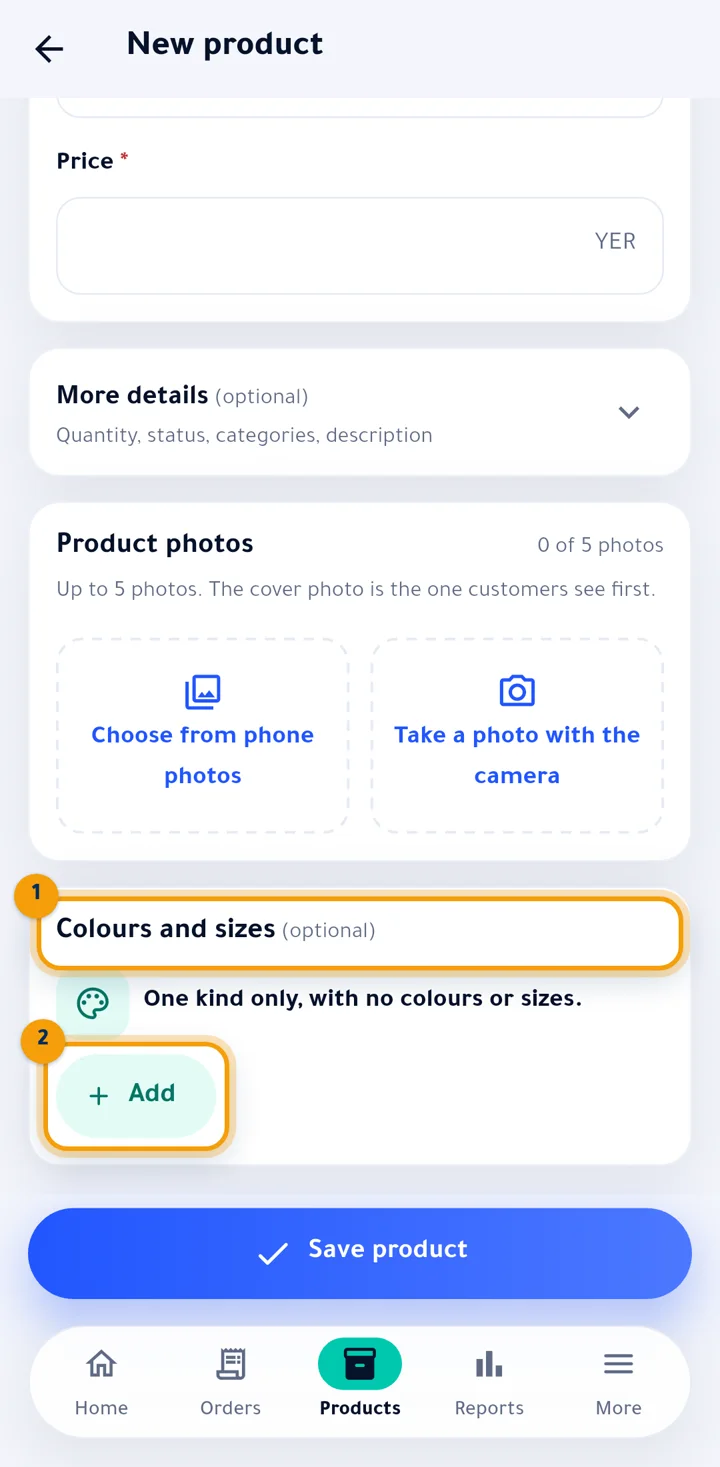
- Scroll down to Colours and sizes (optional) below Product photos, and tap Add.
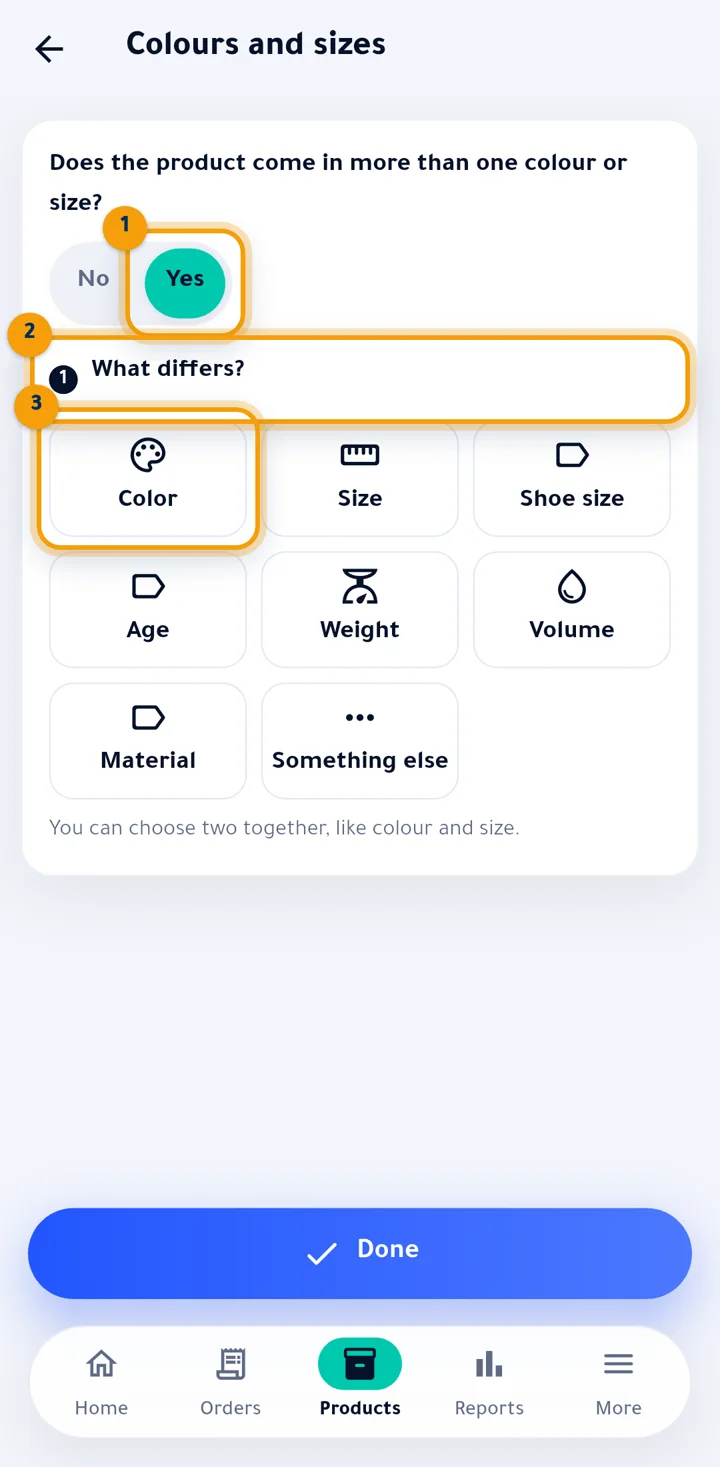
- Under Does the product come in more than one colour or size? tap Yes.
2. Choose what differs
Under What differs? tap the kind of option, such as colour or size. You can choose two together, like colour and size. If nothing fits your product, tap Something else and write its name in Option name, for example "Flavour".
3. Choose the values in the app
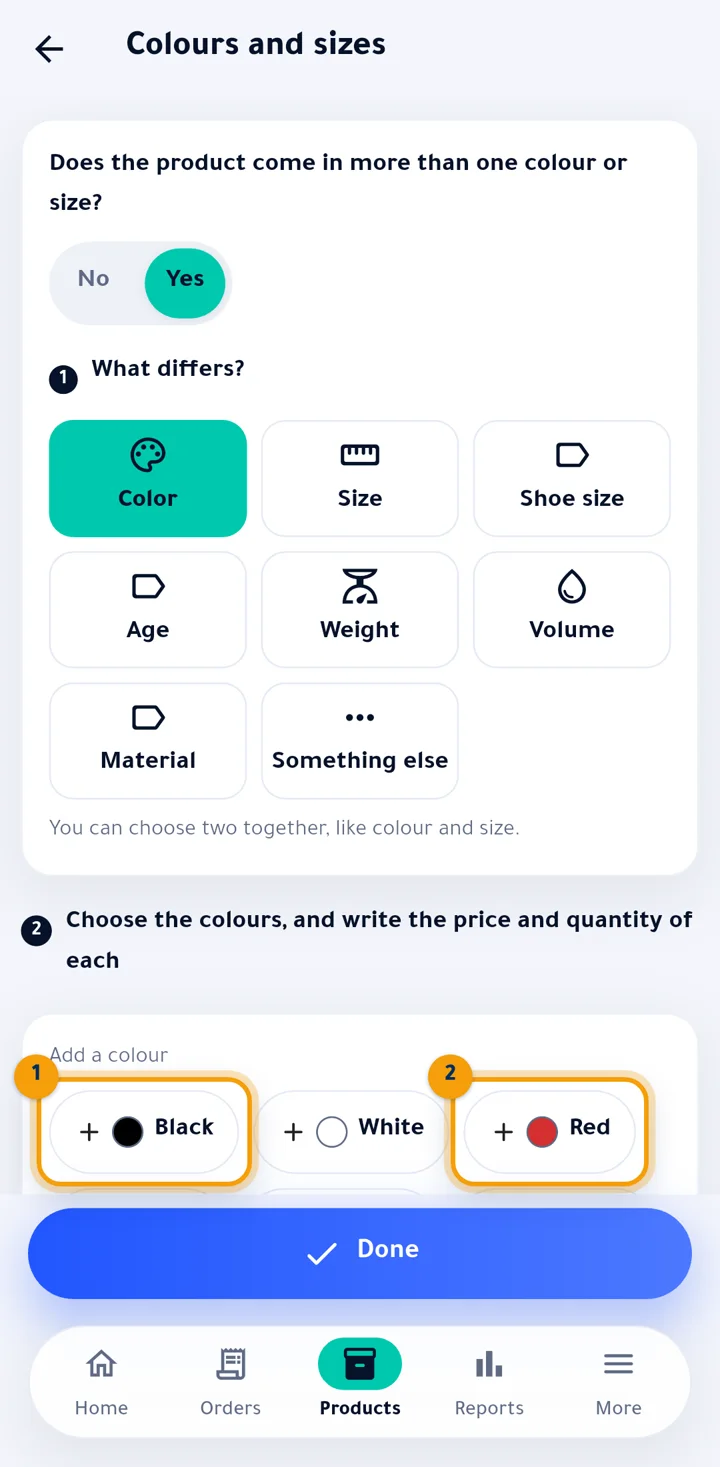
With colour alone you see Choose the colours, and write the price and quantity of each (with size, Choose the sizes, and write the price and quantity of each). Tap every ready colour you sell, such as black or red, and a row appears for it. If your colour is not listed, tap Another colour, write it, then tap Add this value.
If you chose two together, you pick the values under Choose the colours and then Choose the sizes, and the app builds every combination for you under Write the price and quantity, such as black with S.
4. Enter the quantity and price in the app
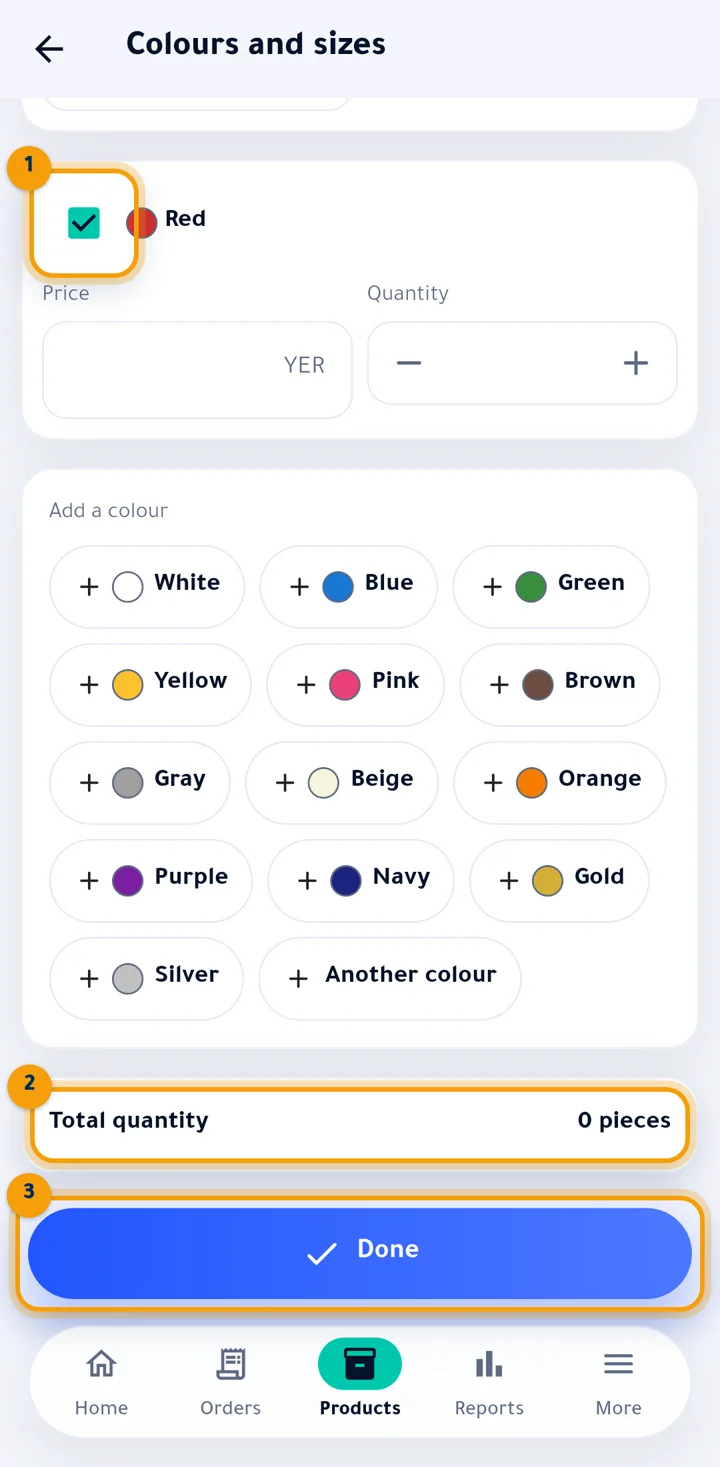
- Write the Quantity on each row, or use the plus and minus buttons beside it (Increase the quantity of … and Decrease the quantity of …). Write
0for a choice that has sold out. - To give every row the same quantity at once, write it in Same quantity for all and tap Apply to all.
- Every row takes the product price. For a choice that costs more, write its price in Price on its row, and it is marked Different price. It cannot be lower than the product price.
- Under the rows, Total quantity shows the sum for all choices.
5. Save the product
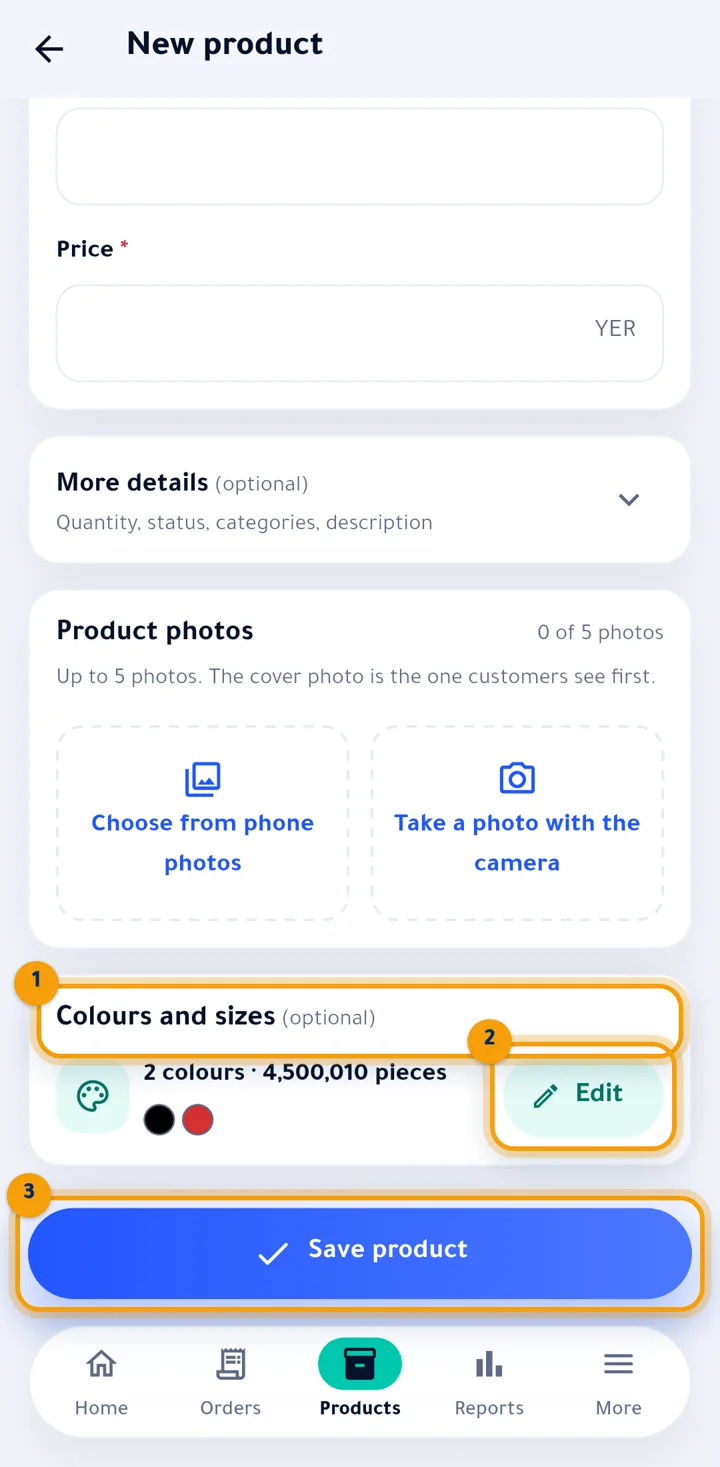
Tap Done at the bottom of the screen to go back to the product form, then tap Save product, or Save changes if you opened it from Edit product. Open the product from the list and check Options and quantities. Next: enter a phone order with the choice your customer asked for.
If saving fails
Look for the red note under a field: a missing quantity, a value written twice, or a price below the product price. To stop using colours and sizes, tap No under Does the product come in more than one colour or size? and confirm Stop using colours and sizes? with Yes, remove; the options and their quantities are removed when you save.
If saving is unavailable
Read the line next to the save button and the Before saving, complete these card; they list what is missing, such as a quantity for every choice. Saving also stops if a value repeats inside one option, an option has more than 20 values, the product has more than 100 combinations, or a choice is priced below the product.
Last updated: 2026-11-19
All Products and categories articles