Set your store's country and city
Choose the city your store works from on the Store details page, with Yemen already selected; it is the first step of the "Get your store ready to sell" card and cannot be skipped.
The first step of the Get your store ready to sell card is your store's location: the country and city you sell from. This step is required, so it has no Skip for now button, and the card cannot reach 100% until you save your city. If your store was already running before this step existed and has no location yet, you find the step at the top of the card.
All you need is your city's name; the first few letters in Arabic or English are enough.
You are reading the web way: your store dashboard in a computer browser.
1. Open the location section
On Home, select the button of the first step in the Get your store ready to sell card. It opens the Store details page straight at the location section. You can reach it at any time from the sidebar: Store settings → Store details.
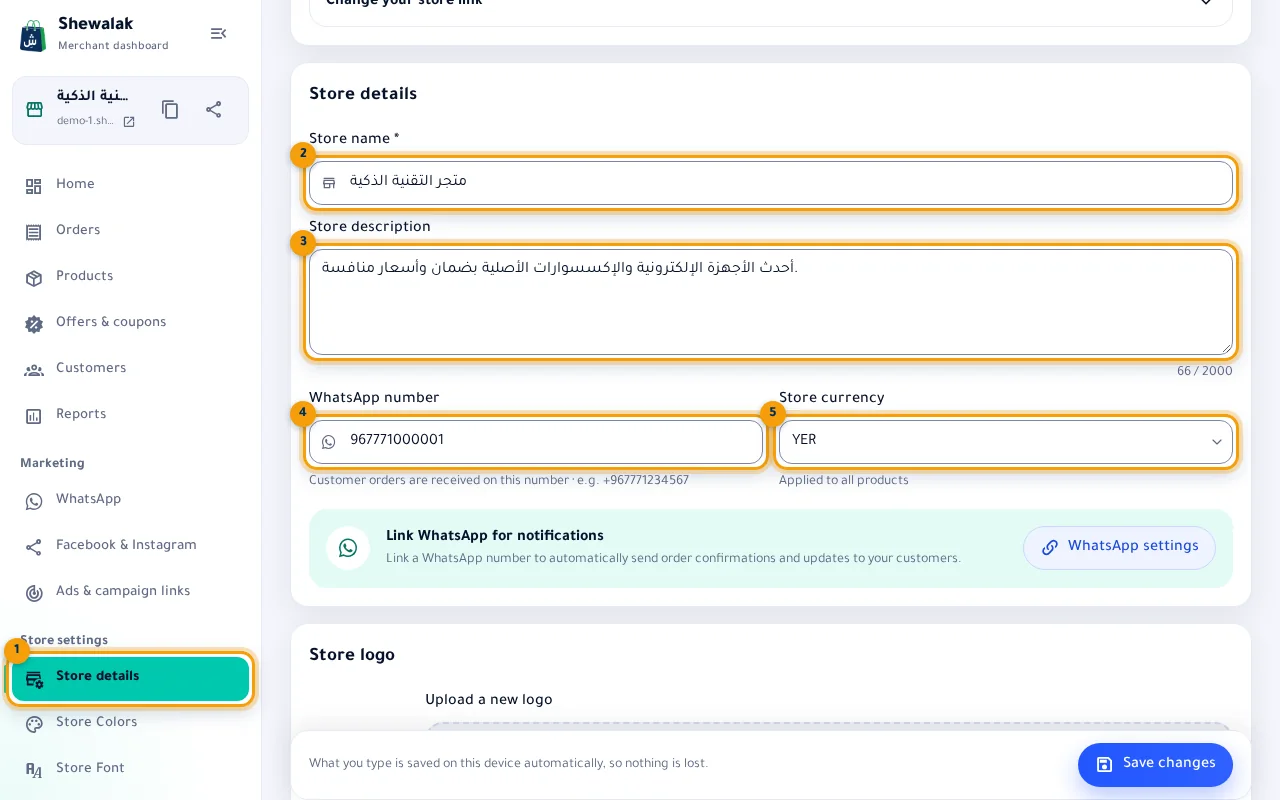
2. Choose the country and city
- Country: Yemen is already selected and is the country available today, so you do not need to change it.
- City: type the first letters of your city's name in Arabic or English, such as
Adenorعدن. Results appear as you type, each city with its governorate so you can tell similar names apart. - Choose your city from the list. Arabic spelling variants do not matter: typing
ابfindsإب.
If your city does not appear, type its governorate or try the other language.
3. Save
Select Save changes in the bar fixed to the bottom of the screen. The step is marked done in the Get your store ready to sell card as soon as the city is saved.
You are reading the app way: the Shewalak merchant app on your phone.
1. Open the step from Home
In the bottom bar, tap Home, then tap the first step in the Get your store ready to sell card. Store settings open at the location section.
2. Choose the country and city
- Country: Yemen is already selected.
- City: type the first letters of your city's name in Arabic or English, then tap your city in the results. Each city shows its governorate.
3. Save
Tap Save changes. Back on Home, the step shows as done.
What happens next
The first step of the Get your store ready to sell card is marked done, and you can change the city later on the same page. If you see a message that you are not allowed to do this, ask the store owner to set the location; store details are edited by the owner and anyone allowed to manage them. Next step: Add your first product.
Last updated: 2026-11-21
All Getting started articles