Create a discount coupon with a code
Create a code the customer types at checkout, set the discount, minimum order and usage limits, then share it in a story or a message.
A coupon is a measuring tool as much as a discount: a different code per platform or campaign tells you which one sells. Choose short codes that are easy to type on a phone, such as EID25.
You are reading the web way: your store dashboard in a computer browser.
1. Open Coupons
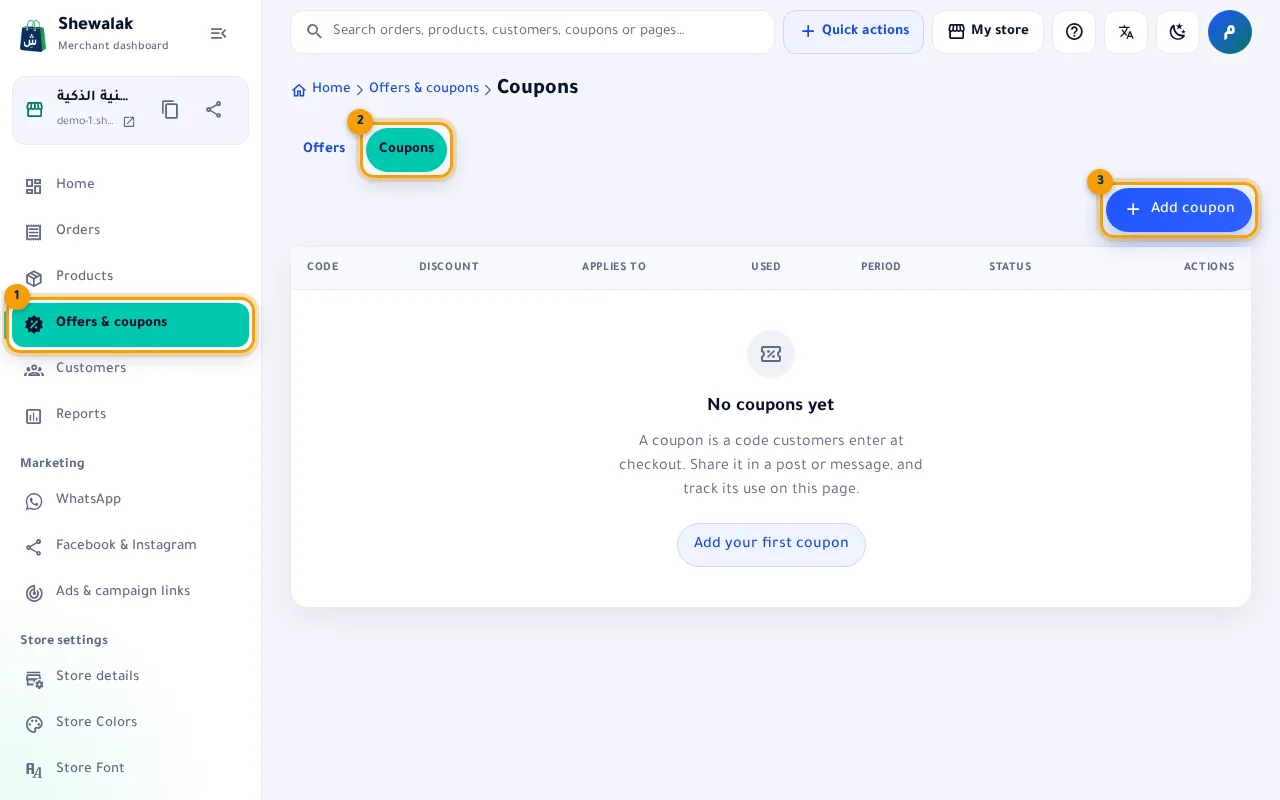
In the sidebar choose Offers & coupons, then the Coupons tab, and select Add coupon. If you have no coupons yet you see No coupons yet and an Add your first coupon button that opens the same form.
2. Write the rules
In the Rules card:
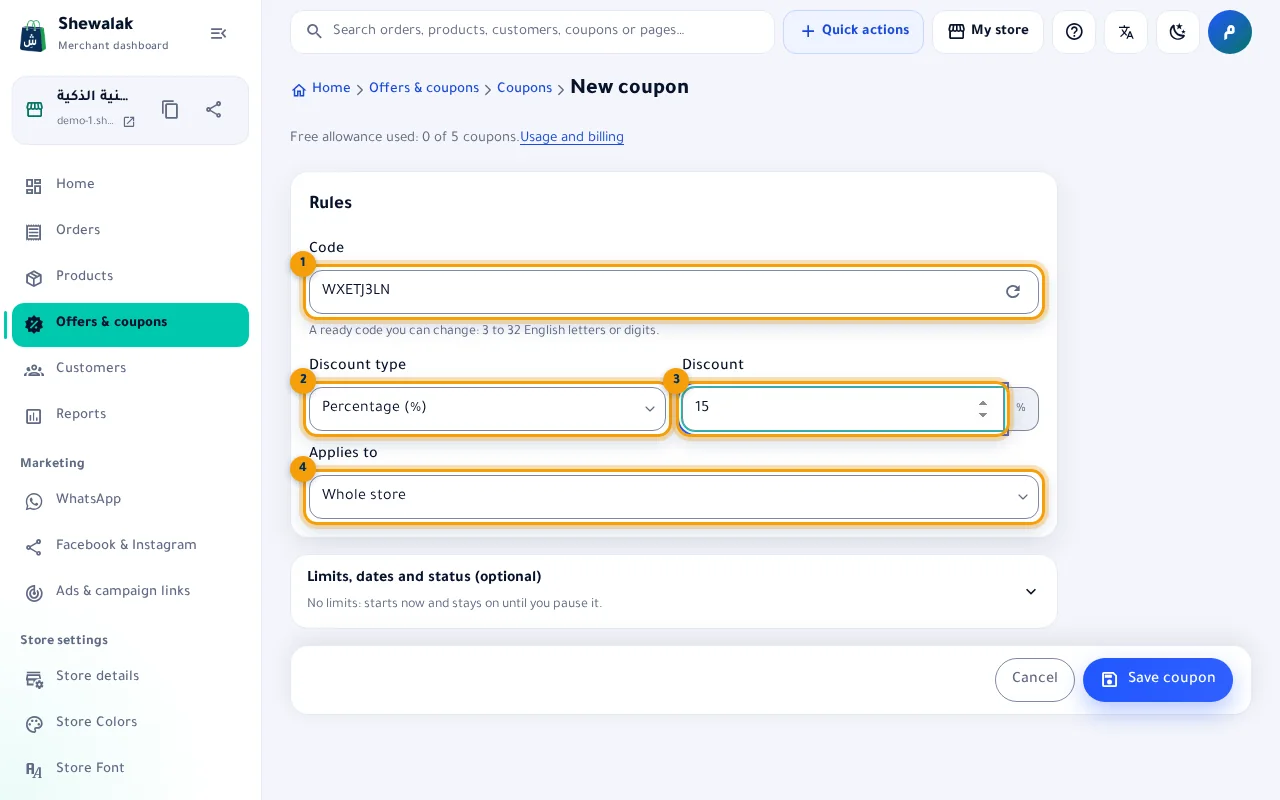
- Code: a ready code is filled in for you to change; 3 to 32 English letters or digits, saved in capitals. The refresh button inside the field makes a New code.
- Discount type: Percentage (%) or Fixed amount.
- Discount: the value, such as
15for a percentage or2000YER-S for an amount. - Applies to: Whole store, Selected products or Selected categories; then pick the products or categories in the list that appears below it.
3. Set limits and dates (optional)
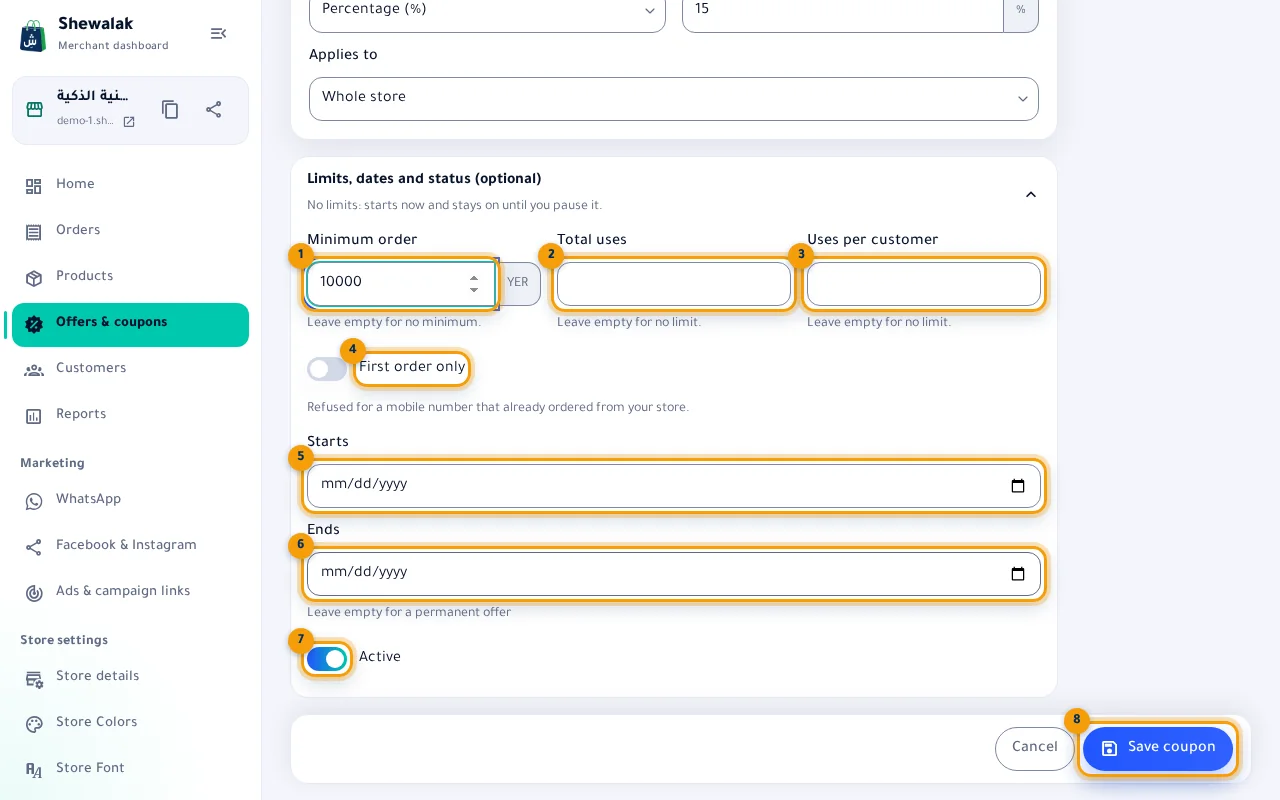
Select Limits, dates and status (optional) to open it. Left as it is, the coupon starts now and stays on until you pause it.
- Minimum order: for example
10000YER-S; leave empty for no minimum. - Total uses and Uses per customer: empty means no limit.
- First order only: refused for a mobile number that already ordered from your store; good for attracting new customers.
- Starts and Ends: leave both empty to keep it permanent.
- The status switch: leave it on Active, or set it to Inactive to prepare the coupon before its day.
Then select Save coupon.
The number of free coupons depends on your plan; the line above the form shows what you have used, such as Free allowance used: 0 of 5 coupons.
4. Share the code
After saving, the coupon page opens with Coupon saved. Share it now so customers start using it., and from there you can open WhatsApp with a ready message carrying the code and your store link. In the coupons table you can copy or share a code at any time with the copy and share buttons in the Actions column.
Better still, create a campaign link and pick the coupon under Coupon to apply: the discount applies as soon as the link opens, with nothing for the customer to type.
You are reading the app way: the Shewalak merchant app on your phone.
1. Open Coupons
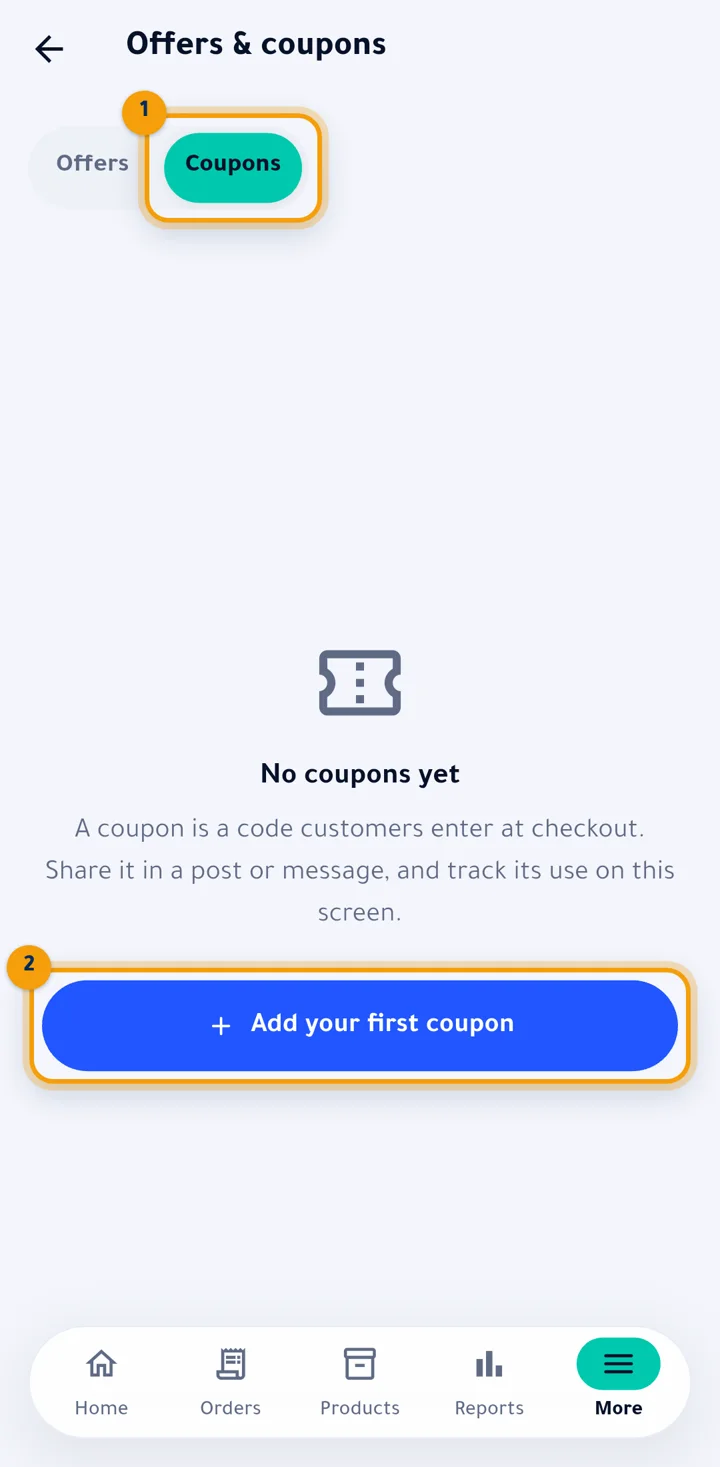
In the app, tap the More tab in the bottom bar, then Offers & coupons and the Coupons tab, and tap Add coupon. If you have no coupons yet you see No coupons yet and an Add your first coupon button that opens the same form.
2. Write the rules
In the Rules section:
- Code: a ready code is filled in for you to change; 3 to 32 English letters or digits. New code makes another one.
- Discount type: Percentage (%) or Fixed amount.
- The discount value, such as
15for a percentage or2000for an amount. - Applies to: Whole store, Selected products or Selected categories; then choose the products or categories.
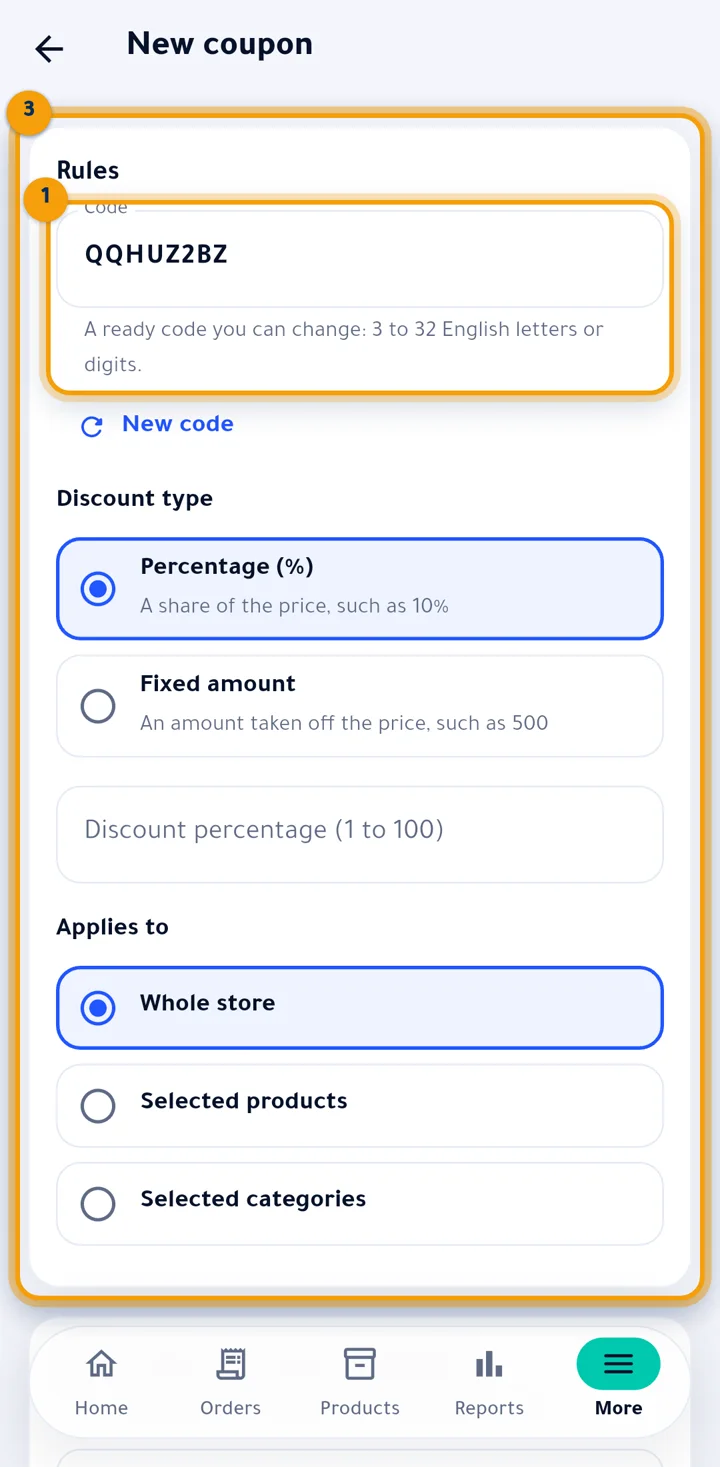
3. Set limits and dates (optional)
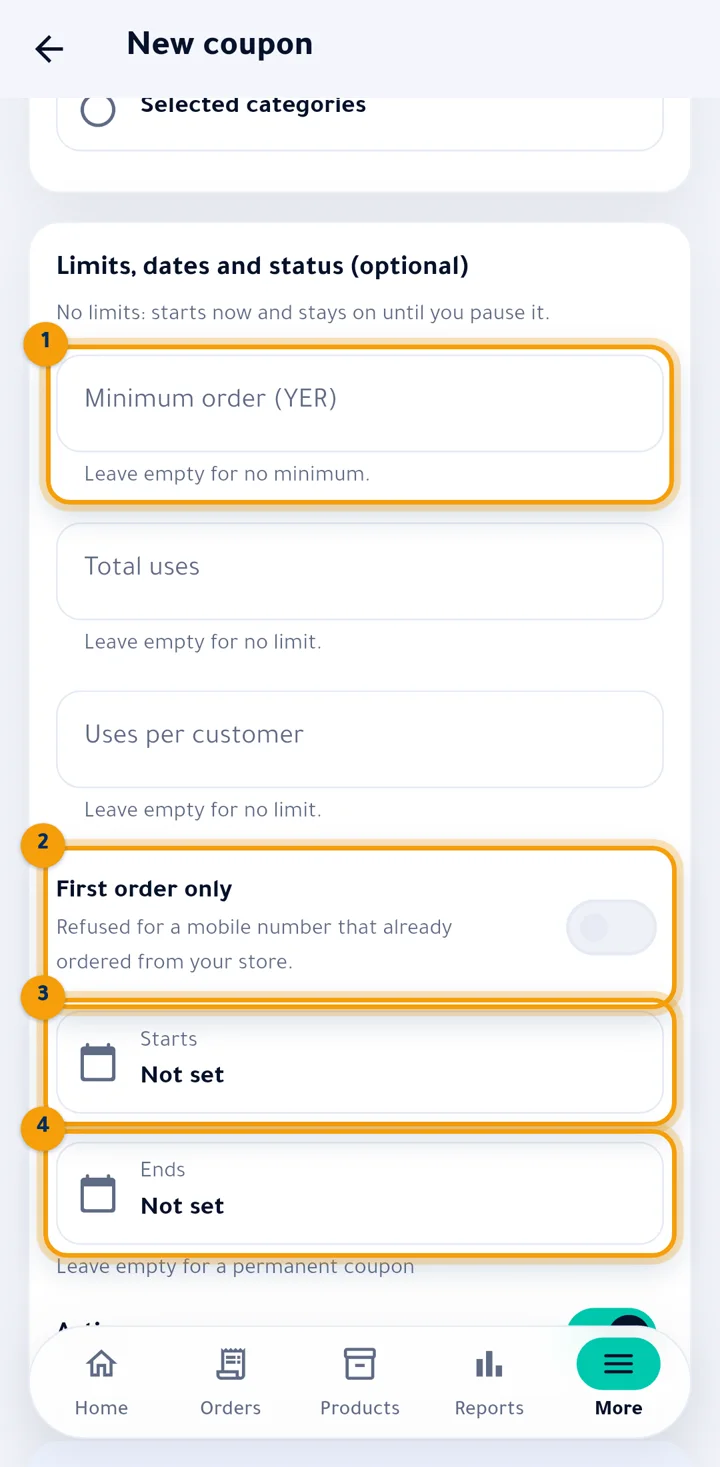
Tap Limits, dates and status (optional) to open it. Left as it is, the coupon starts now and stays on until you pause it.
- Minimum order: leave empty for no minimum.
- Total uses and Uses per customer: empty means no limit.
- First order only: refused for a mobile number that already ordered from your store.
- Starts and Ends: leave both empty to keep it permanent.
- The status switch: leave it on, or turn it off to prepare the coupon before its day.
A short summary on the screen writes the coupon in words, such as "10% off with code EID25 on the whole store". Then tap Save coupon.
4. Share the code
After saving, the app shows Coupon saved. Share it now so customers start using it. and Share the coupon with a ready message carrying the code and your store link. From the coupons list you can tap Copy code at any time.
Better still, create a campaign link and pick the coupon under Coupon applied automatically (optional): the discount applies as soon as the link opens, with nothing for the customer to type.
What happens next
The Used count appears in the coupons table, and the coupon page shows its Performance: uses, revenue, discount given and new customers. From Customers you can pick the Used a specific coupon segment to message them later.
Last updated: 2026-11-21
All Marketing articles