Choose your store colours and upload a logo
Upload the store logo from Store details, pick a ready colour palette on Store Colors and apply it in one tap so your store carries your identity.
Prepare your logo as a JPG, PNG or WebP, no larger than 4 MB and square if possible (a PNG with a transparent background works best). If you have no logo yet, choose colours only; either one completes the Choose your store's look step of the store setup list.
You are reading the web way: your store dashboard in a computer browser.
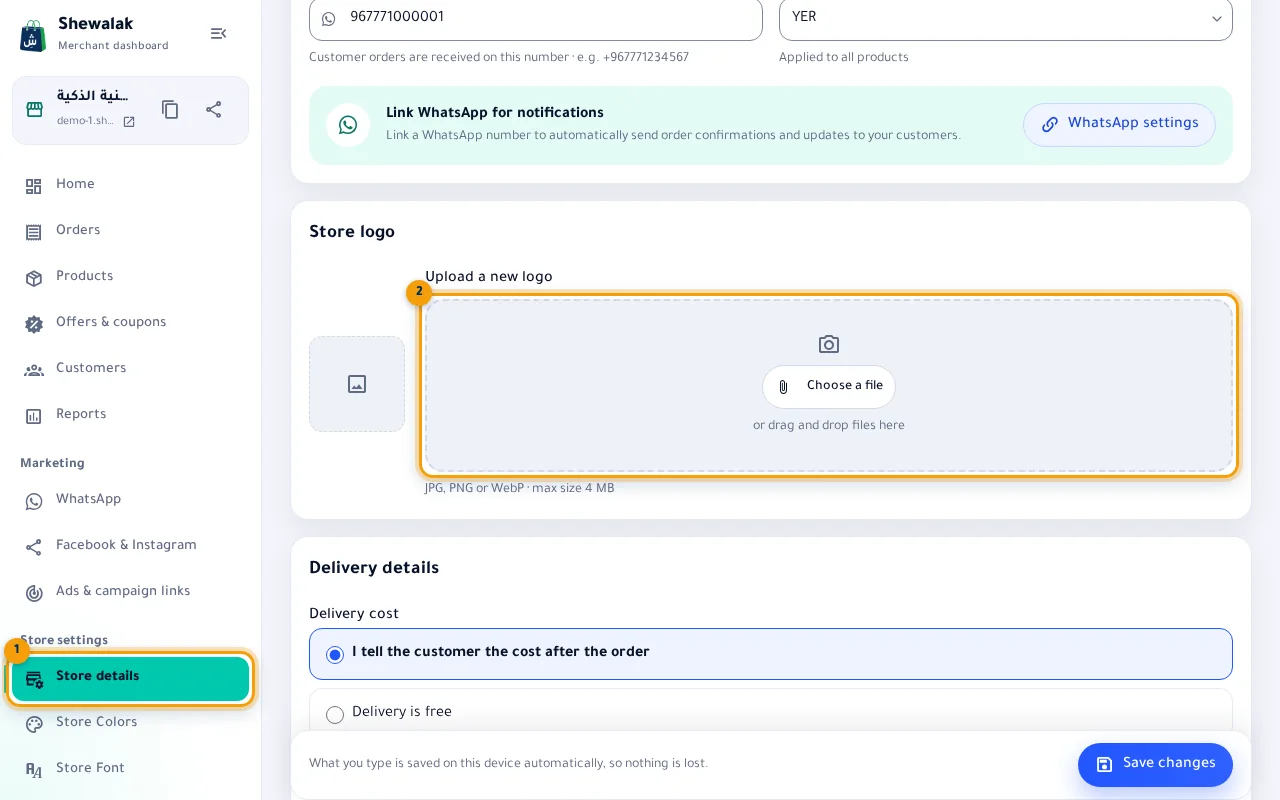
1. Upload the logo
- From the sidebar choose Store settings → Store details.
- In the Store logo card select Choose a file inside the Upload a new logo box, or drag the image and drop it on the box.
- Select Save changes in the bar fixed to the bottom of the screen.
2. Choose a colour palette
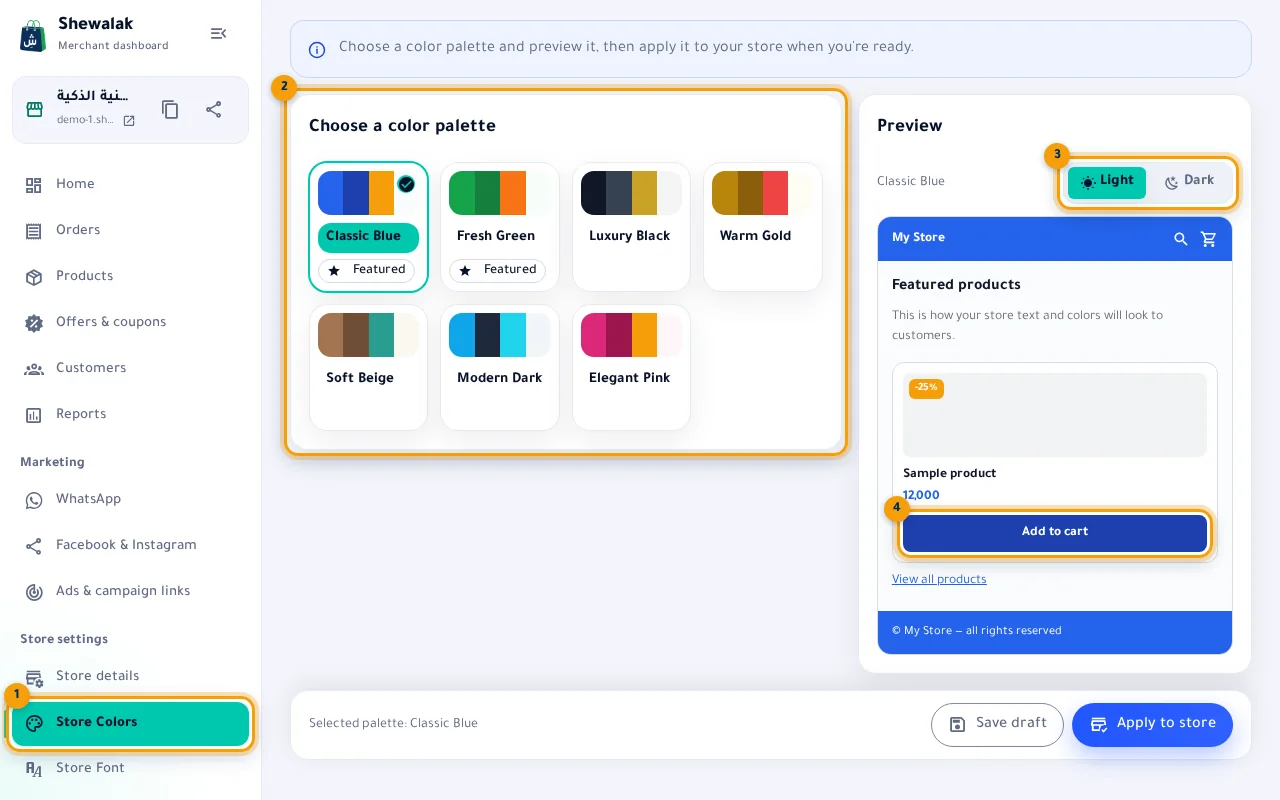
From the sidebar choose Store settings → Store Colors:
- Under Choose a color palette select the one that suits your products: Classic Blue and Fresh Green carry the Featured mark, alongside Luxury Black, Warm Gold, Soft Beige, Modern Dark and Elegant Pink.
- In the Preview card switch between Light and Dark to see both looks.
- Watch the preview: this is how the product card and the Add to cart button will look to your customers.
3. Apply the colours or save a draft
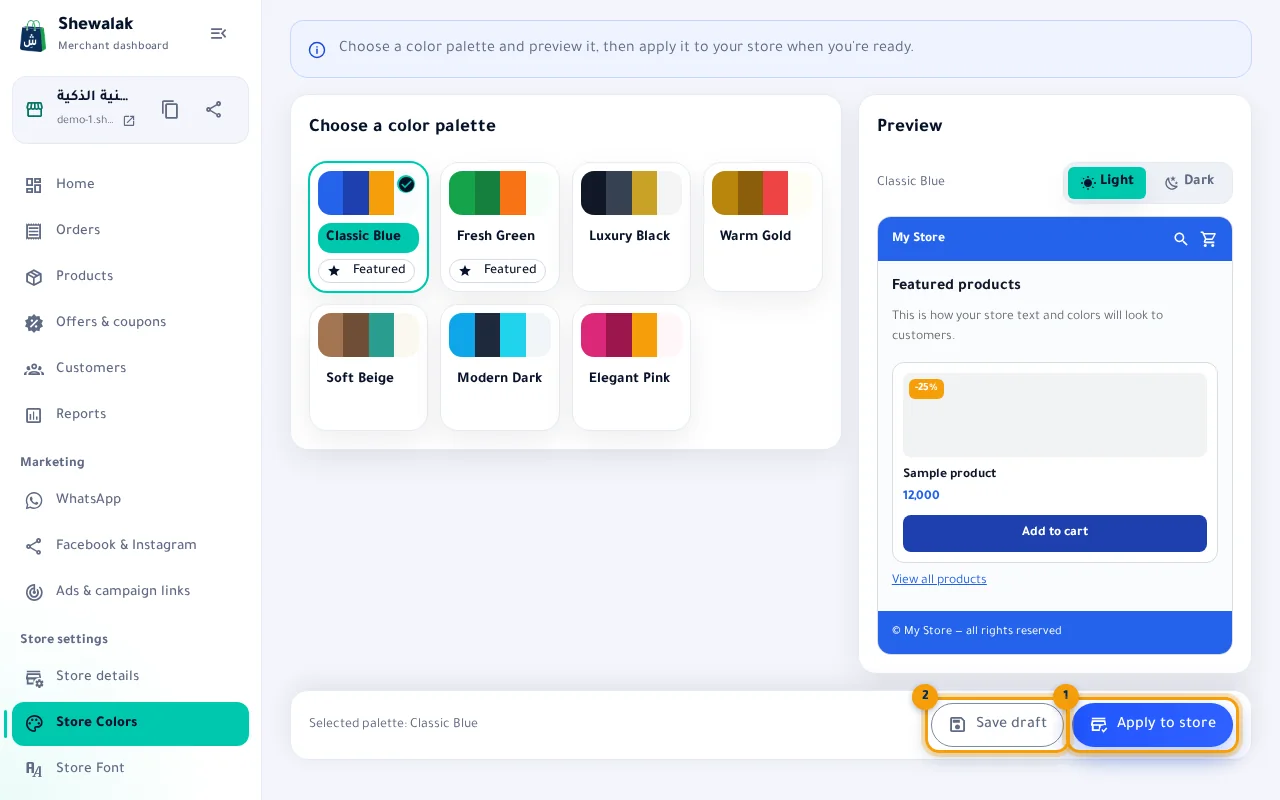
The bottom bar shows the Selected palette and two buttons:
- Apply to store: the dialog Apply these colors to your live store? appears; confirm and your customers see the new look right away. You can change it back at any time.
- Save draft: keeps your choice without showing it to customers, so you can return to it later.
The same sidebar group has two more pages for your store's look: Store Font to choose the font your store text is written in, and Store design to arrange your home page from ready-made sections.
You are reading the app way: the Shewalak merchant app on your phone.
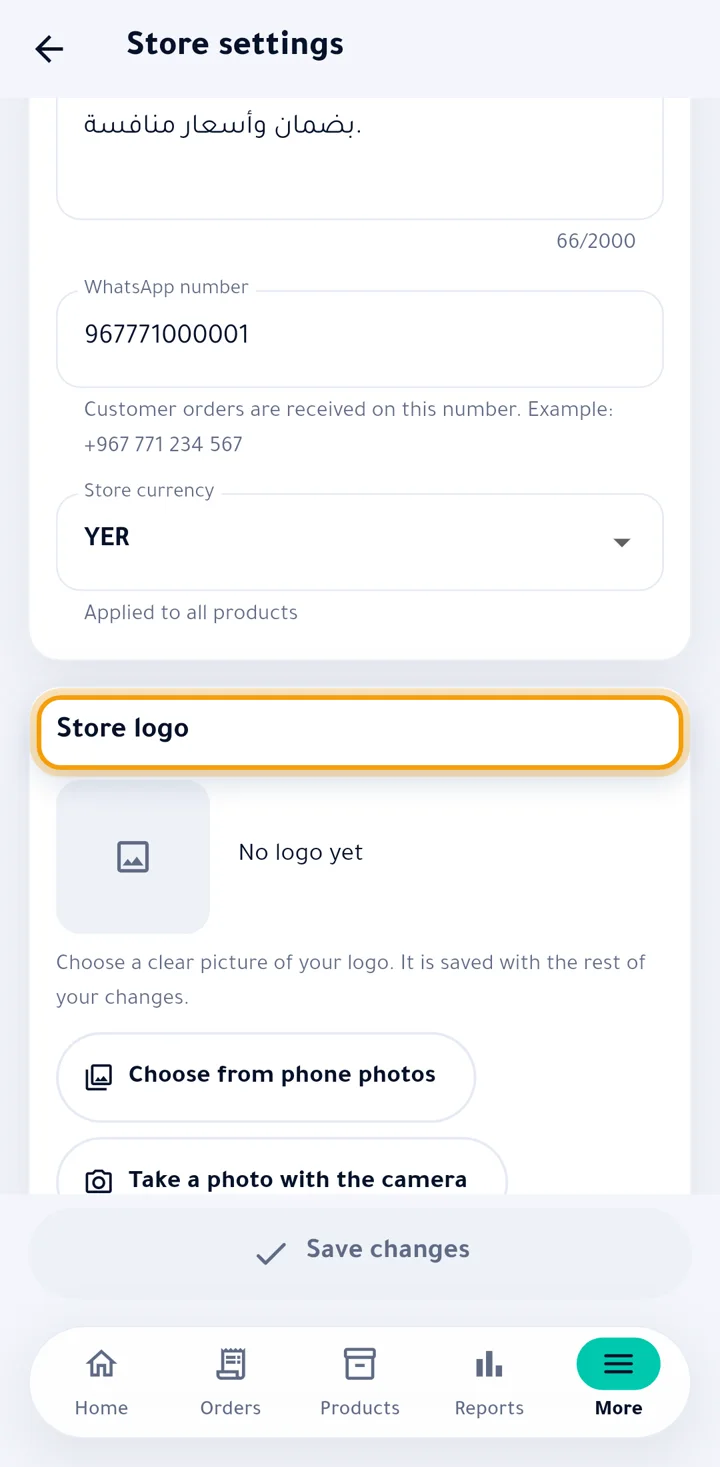
1. Upload the logo in the app
- In the bottom bar tap More, then Store settings.
- In Store logo tap Choose from phone photos, or Take a photo with the camera. The picture shows as New logo, not saved yet; tap Undo the new logo if you change your mind.
- Tap Save changes.
2. Choose a colour palette in the app
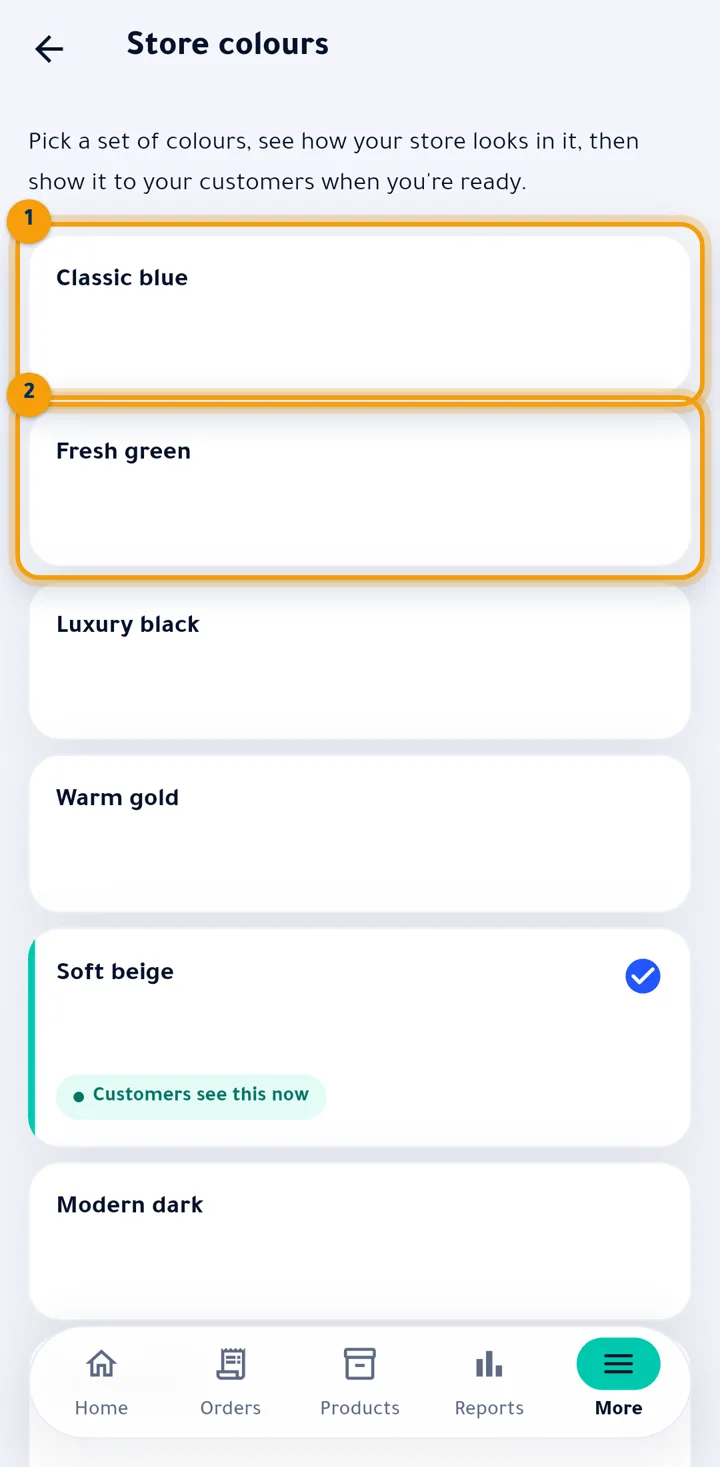
- Tap More, then Store colours.
- Choose the palette that suits your products, such as Classic blue, Fresh green, Luxury black, Warm gold, Soft beige, Modern dark or Elegant pink.
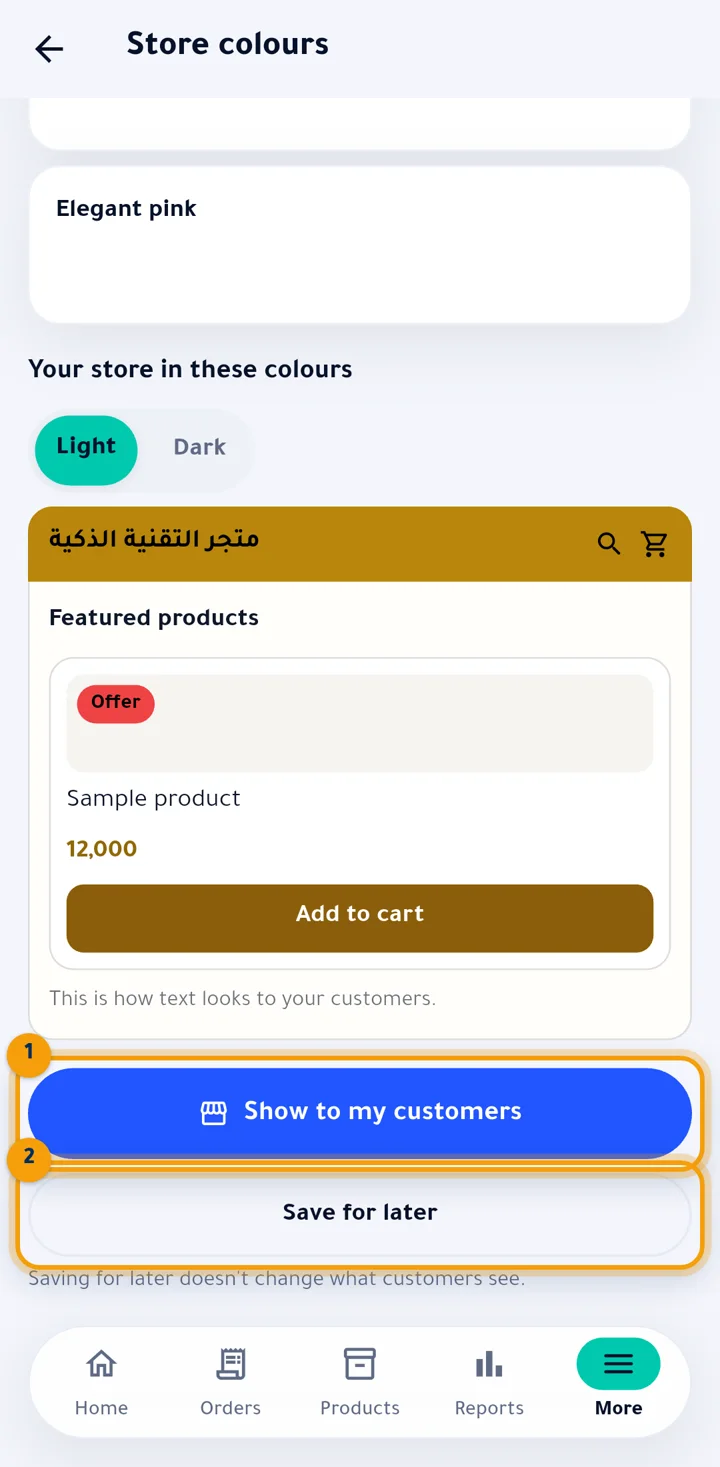
- In Your store in these colours switch between Light and Dark to see both looks, including the Add to cart button.
3. Show the colours or save them for later
Two buttons sit under the palettes:
- Show to my customers: confirm the question Show “…” to your customers? and your customers see the new look right away. You can change it back at any time.
- Save for later: keeps your choice without changing what customers see.
What happens next
The Choose your store's look step is marked Complete as soon as a logo is saved or a palette is applied. Select Open store on the Store details page to see the result, then continue with Store details and contact or Share your store link.
Last updated: 2026-11-19
All Store settings articles