Your first hour on Shewalak, step by step
Finish the seven steps of the "Get your store ready to sell" card on Home, then send your store link to your first customer.
Short answer
How do I start selling on Shewalak after signing up?
After signing up to Shewalak, finish the seven steps of the "Get your store ready to sell" card on Home: set your store's city, review your store link, add your first product, connect WhatsApp, set your delivery, choose your store's look, then share your link with your first customer. The city, a product and WhatsApp are required; the rest can wait.
Sign in with your mobile number and the verification code, on the web dashboard at dashboard.shewalak.com or in the Shewalak Merchant app. On Home you find the Get your store ready to sell card: seven steps that update automatically from your store data, with a progress ring showing how many are done, such as "1 of 7 steps done".
You are reading the web way: your store dashboard in a computer browser.
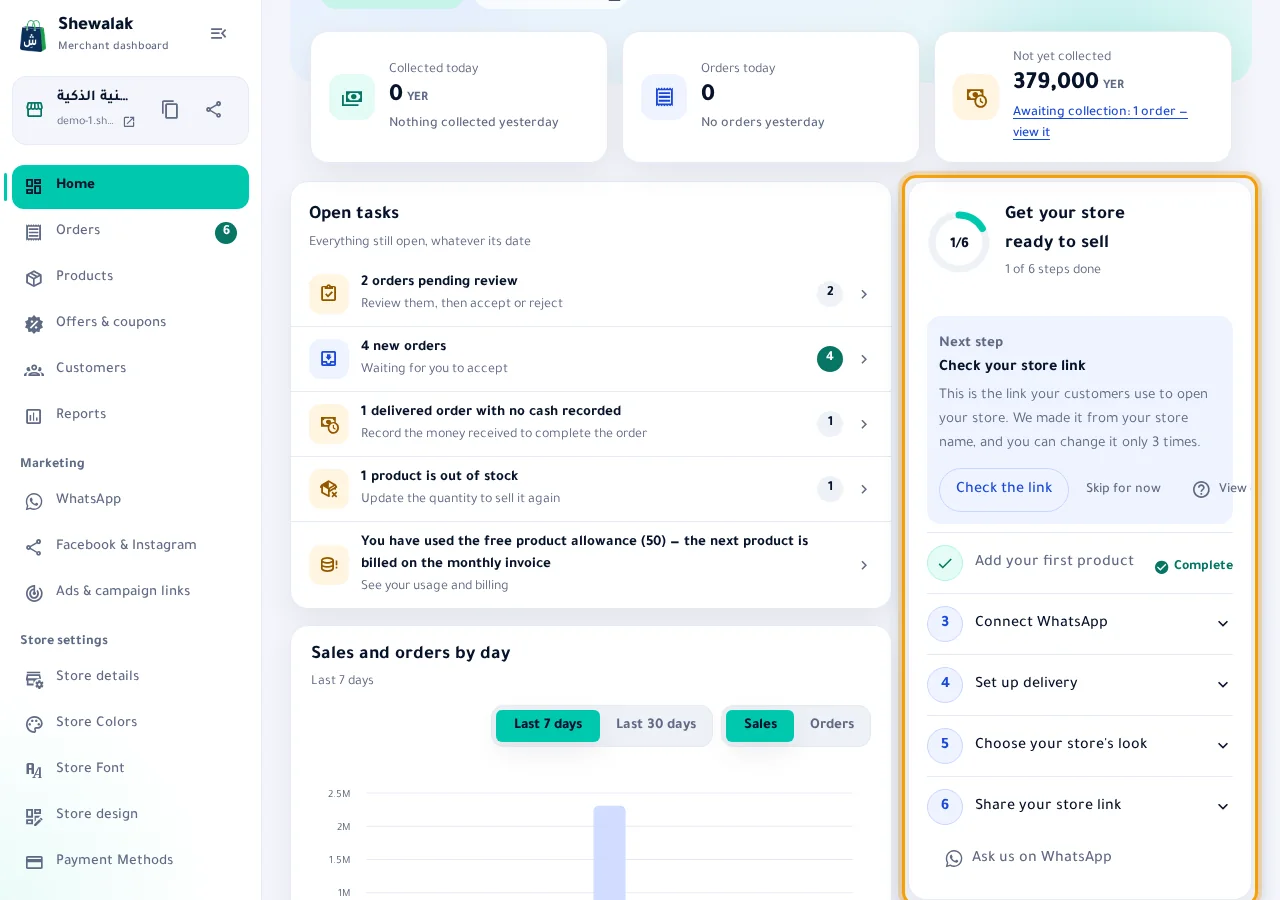
The seven steps
The step you should do now is open under Next step, with its button. Select any other step's title to open it.
- Set your store's location. Choose your city on the Store details page, with Yemen already selected. Guide: Set your store's country and city.
- Check your store link. Select Check the link to see the link your customers use to open your store. We made it from your store name, and you can change it only 3 times.
- Add your first product. Select Add a product, enter the name and price, upload a photo, then Save product. Full guide: Add your first product.
- Connect WhatsApp. Select Connect WhatsApp so you hear about every order and your customers get order updates. Guide: Connect WhatsApp to your store.
- Set up delivery. Select Set up delivery and write where you deliver and what it costs. Guide: Write your delivery policy.
- Choose your store's look. Select Choose the look to pick your store colours and add your logo. Guide: Store colours and logo.
- Share your store link. Select Copy store link, then paste it into a WhatsApp chat or a post. Guide: Share your store link.
Steps 2, 5, 6 and 7 carry a Skip for now button if you want to come back later; the store location, adding a product and connecting WhatsApp are required. View guide on each step opens its article here.
What else is on the page
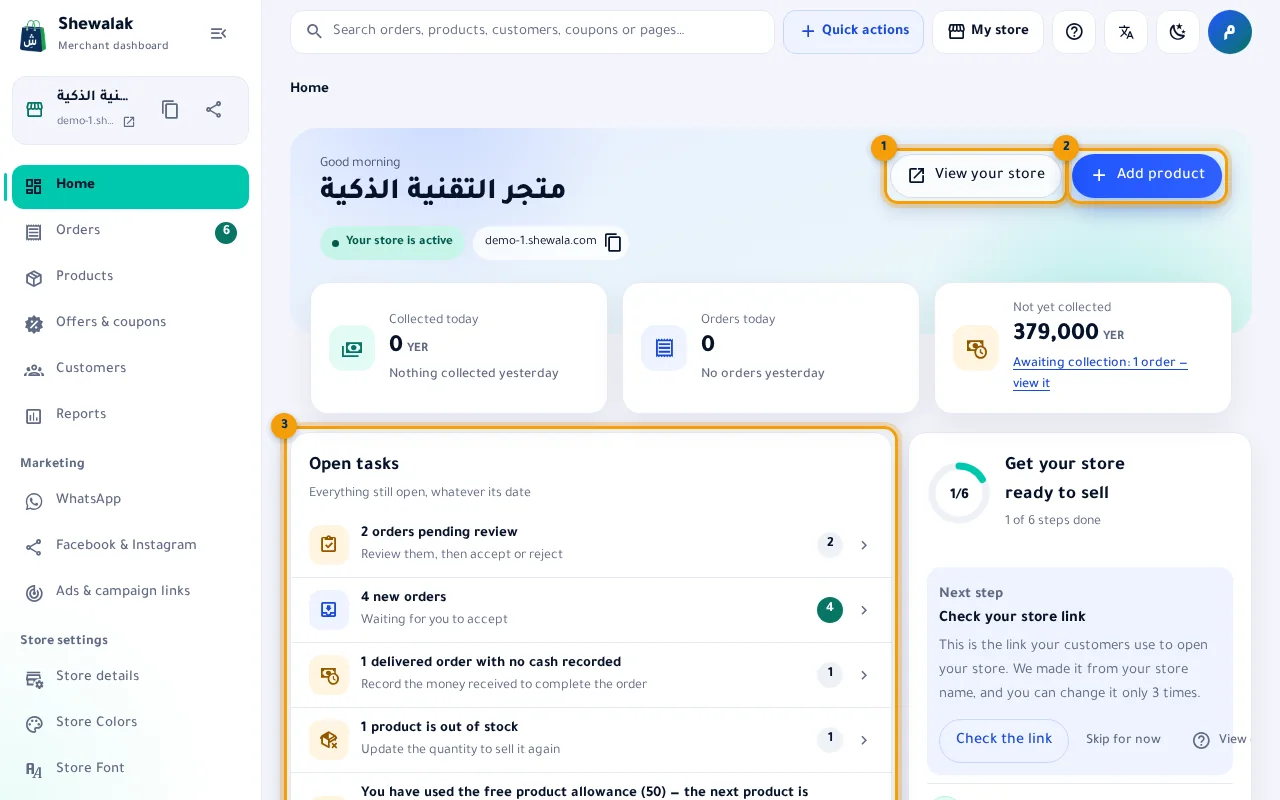
- View your store and Add product at the top, next to your store name, with your store link and a button to copy it.
- Collected today, Orders today and Not yet collected: today's figures compared with yesterday.
- Open tasks: everything still open, whatever its date, such as new orders waiting for you to accept, delivered orders with no cash recorded and products that are out of stock. Select any item to open what it concerns.
- Shortcuts: Record a cash collection, View reports and Create phone order.
- Sales and orders by day, Orders by status, Latest orders and Out of stock: a quick view of what is going on in your store.
- Ask us on WhatsApp at the bottom of the steps card opens a chat with the Shewalak team that already carries your store name.
You are reading the app way: the Shewalak merchant app on your phone.
The seven steps in the app
- In the bottom bar, tap Home. The Get your store ready to sell card shows how far you are, such as "1 of 7 steps done", and the step to do now under Next step: …, with its button.
- Set your store's location: choose your city, with Yemen already selected. Guide: Set your store's country and city.
- Check your store link: tap Review the link to see the link your customers use to open your store.
- Add your first product: tap Add a product, then follow Add your first product.
- Connect WhatsApp: tap Connect WhatsApp so you hear about every order. Guide: Connect WhatsApp to your store.
- Set up delivery: tap Write your delivery details and write where you deliver and what it costs. Guide: Write your delivery policy.
- Choose your store's look: tap Choose your store colours. Guide: Store colours and logo.
- Share your store link: tap Copy link or Share link. Guide: Share your store link.
A step you can leave for later has Skip this step under it. If your account cannot finish a step in the app, the step tells you so and offers Open on the web.
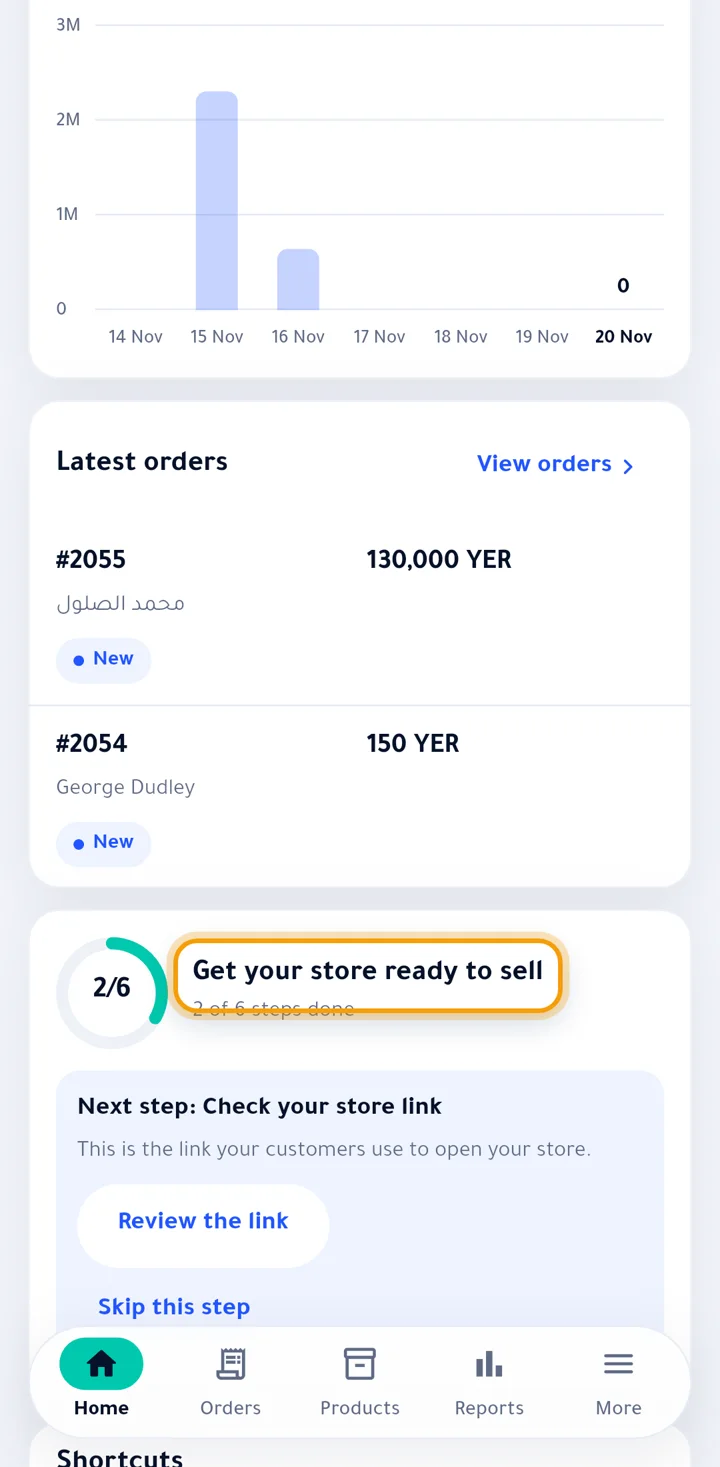
What else is on Home
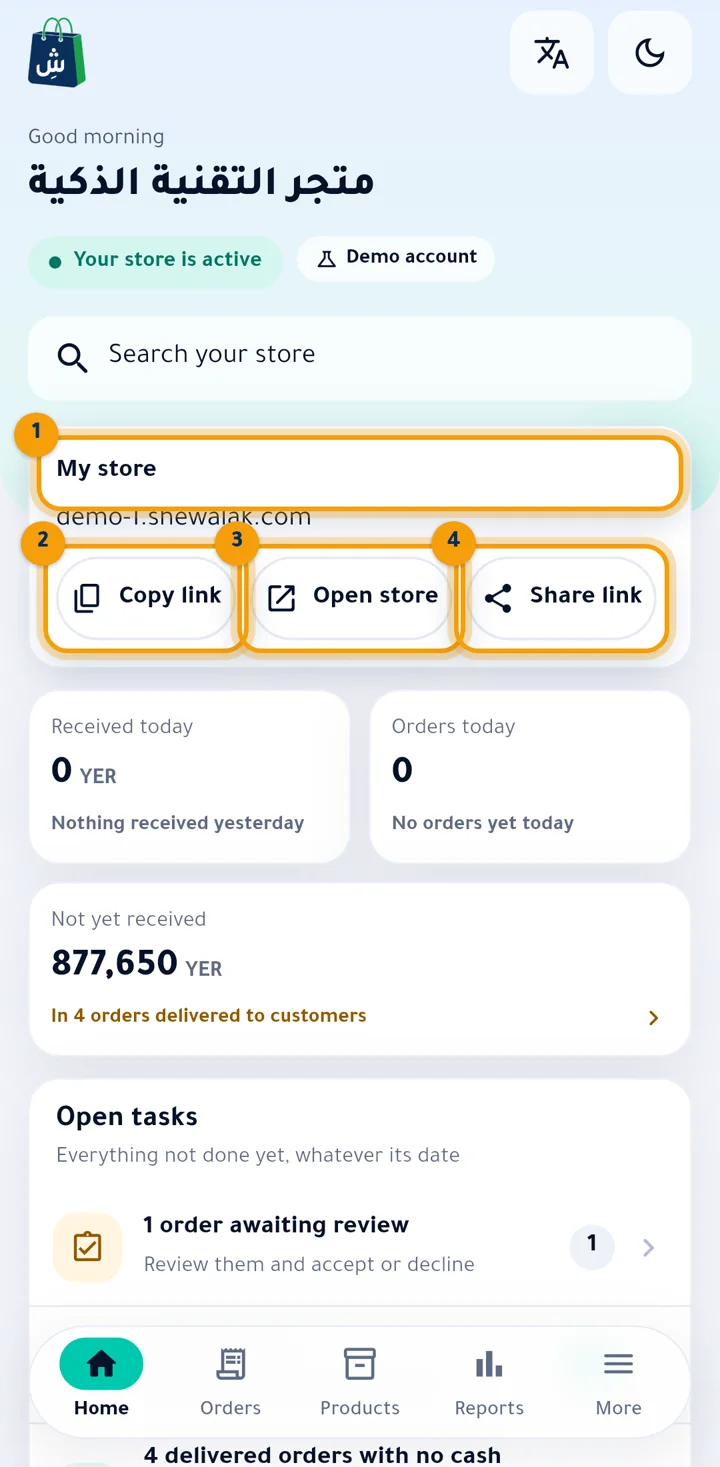
- My store, with your store link and the buttons Copy link, Open store and Share link.
- Shortcuts to the jobs you do most.
- The bottom bar holds Home, Orders, Products, Reports and More; More opens every other page.
What happens next
When all seven steps are complete, or the ones that can wait are skipped, the card folds into one line, Your store is 100% ready to sell; select it whenever you want to see the steps again. The natural next step is setting your store's country and city.
Last updated: 2026-11-21
All Getting started articles