How Shewalak charges you
Every feature has a free monthly allowance; you pay a percentage of the delivered orders beyond your free orders, plus the price of usage beyond the allowance on other features, on one invoice that closes on the first of each month.
Short answer
How does Shewalak charge me for my store?
Shewalak has no monthly subscription and needs no card. Every feature has a free monthly allowance; past it you pay a percentage of the value of delivered orders beyond your free orders, plus the price of extra usage on other features, on one invoice in US dollars that closes on the first of each month. No sale is ever refused.
You pay nothing up front and link no card. Every feature is available to your store with a free allowance each month, and usage past it is billed on the monthly invoice and never refused; your store never stops selling because you went past the allowance.
You can check your account at any time, on the web or in the app. A line at the top sums up where you stand, such as "So far this month you owe 4.20 USD" and "You have used 23 of 50 free orders".
You are reading the web way: your store dashboard in a computer browser.
1. Read the usage meter
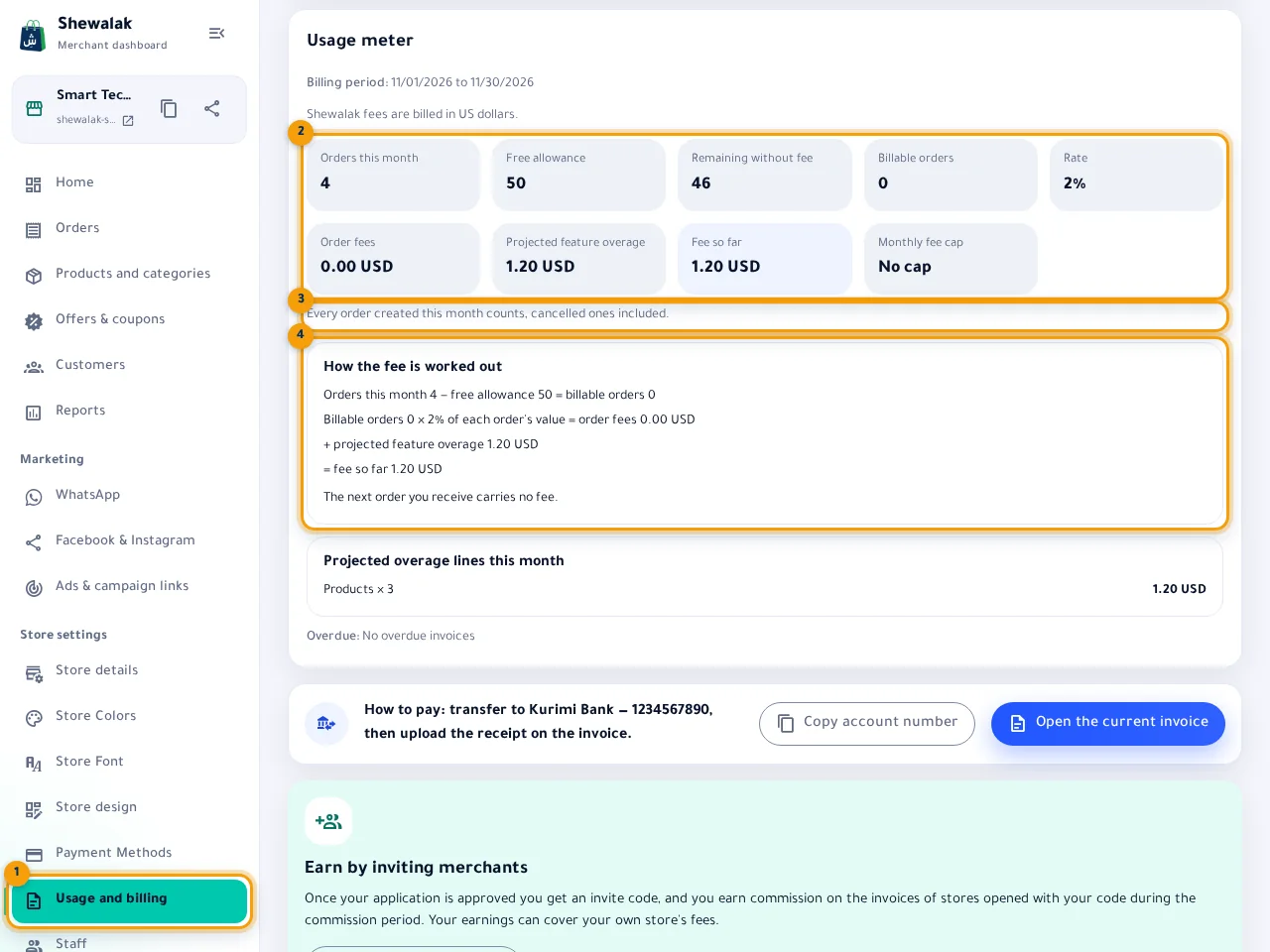
From the sidebar open Store settings → Usage and billing (or use the Open Shewalak billing button on the Payment Methods page). The Usage meter card starts with the Billing period (the current month) and a line that Shewalak fees are billed in US dollars, then shows:
- Orders this month, Free allowance and Remaining without fee.
- Billable orders, Rate and Order fees.
- Projected feature overage: what you used past the allowance on other features.
- Fee so far and Monthly fee cap.
Under it is an important line: Every order created this month counts, cancelled ones included. Then the How the fee is worked out box writes the formula with your own figures and ends by telling you whether the next order you receive carries a fee.
2. Other features
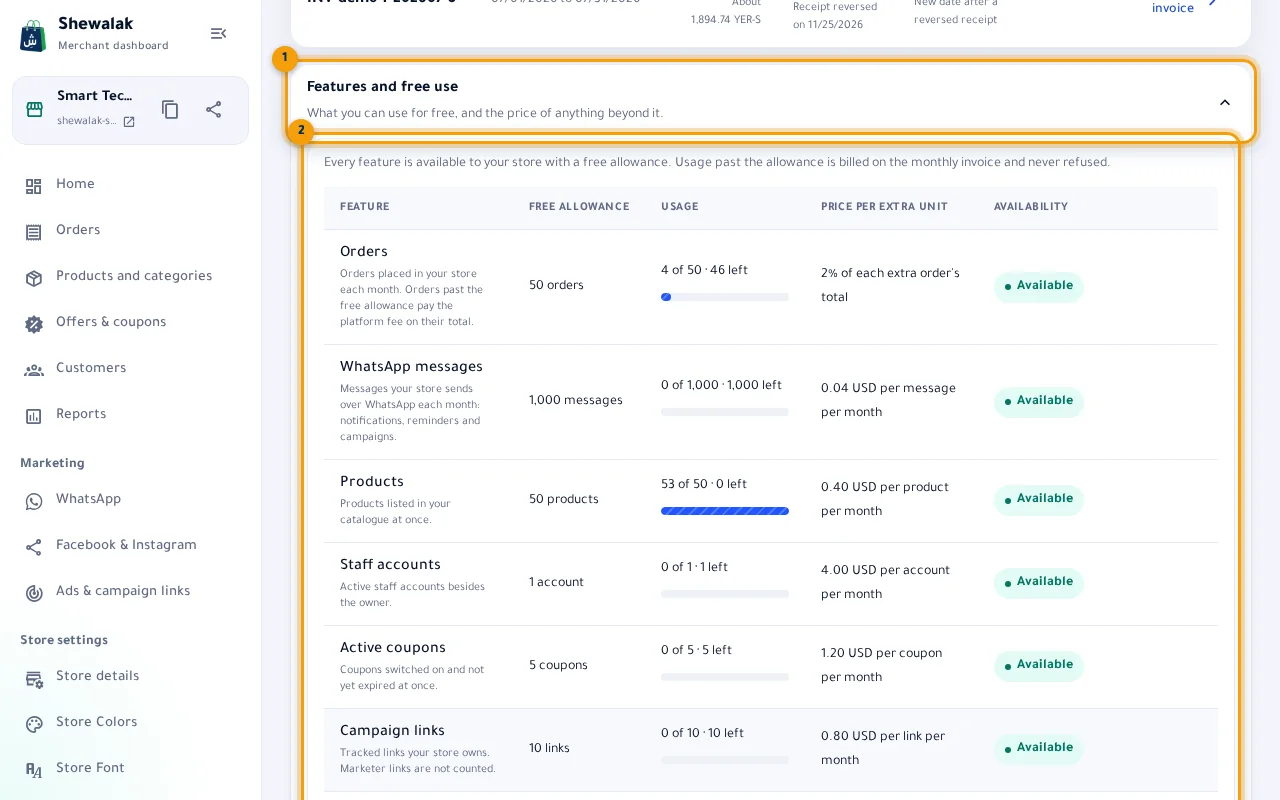
Open Features and free use at the bottom of the page to see every feature with its Free allowance, Usage and Price per extra unit, such as orders, WhatsApp messages, products and staff accounts. Anything past the allowance appears under Projected overage lines this month, such as "Products × 3".
For products and staff accounts the extra is worked out from the month's average daily count, so going over for one day costs little and staying over all month is billed in full.
You are reading the app way: the Shewalak merchant app on your phone.
1. Read the usage meter
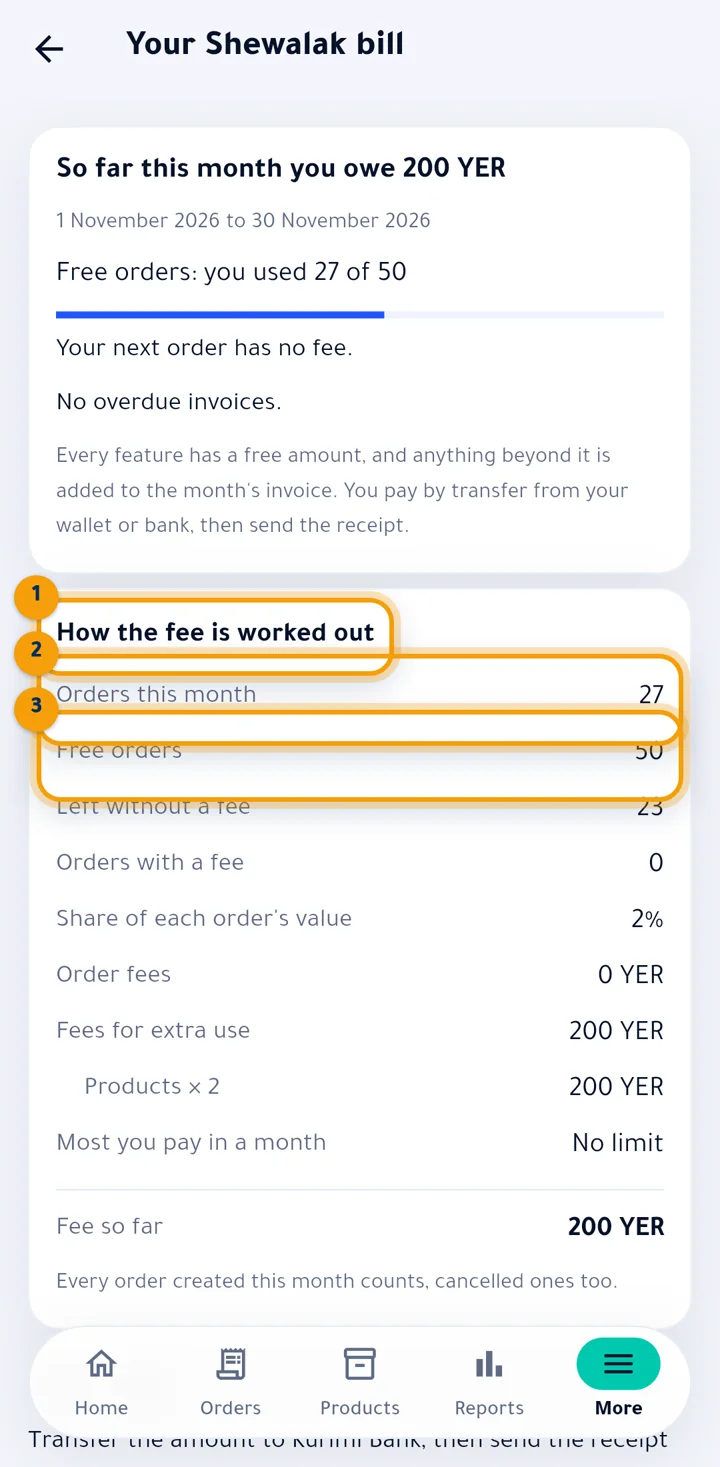
In the app, tap the More tab in the bottom bar, then Your Shewalak bill. At the top a line says where you stand, for example So far this month you owe …, with the free orders you have used and whether Your next order has no fee. or Your next order has a fee.
Below it the card How the fee is worked out lists:
- Orders this month, Free orders and Left without a fee.
- Orders with a fee, Share of each order's value and Order fees.
- Fees for extra use, Fee so far and Most you pay in a month.
Under it are the lines Every order created this month counts, cancelled ones too. and Shewalak fees are billed in US dollars.
2. Other features
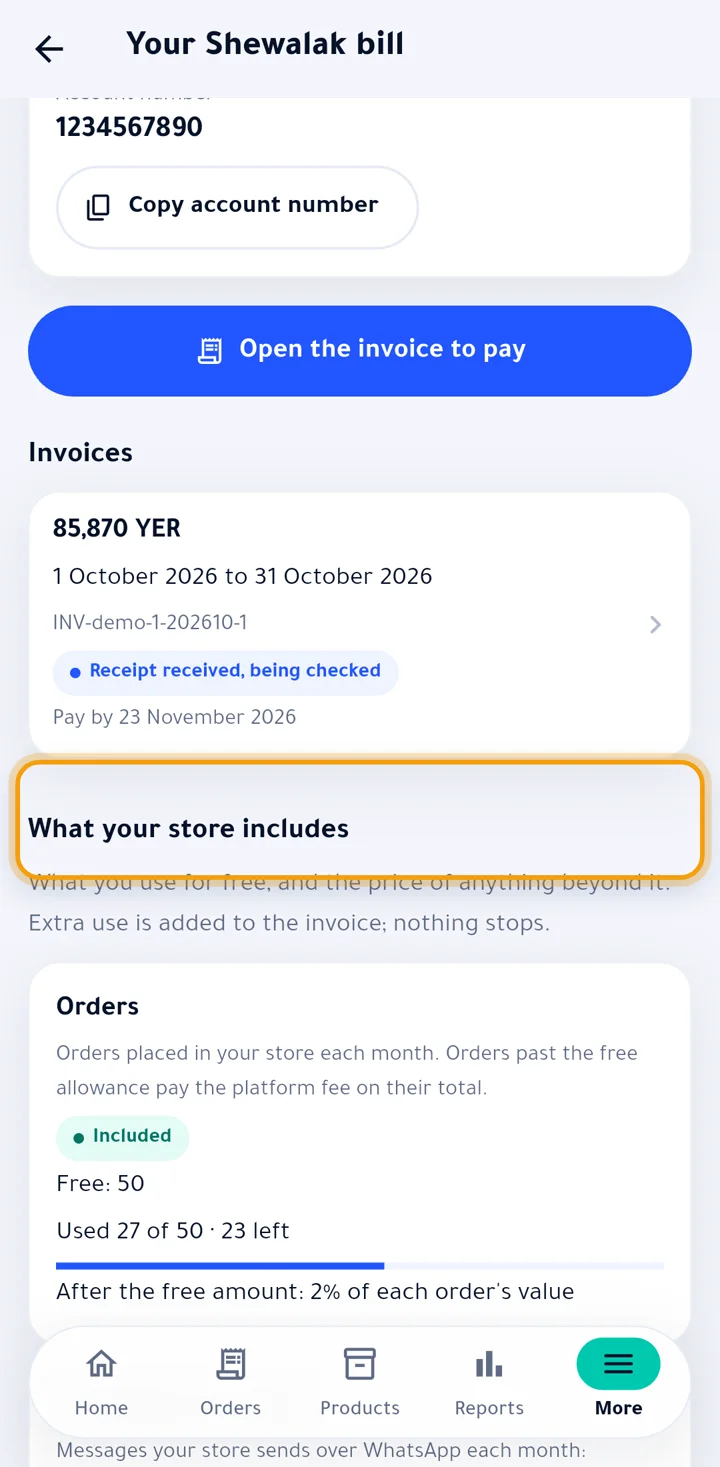
Further down, What your store includes lists every feature, such as orders, WhatsApp messages, products and staff accounts, with what is free, what you have used and the price after the free amount. Anything beyond it shows as Added to this month's invoice, and a feature your store cannot use shows Not available for your store.
3. The formula
Orders this month − free allowance = billable orders, then each billable order's value × the platform's dollar rate × the percentage = order fees, + feature overage = fee so far.
- Free orders are used up in the order the month's orders were created, and a cancelled order uses its place too.
- An order's fee is recorded only when the order is delivered, as a percentage of the order total, currently 2%. An order cancelled or rejected before the month closes has its fee removed.
- The percentage is set and announced in advance by the platform and frozen on each order when it is delivered, so a later change never touches what was already charged.
- The dollar rate for your store's currency is set by the platform and frozen on each order the same way. An order delivered before the platform has a rate for your currency shows on the meter as waiting for the rate; its fee is added when the month closes.
Example
Your store has 50 free orders a month, and 180 orders were created this month:
- 180 − 50 = 130 billable orders.
- 120 of them were delivered, totalling 600,000 YER-S, and 10 were cancelled.
- At a platform rate of 0.0019 USD per Sanaa riyal (about 526.32 YER-S to the dollar) those orders are worth 1,140 USD, and 1,140 × 2% = 22.80 USD in order fees; the cancelled orders carry no fee.
Had only 40 orders been created, all of them would be free and there would be no order fees.
Your Shewalak bill is in US dollars, whatever currency your store sells in. Each order's value is converted at the platform's rate for your store's currency on the day its fee is recorded, and that rate is kept on the order, so a later rate change never touches it. Each order's fee is rounded to the cent, so a month's total can differ from the example by a few cents. Extra-unit prices for other features are set in US dollars.
4. The monthly cap
The platform may set a Monthly fee cap; your invoice then never exceeds it, however many orders and how much usage you have. In the example above, a cap of 20 USD would make the invoice 20.00 USD instead of 22.80. The current setting is No cap, and you will be told before that changes.
5. Month close and the invoice
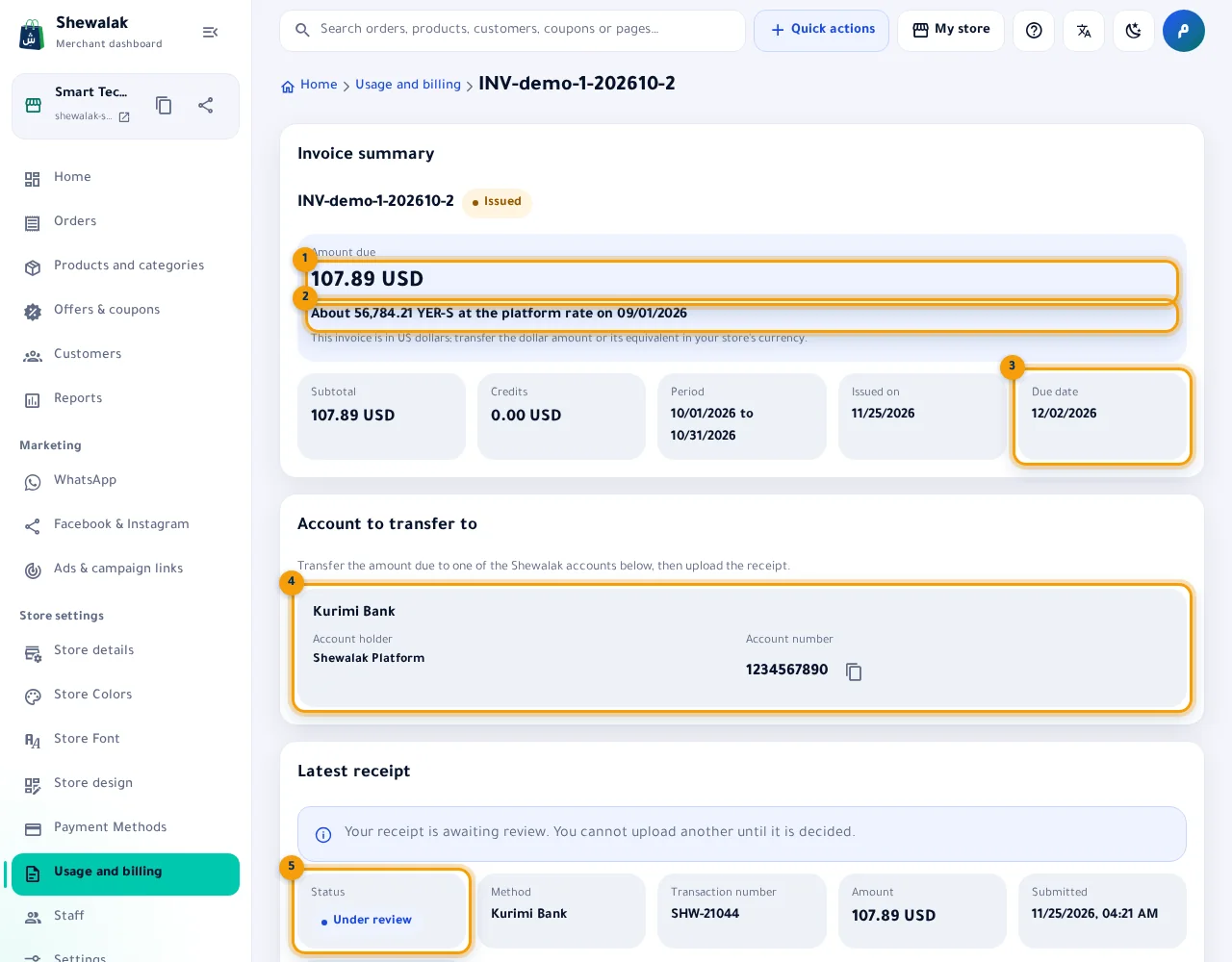
- The invoice closes automatically on the first day of the next month and covers the fees of the month that ended.
- Each store gets one invoice per month, numbered like
INV-{your-store}-202610-1. - The invoice appears in the Invoices list with the status Issued and you are notified; its Due date is 7 days after it is issued.
- The invoice lists the Charges order by order (order, order value, rate and fee), the Feature lines and any Credits; every figure can be matched against your order list.
A closed invoice is not worked out again, so an order cancelled after the close does not change it. If it was issued by mistake Shewalak cancels it, and it shows Void with nothing to pay.
What happens next
After the month closes you pay the invoice by transferring the amount and uploading the receipt from your dashboard; the full steps, the grace periods and what happens when payment is late are in How to pay your bill.
Last updated: 2026-11-25
All Billing and payments articles