Set your delivery cost, policy and areas
Choose how delivery is charged and write when and where you deliver; the customer sees it at checkout and in the confirmation, and it saves you the repeated questions.
Decide three things first: how delivery is charged (free, one fixed amount for every order, or agreed with the customer after the order), the cities or districts you deliver to, and the usual time.
You are reading the web way: your store dashboard in a computer browser.
1. Open store details
From Home select Set up delivery on the Get your store ready to sell card, or from the dashboard side menu under Store settings choose Store details, then scroll to the Delivery details card.
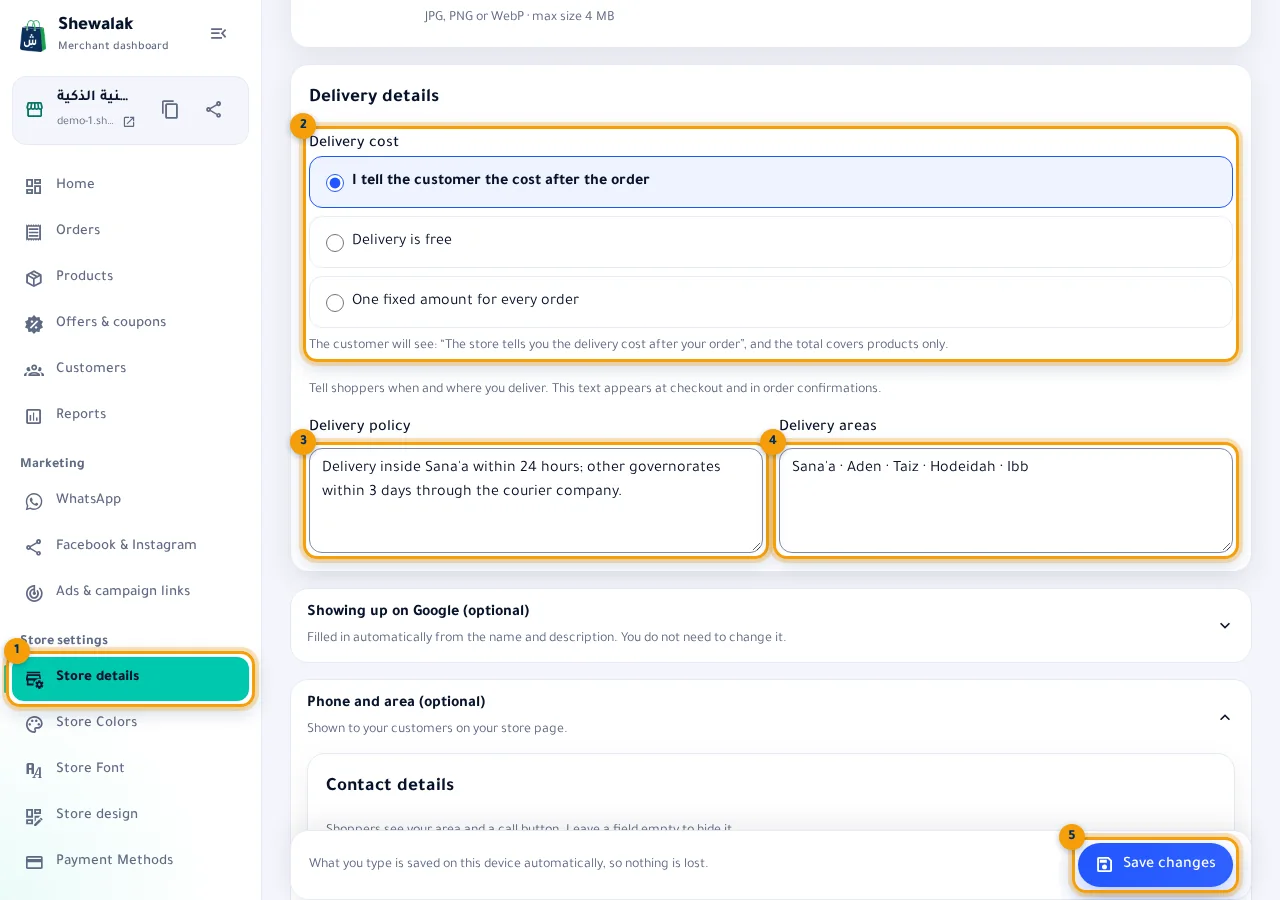
2. Choose the delivery cost
Under Delivery cost choose one:
- I tell the customer the cost after the order: the customer sees that the store tells them the delivery cost after the order, and the total covers products only.
- Delivery is free: the customer sees "Delivery: free".
- One fixed amount for every order: enter the Delivery amount in digits with no fractions, such as 500; the customer sees it and it is added to their order total.
A sentence under the options shows exactly what the customer will see.
3. Write the policy and the areas
- In Delivery policy write the sentence you tell every customer, for example:
Delivery inside Sana'a within 24 hours; other governorates within 3 days through the courier company. - In Delivery areas list them, for example:
Sana'a · Aden · Taiz · Hodeidah · Ibb.
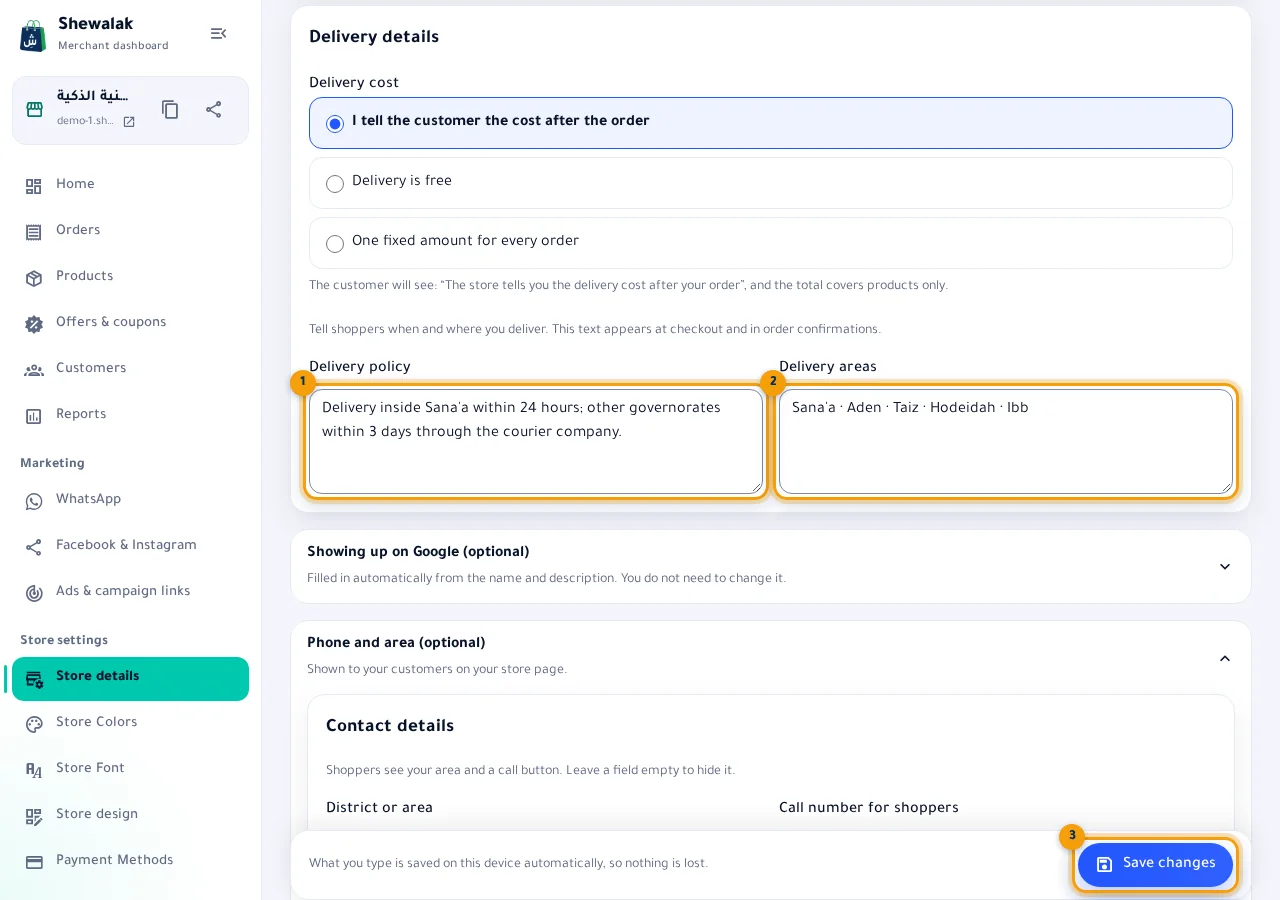
4. Save
Select Save changes in the bar at the bottom of the page. What you type is kept as a draft on this device until you save. The Set up delivery step on Home is marked Complete as soon as the policy field has text.
Be clear, not promising: "within 24 hours" beats "fast". A customer who knows the cost before ordering does not cancel afterwards.
You are reading the app way: the Shewalak merchant app on your phone.
1. Open store settings
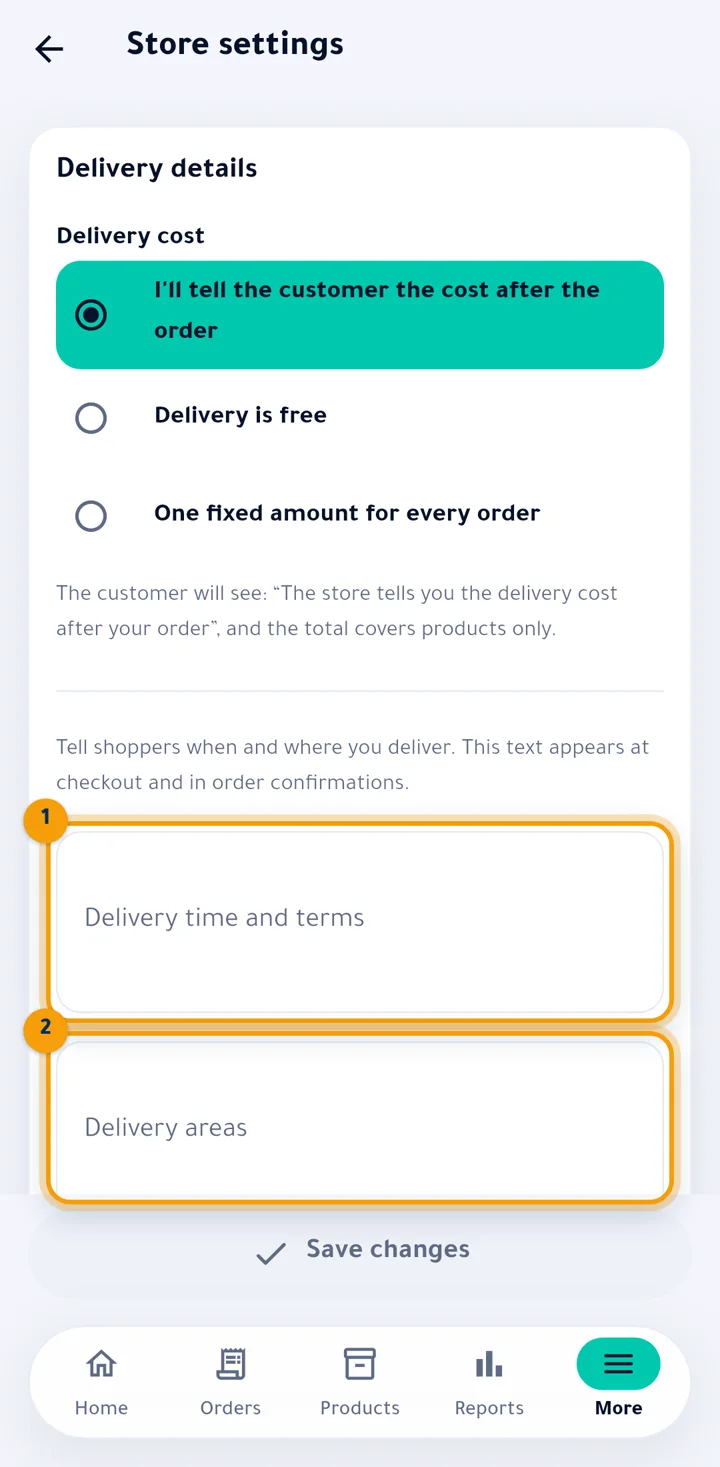
In the app, on Home tap Write your delivery details on the Get your store ready to sell card, or tap More in the bottom bar, then Store settings. Scroll to Delivery details.
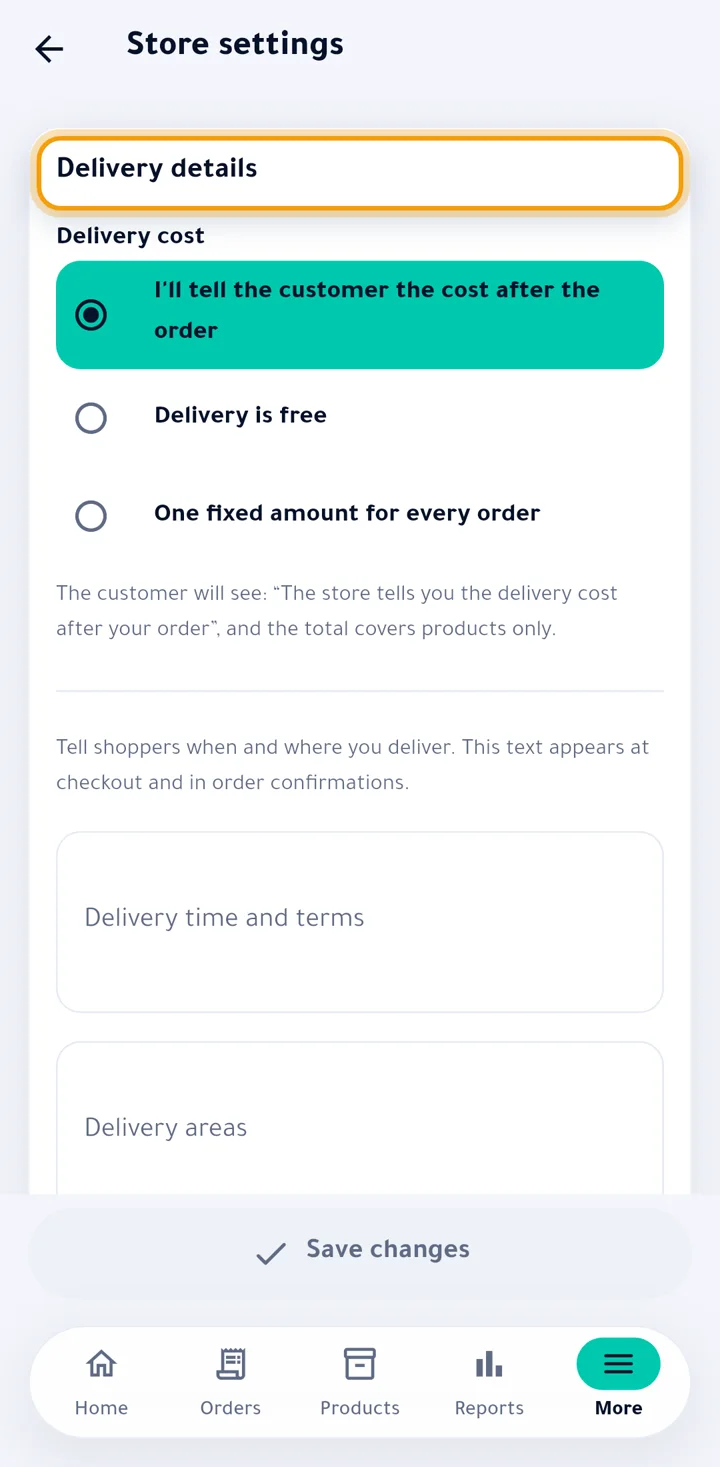
2. Choose the delivery cost
Under Delivery cost choose one:
- I'll tell the customer the cost after the order: the customer sees that the store tells them the delivery cost after the order, and the total covers products only.
- Delivery is free: the customer sees "Delivery: free".
- One fixed amount for every order: enter the Delivery amount in digits, such as 500; the customer sees it and it is added to their order total.
A sentence under the options shows exactly what the customer will see.
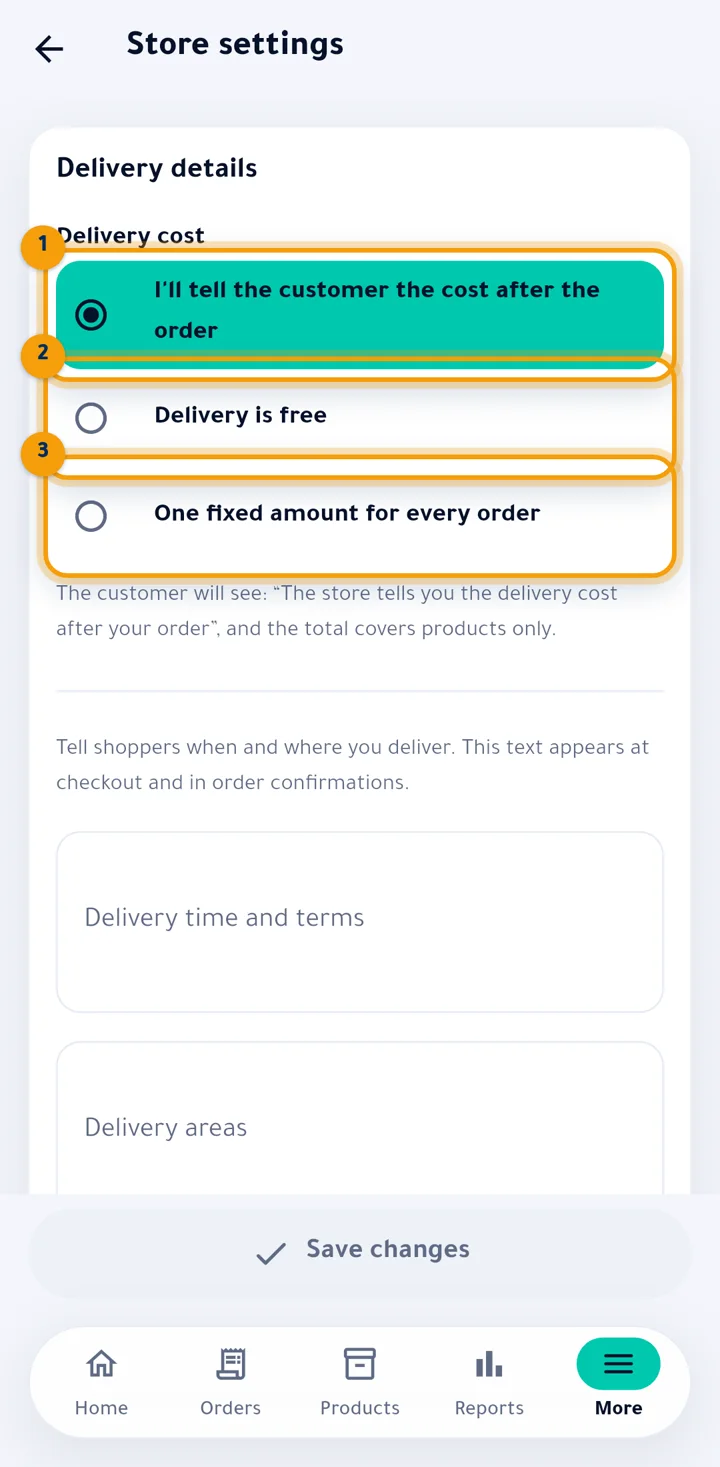
3. Write the policy and the areas
- In Delivery time and terms write the sentence you tell every customer, for example:
Delivery inside Sana'a within 24 hours; other governorates within 3 days through the courier company. - In Delivery areas list them, for example:
Sana'a · Aden · Taiz · Hodeidah · Ibb.
4. Save
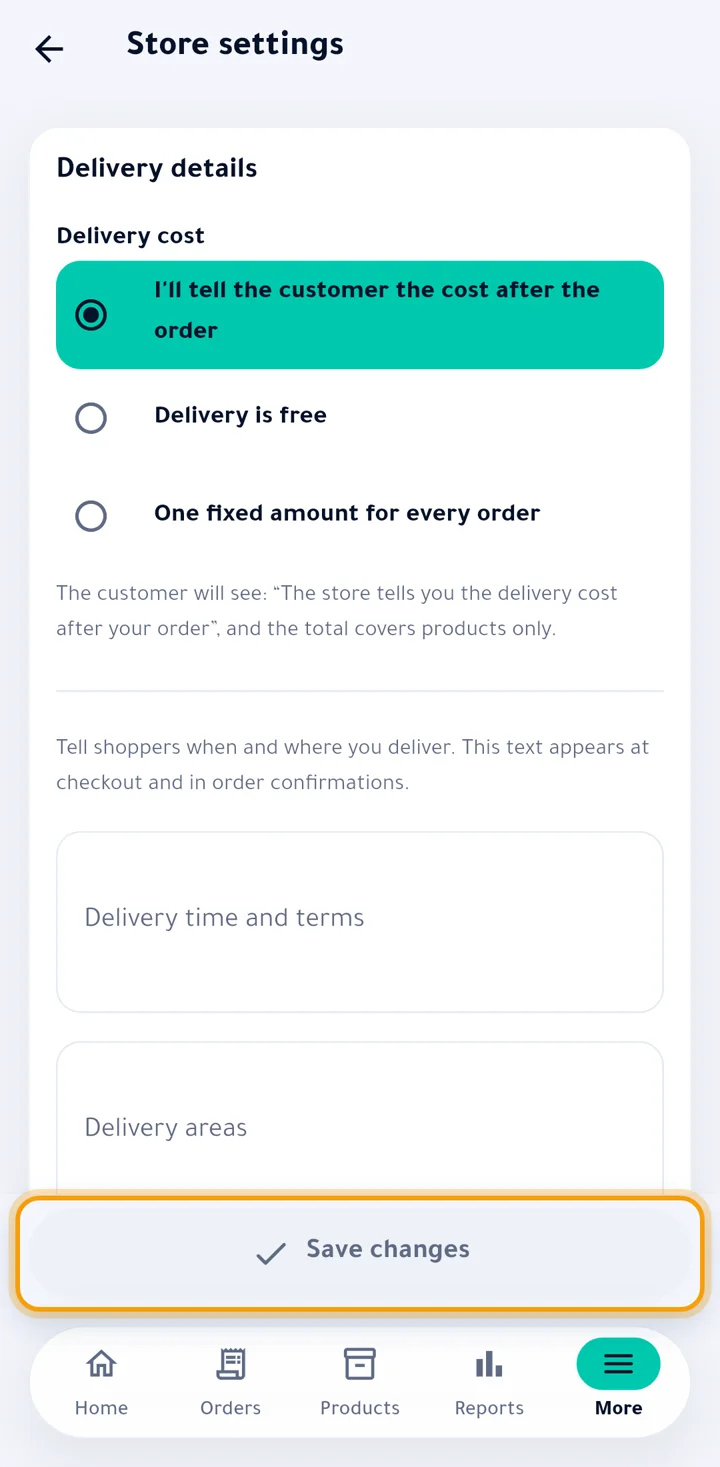
Tap Save changes. You see Store settings saved successfully. If you leave before saving, the app brings back what you wrote the next time you open the page.
Be clear, not promising: "within 24 hours" beats "fast". A customer who knows the cost before ordering does not cancel afterwards.
Where your text appears
- On the Checkout page before the customer confirms the order, together with the delivery cost you chose.
- In the Order confirmation the customer receives on WhatsApp.
- On the Terms page among your store pages if you refer to it there.
What happens next
The next checklist step: Store colours and logo.
Last updated: 2026-11-19
All Store settings articles