Manage your first order from arrival to delivery
Open the new order, check the customer and products, move it to the next step in one tap, and record the collection on delivery.
Every order from your store arrives in Orders as New. If WhatsApp is connected the customer receives a confirmation at once, and you get an alert on the store number. On Home, the Open tasks card counts the new orders waiting for you to accept them.
You are reading the web way: your store dashboard in a computer browser.
1. Open the order list
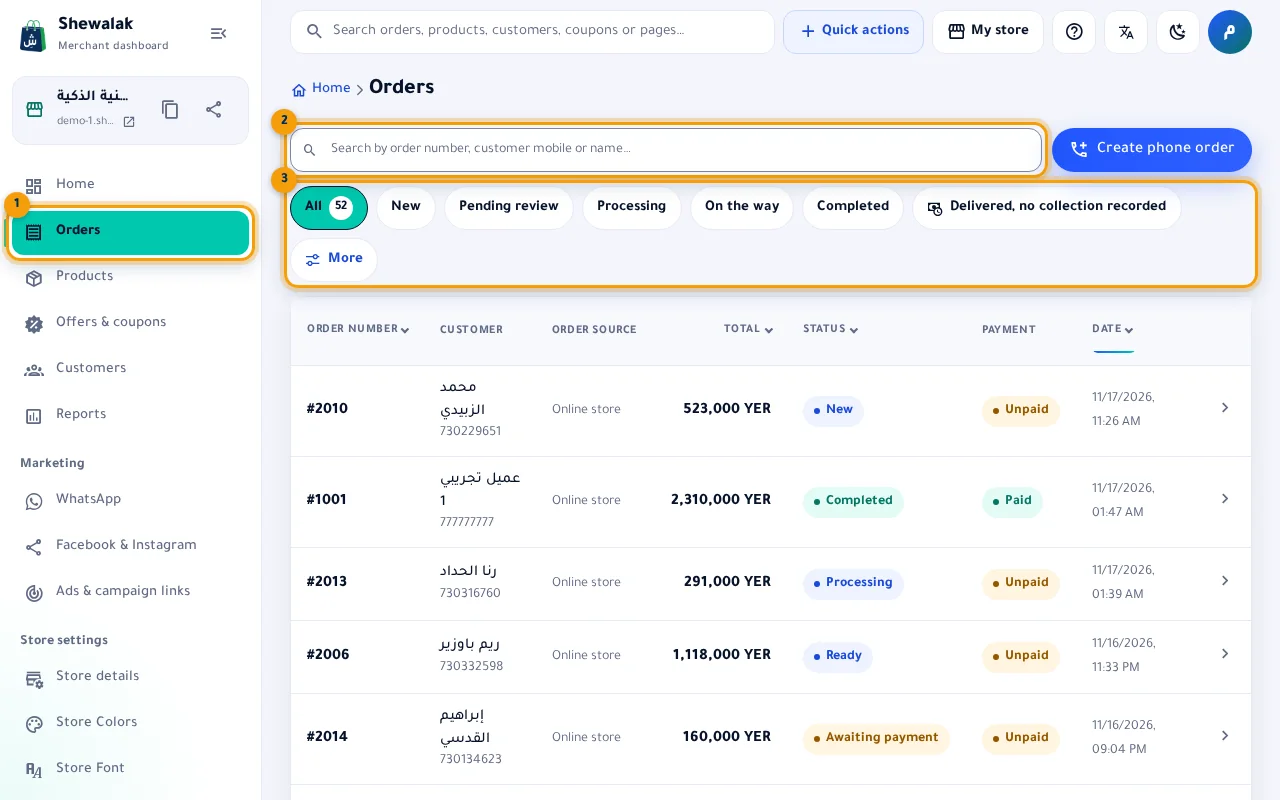
From the dashboard side menu choose Orders. Each order shows its number, customer, Order source, Total, Status, Payment and date.
- Type an order number, customer mobile or name in the search box.
- Select a filter: All, New, Pending review, Processing, On the way, Completed or Delivered, no collection recorded. More holds the other statuses and Payment status.
2. Check the order details
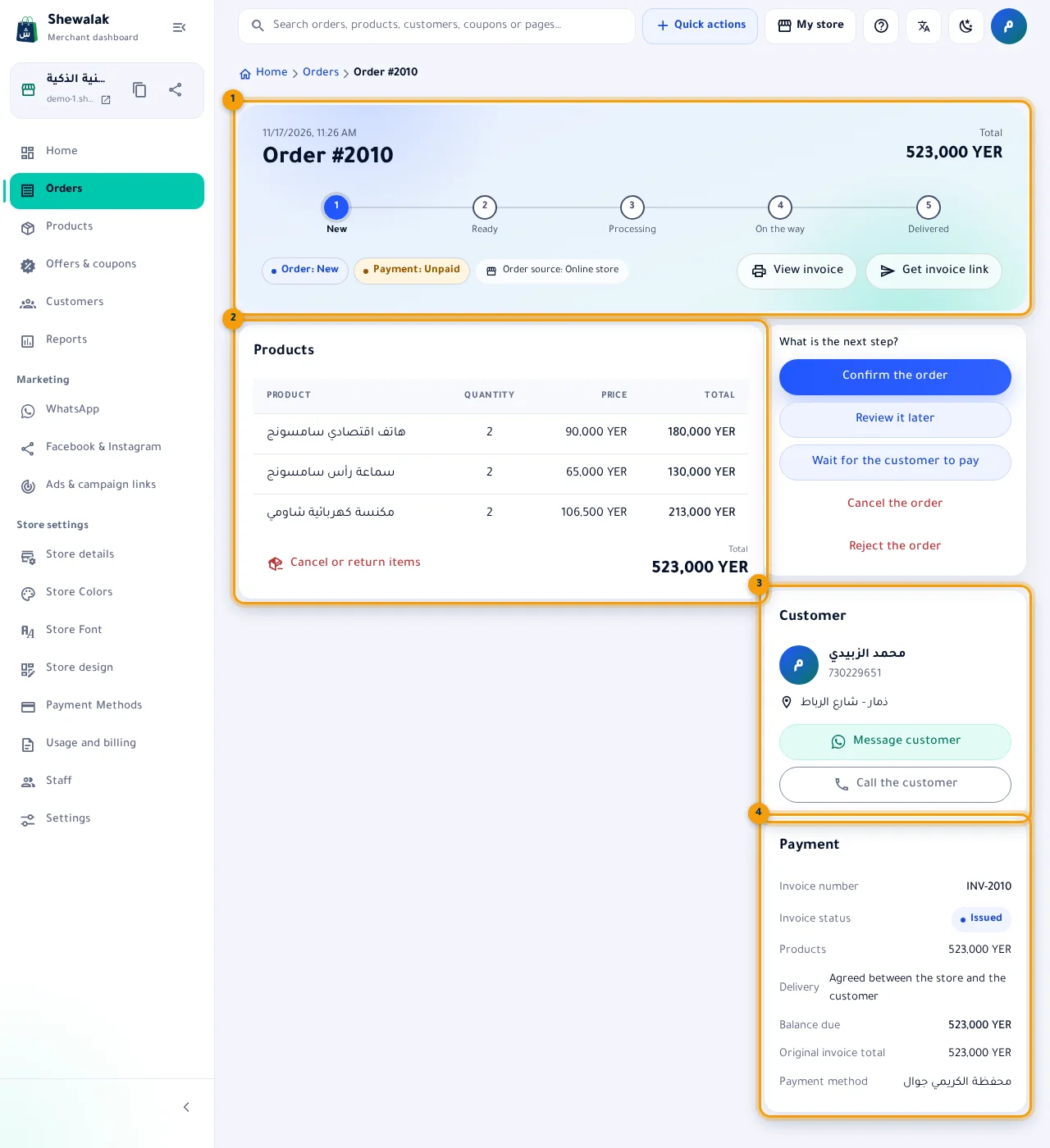
Select the order to open it. You find:
- The top of the page: the order number, date and total, the status path from New to Delivered, and the View invoice and Get invoice link buttons for sending the invoice to the customer.
- Products with quantity, price and total.
- Customer: name, mobile and delivery address, with Message customer on WhatsApp and Call the customer.
- Payment: the invoice number and status, the Balance due and the Payment method the customer chose.
3. Move the order to its next step
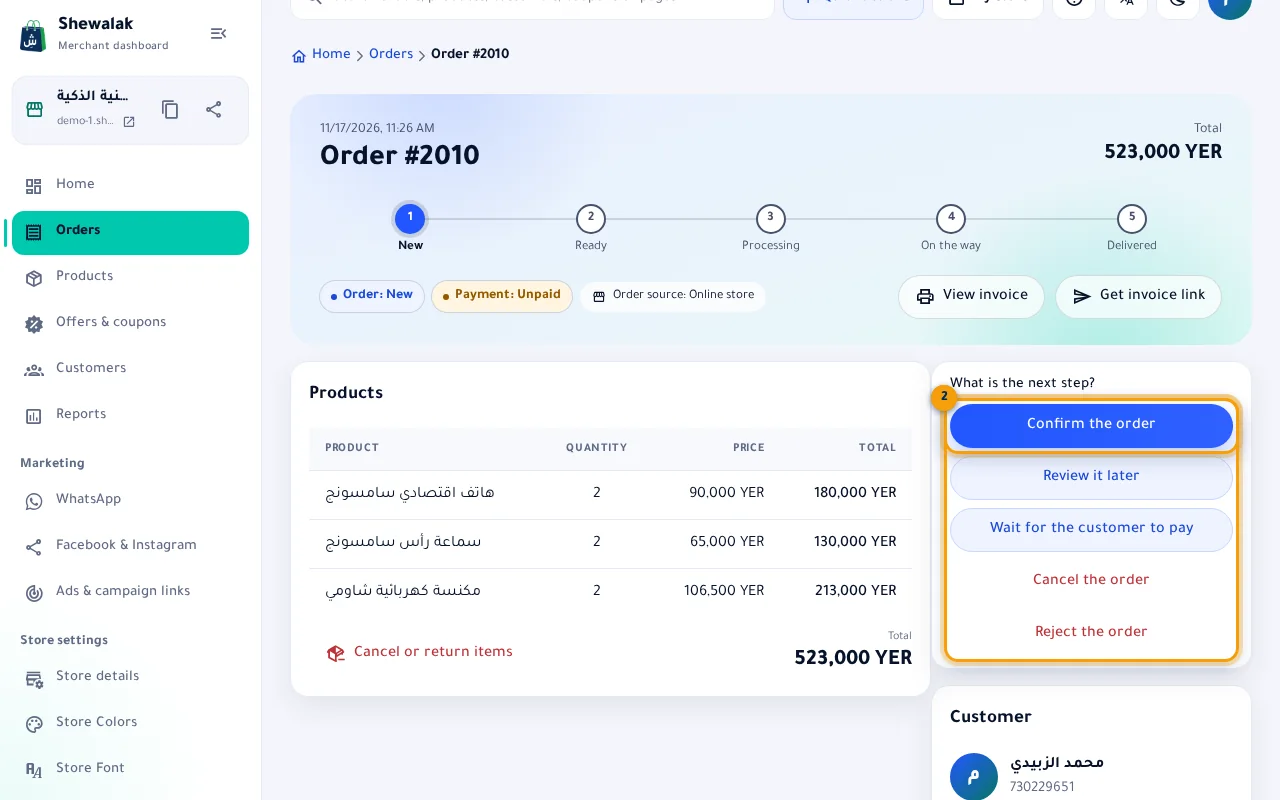
The What is the next step? card shows the action that fits the order's status as one prominent button:
- Confirm the order for a new order; its status becomes Ready.
- Start preparing when you begin; it becomes Processing.
- Out for delivery when it leaves with the courier (On the way), or Ready for handover if the customer collects it.
- Delivered to the customer, then Finish the order so it becomes Completed.
Other options holds Review it later, Wait for the customer to pay, Cancel the order and Reject the order.
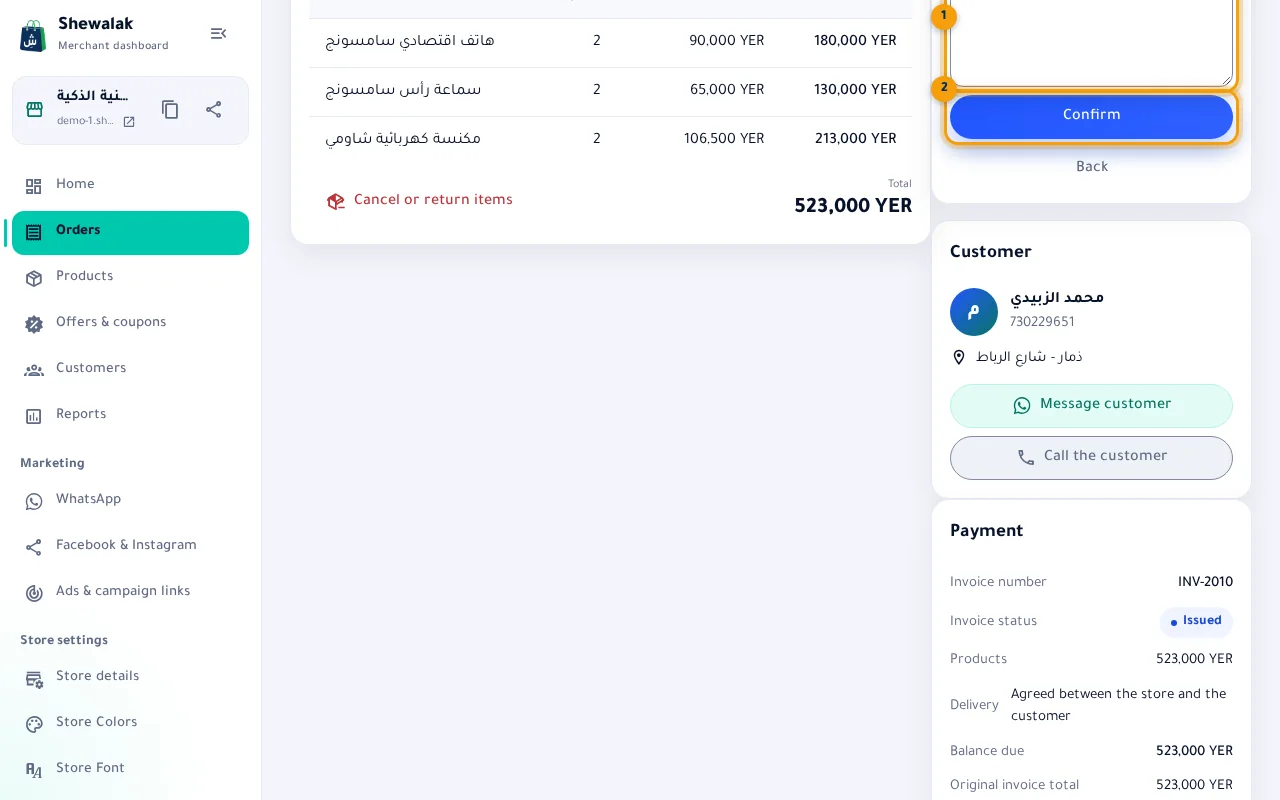
After you tap, the sentence The order status will become: … lets you check the change. Write anything useful for the order history in Note (optional), such as the courier's name, then select Confirm. When cancelling or rejecting, the field becomes Reason (required). If WhatsApp is connected and Order status updates is on, the customer receives an update with every change.
4. Record the collection on delivery
For cash on delivery, Record cash collection appears under What is the next step? once the order is delivered. Select it, then:
- Under How much did you receive? choose Whole balance or Part of it (which adds the Amount received field).
- Enter the Receipt or voucher number (optional) if you have one.
- Select Confirm collection.
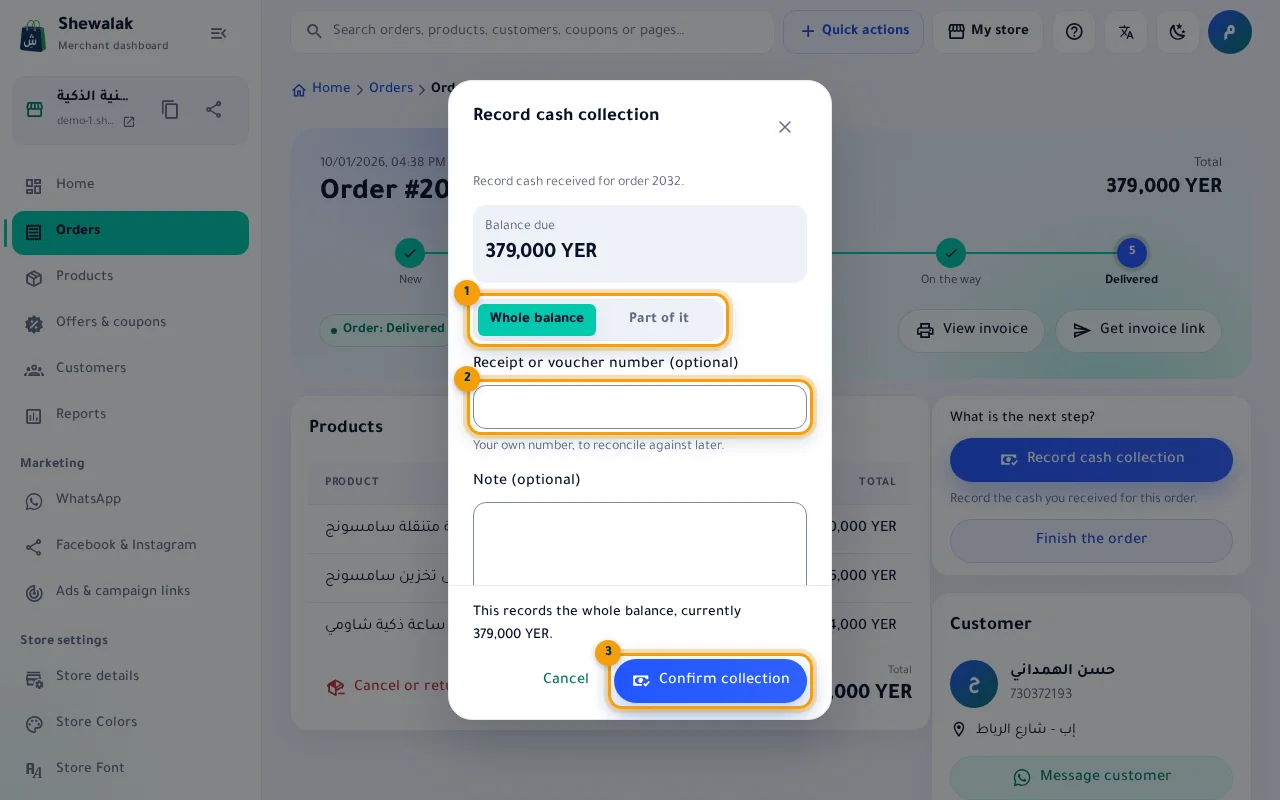
Once the whole balance is collected the payment status becomes Paid and the order leaves the Delivered, no collection recorded filter. To reach every order still waiting for its money, use Quick actions → Record a cash collection at the top of the dashboard.
If the customer backs out
On the Products card select Cancel or return items, choose Whole order or Selected items, enter the Reason (required and kept in the order history), then Confirm return. Quantities go back into stock and a cancelled order's invoice is voided.
You are reading the app way: the Shewalak merchant app on your phone.
1. Open the order list
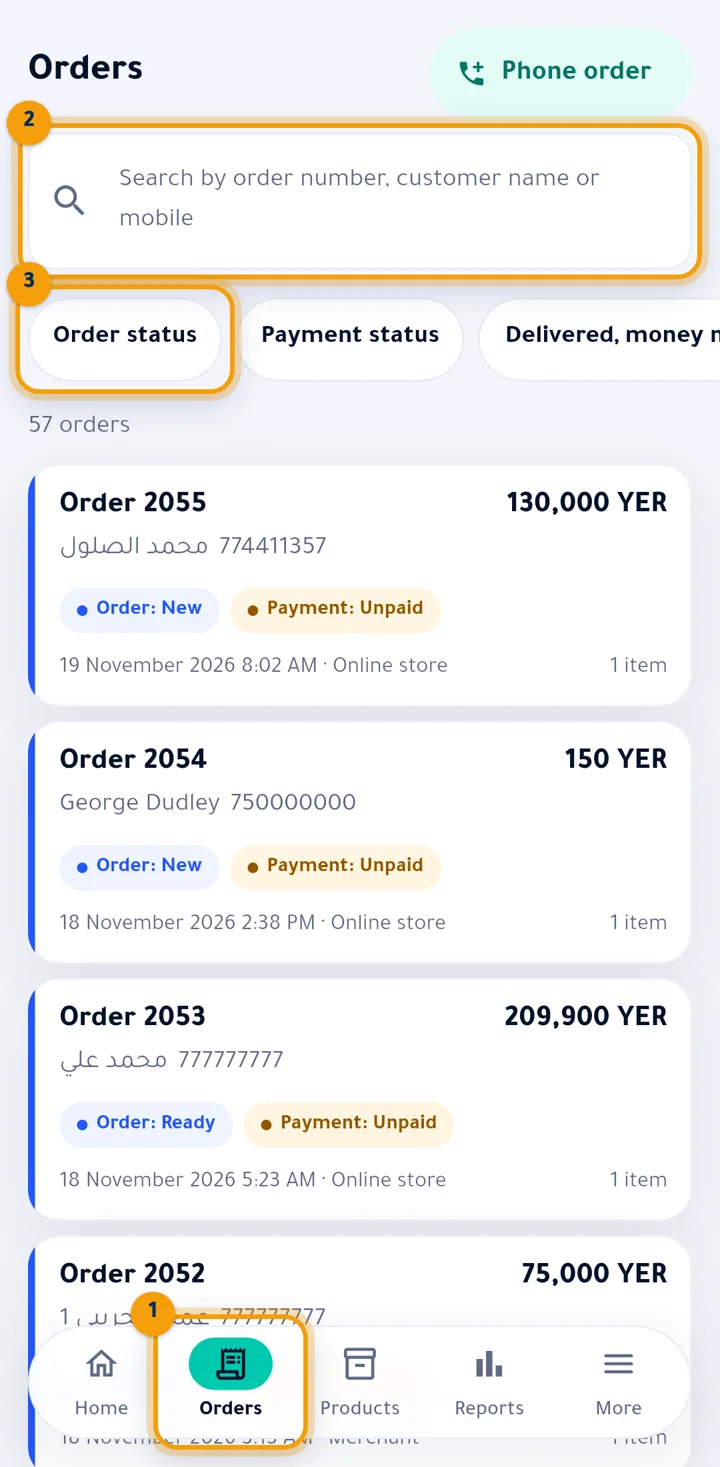
In the app, tap Orders in the bottom bar. Each order shows its number, customer, status and total.
- Type an order number, customer name or mobile in Search by order number, customer name or mobile.
- Under the search box, tap a chip: Order status (then pick New, Pending review, Processing, On the way, Completed or another status), Payment status, or Delivered, money not recorded to see delivered orders whose money is not yet recorded.
2. Check the order details
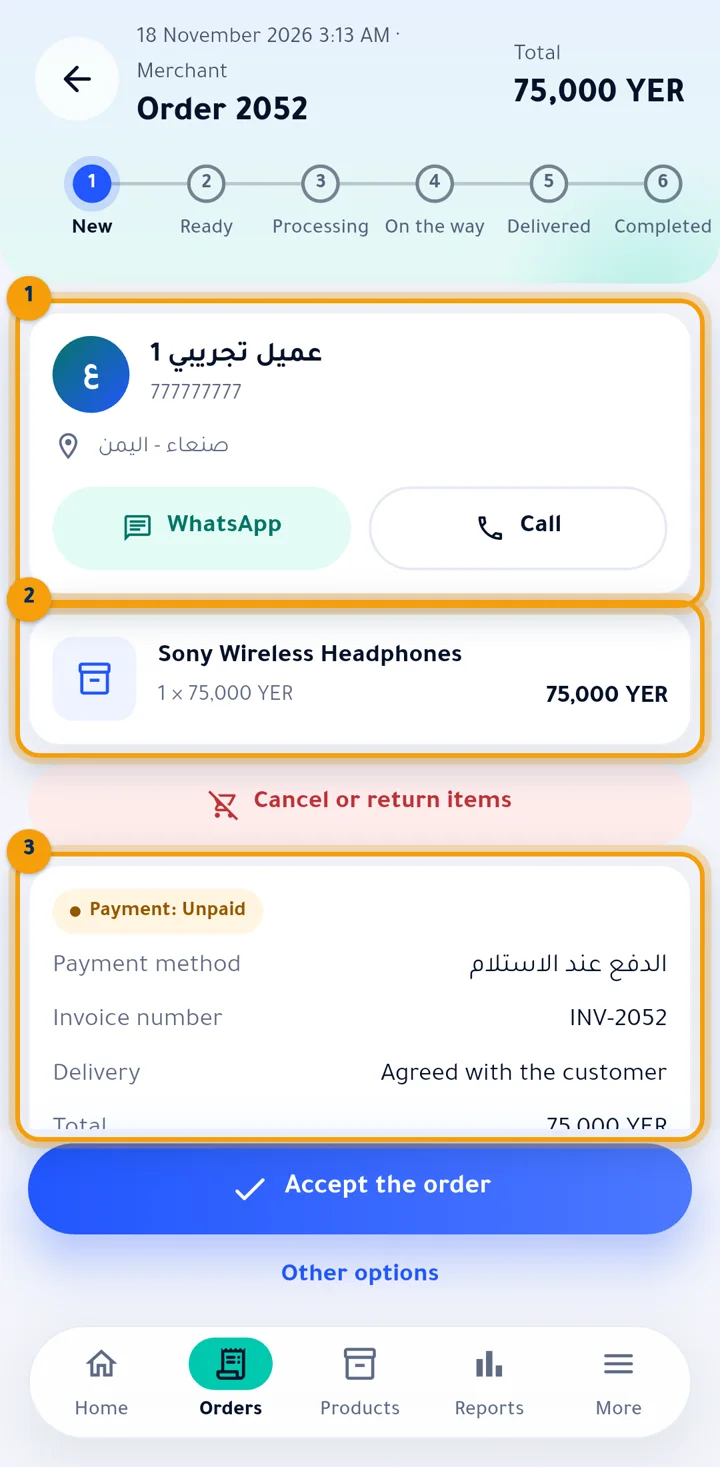
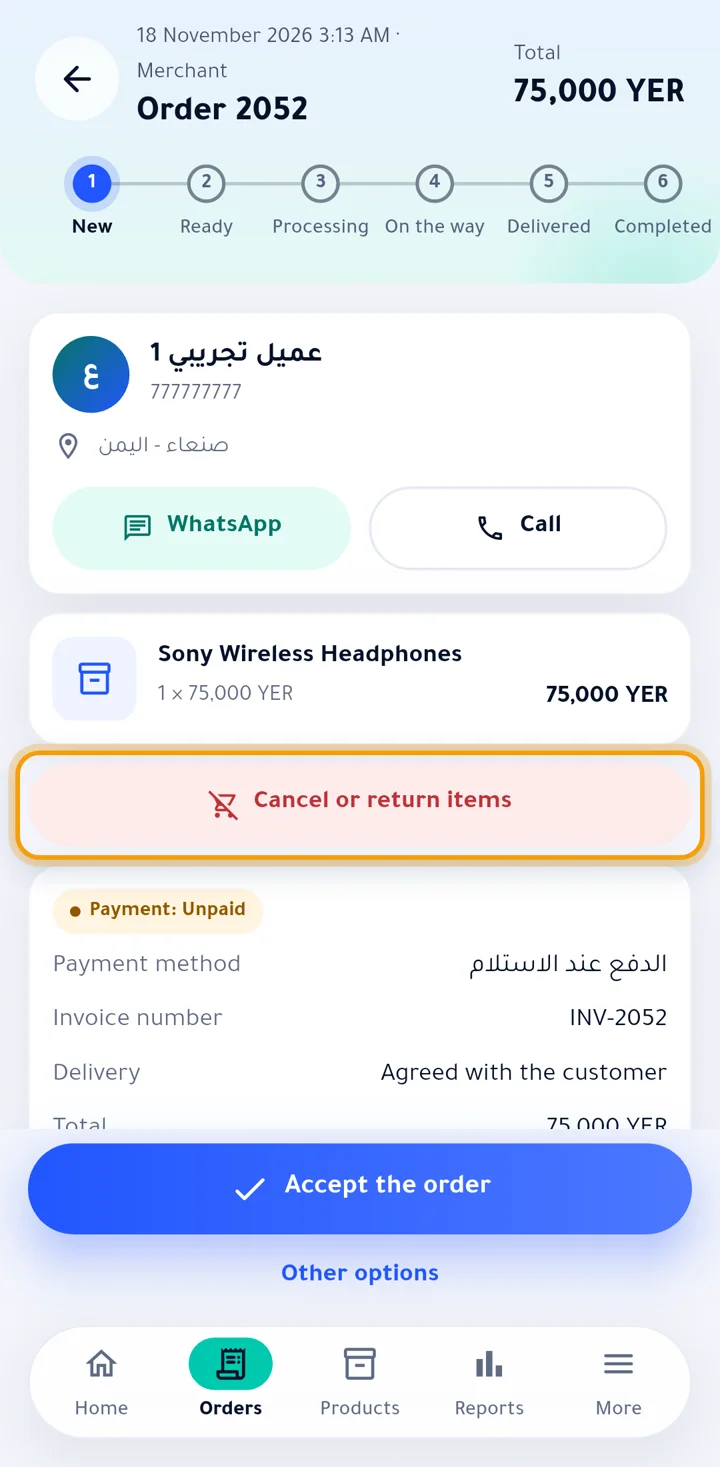
Tap the order to open Order details. You find:
- The order number, status and total, with the status path.
- Items ordered with quantity and price.
- Customer: name, address and customer's note, with WhatsApp and Call buttons.
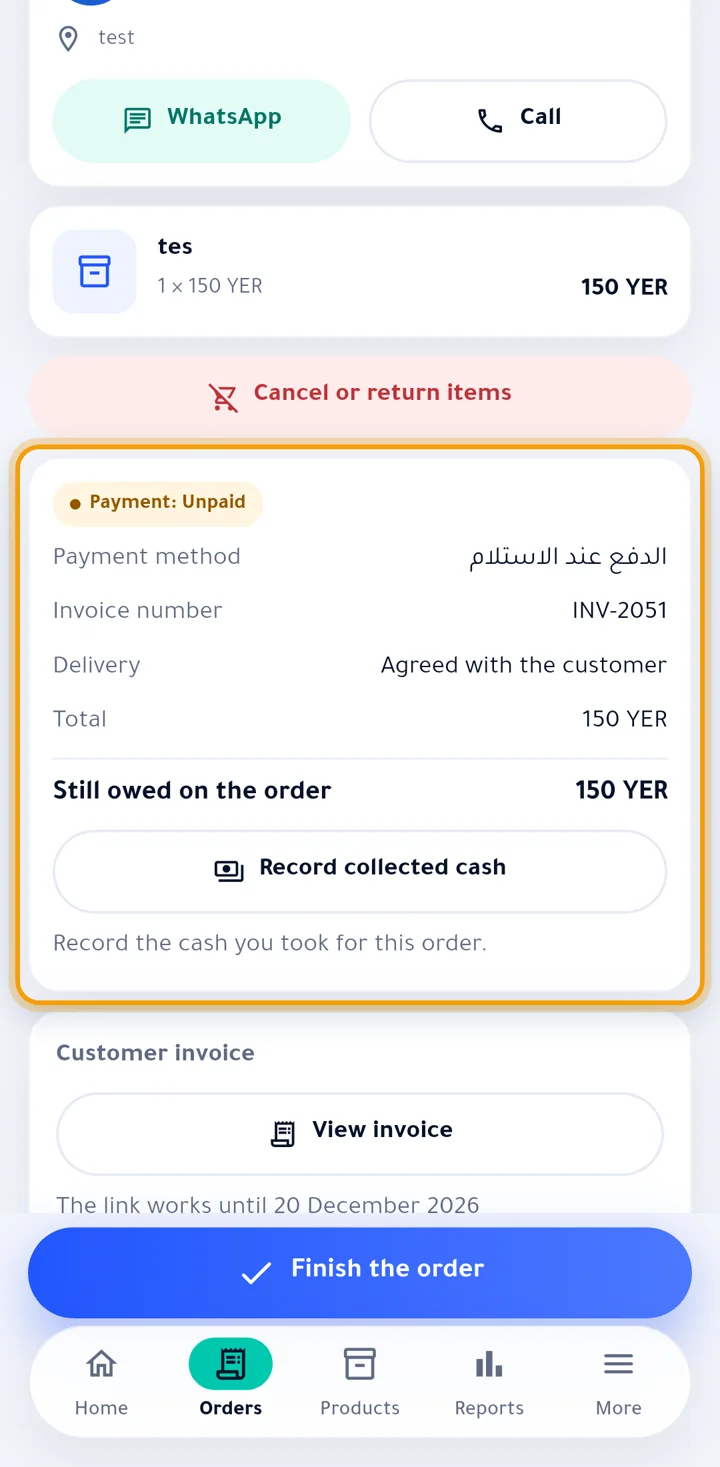
- Payment: the invoice number, Payment method and Still owed on the order.
- Customer invoice: tap Share invoice to send it, or Send on WhatsApp.
3. Move the order to its next step
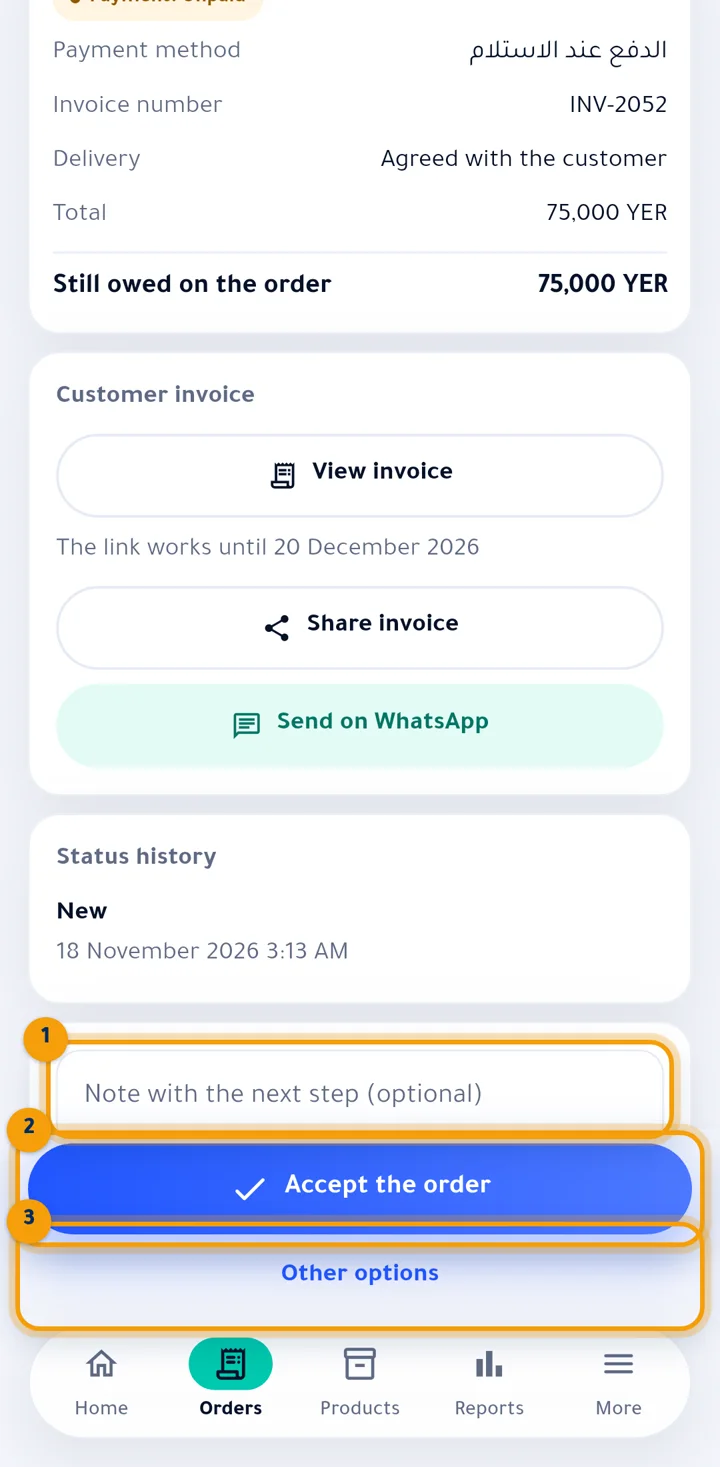
At the bottom of the order page one button shows the step that fits the order's status:
- Accept the order for a new order.
- Start preparing the order when you begin.
- Send the order to the customer when it leaves with the courier, or The order is ready to hand over if the customer collects it.
- I delivered the order, then Finish the order.
Tap Other options for Hold the order for review, Wait for the customer to pay, Cancel the order and Reject the order; Choose the next step lists every step available.
Write anything useful for the order history in Note with the next step (optional), such as the courier's name, then confirm. Cancel, reject and delivered ask you to confirm once more. The order now shows The order is now: …, and if WhatsApp is connected the customer receives an update.
4. Record the collection on delivery
For cash on delivery, tap Record collected cash on the order page once it is delivered. Then:
- Choose I took everything still owed or I took part of it (which adds Amount you took).
- Enter the Receipt or voucher number (optional) if you have one.
- Tap Record the money received.
Once the whole balance is recorded the order is paid and leaves Delivered, money not recorded. To reach every order still waiting for its money, on Home tap Record cash received under Shortcuts.
If the customer backs out
On the order page tap Cancel or return items, choose Whole order or Selected items, write the Reason (required and kept in the order history), then tap Confirm return. Quantities go back into stock.
What happens next
The customer is added automatically to your list. Next: know your customers.
Last updated: 2026-11-19
All Orders and customers articles