Review and publish customer reviews
Reviews do not appear in your store until you publish them; check them on the Reviews tab, publish the useful ones and reject the abusive ones.
Customers review your products after they receive their order. Nothing is published automatically: every review reaches the Reviews tab as Awaiting review until you decide.
You are reading the web way: your store dashboard in a computer browser.
1. Open reviews
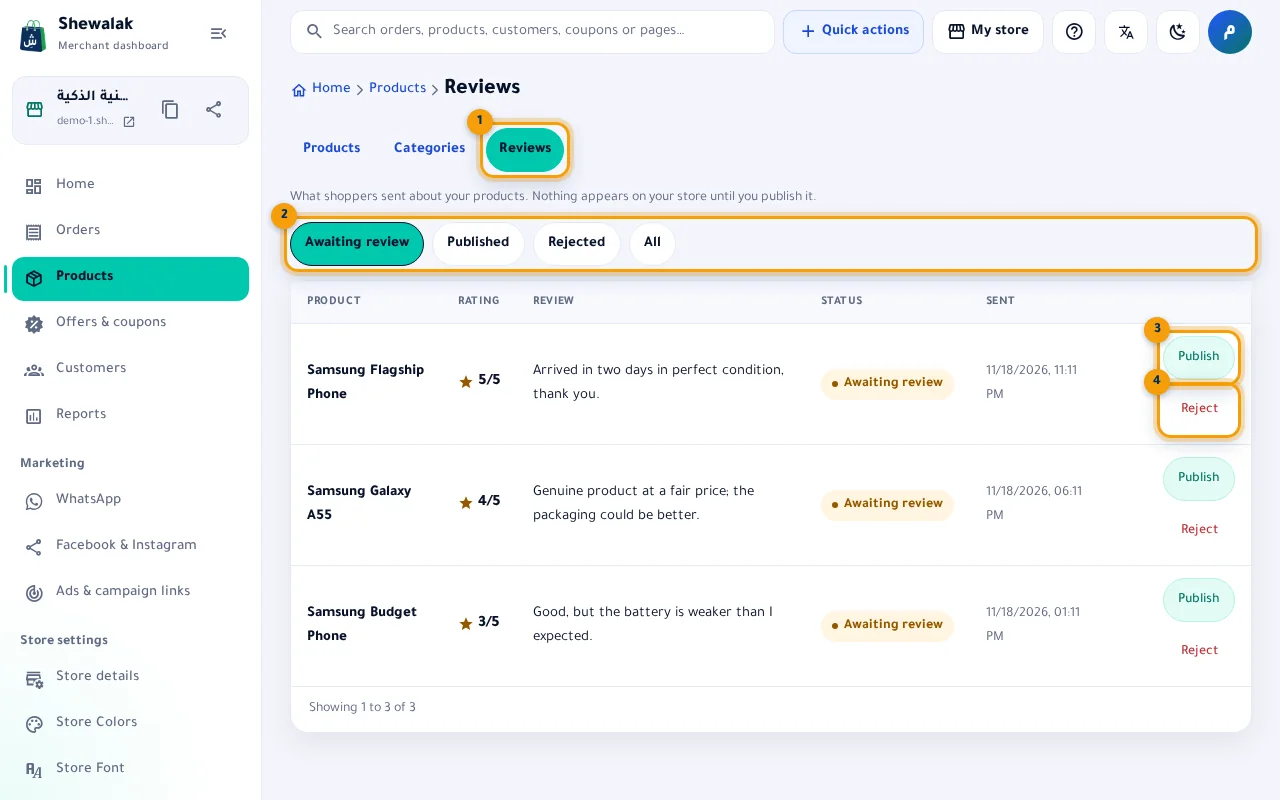
From the side menu choose Products, then select the Reviews tab at the top of the page. The table shows the Product, the star Rating out of 5, the Review text, the Status and when it was Sent. Use the filter buttons to move between Awaiting review, Published, Rejected and All.
2. Publish or reject
Every review awaiting review has two buttons:
- Publish: the review appears immediately under the product in your store, and you see The review is now on your store.
- Reject: it is kept under Rejected and nobody else sees it.
Select the product name on any row to open that product.
Publish honest reviews even at 3 stars; a store with a mix of ratings looks more trustworthy than one with nothing but 5 stars.
You are reading the app way: the Shewalak merchant app on your phone.
1. Open reviews in the app
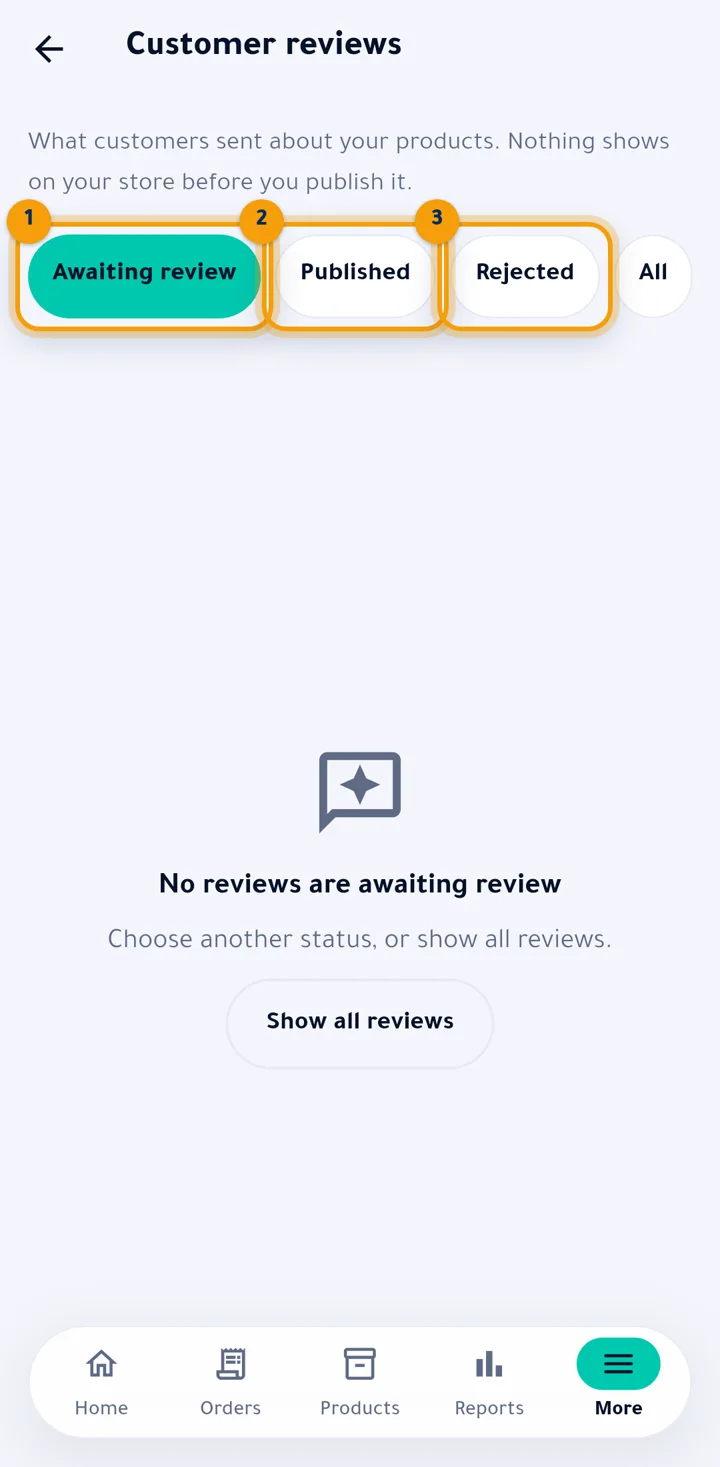
In the bottom bar tap More, then Customer reviews. Each review is a card with the stars, the text, the product it is about and when it was sent. Use the filters at the top to move between Awaiting review, Published, Rejected and All.
2. Publish or reject in the app
Every review awaiting review has two buttons:
- Publish: the review appears in your store and you see The review is now on your store.
- Reject: it is kept under Rejected and nobody else sees it.
Tap Read the whole review for a long one, and Open the product to see what it is about.
Publish honest reviews even at 3 stars; a store with a mix of ratings looks more trustworthy than one with nothing but 5 stars.
What happens next
Every review you publish shows under its product in your store and stays under Published. If you have no reviews yet, they start arriving once your customers receive their orders. Next: manage your first order.
Last updated: 2026-11-19
All Products and categories articles